meta data for this page
Total Launcher Resources Guide: Customizing Android Home Screen Layouts
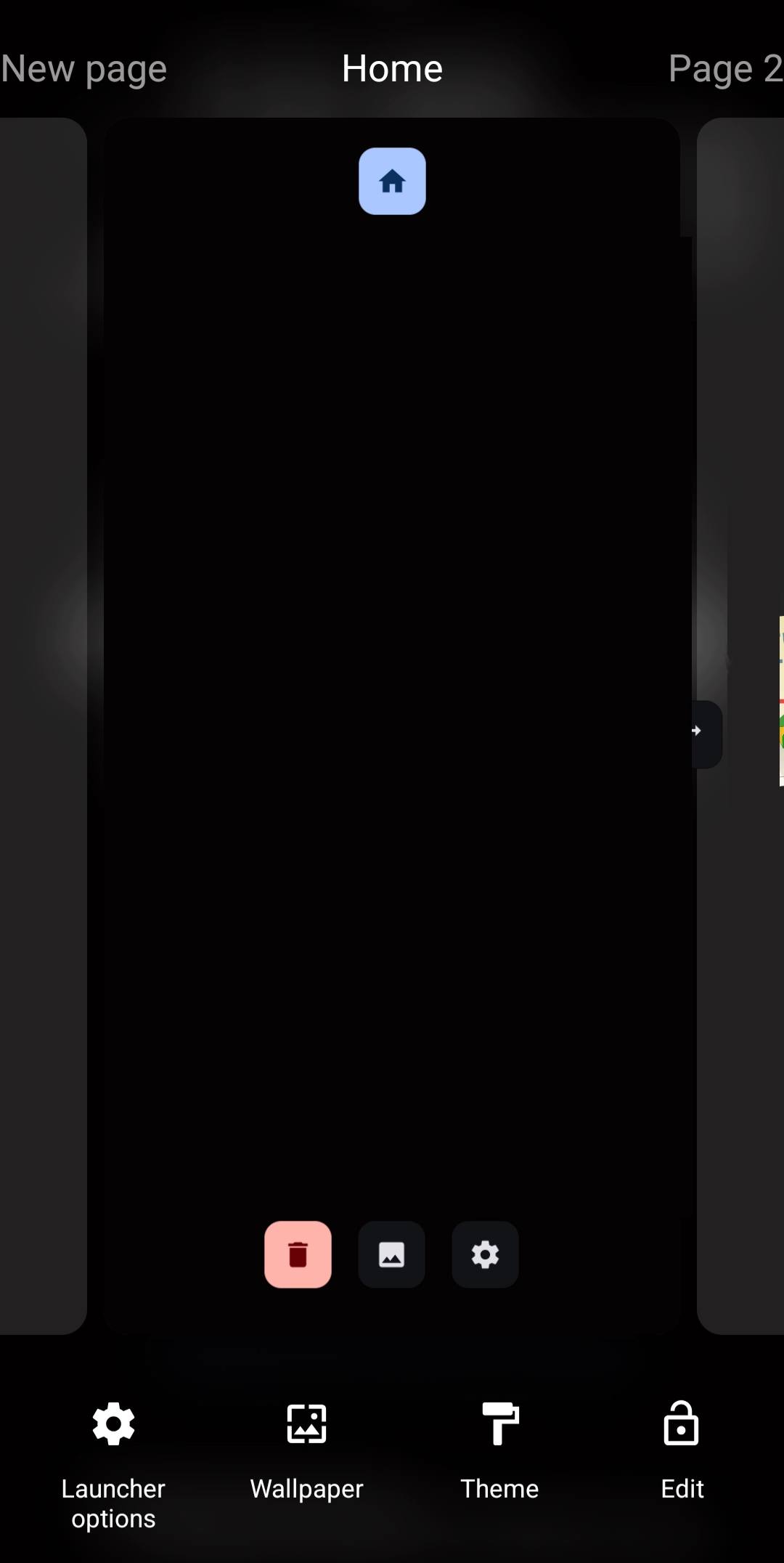
Total Launcher features a robust built-in resource management system that acts as the central repository for all custom Android layout assets, including unique fonts, shapes, dynamic images, and automated action sequences. Using these centralized resource categories streamlines the home screen design process, ensuring modified elements remain saved in the application for quick reuse across multiple custom setups. Mastering the interface's storage, categorization, and editing tools makes advanced layout configuration faster and more organized. To begin configuring these advanced design features, enter the Total Launcher Edit Mode, navigate to Launcher options, and select Resources.
Resource Center Access:
 ↔
↔ 
Resource Categories
- Shape - Built-in forms include rectangle, round rectangle, oval, and arc designs which can be manipulated by the user. A complete discussion is available in Resource - Shape.
- Image- Compatible formats: ico, gif, jpg, jpeg, png, webp. These are also discussed in Resource - Image.
- Dynamic image – Objects that change based on various inputs, such as notification badges or counts, time and calendar events, time-based actions, and more. See Resource - Dynamic Image for more details.
- Shadow – The appearance of light, darkness, and color can be created for a selected object at a determined angle. See Resource - Shadow for more details.
- Typeface - Basic fonts are pre-installed in Total Launcher. This dialog lets the user install a single font or a font folder on their device. See Resource - Typeface for more details.
- Sound – Compatible formats: mp3, ogg. See Resource - Sound for more details.
- Window – A window is a container for objects. It can be “hidden” and made visible by another object's action, with animation. Windows can also replace “pages”. See Resource - Window for more details.
- Sequence – An action or multiple ordered actions which can be repeated. Objects can be assigned a sequence to automate the series of actions. See Resource - Sequence for more details.
Resource Dialog:
- When in one of the 8 resource categories, the dialog will show any previously created, imported, and saved objects. The dialog is identical across all categories, except where noted. See Figures 1-8.
Figure 1 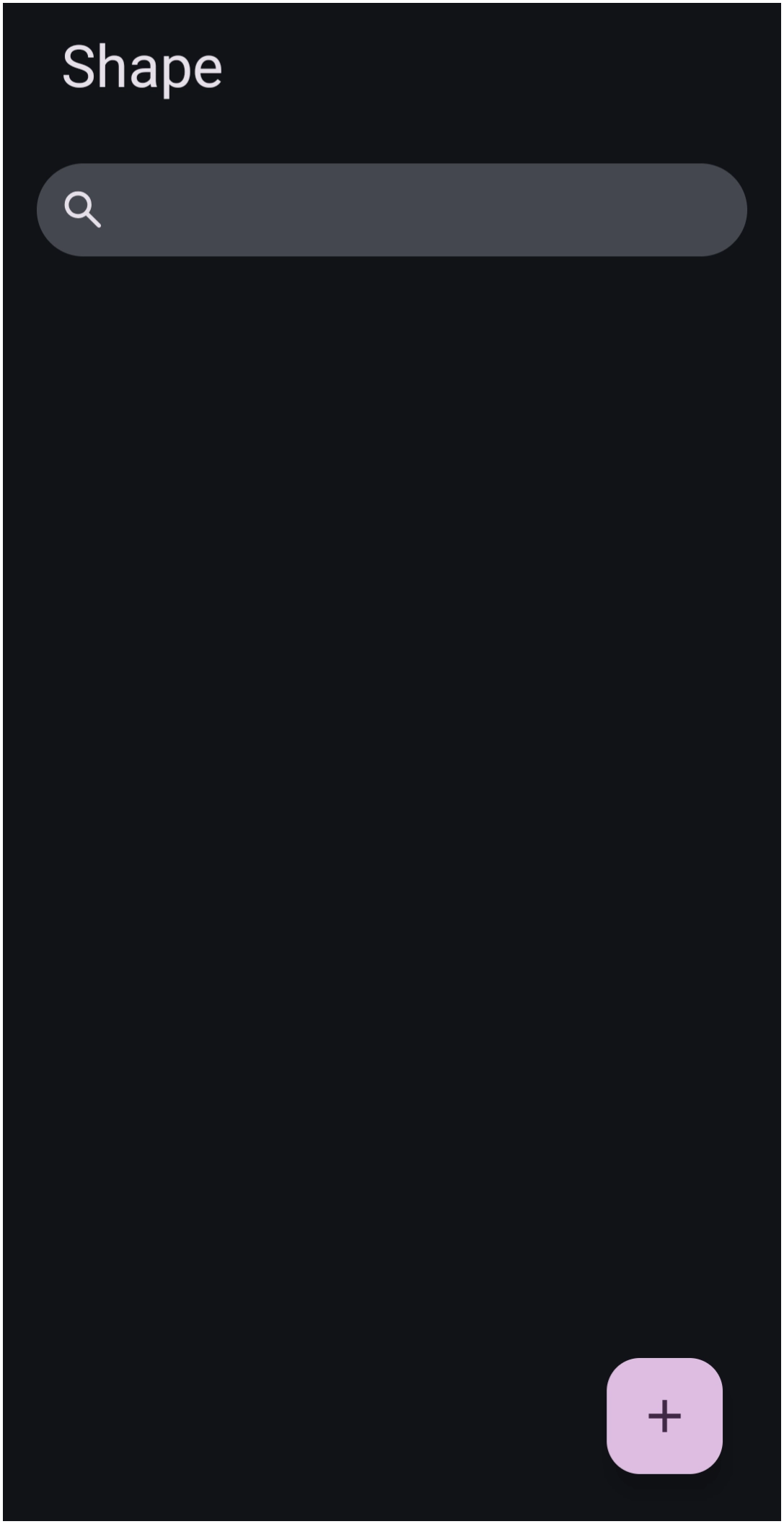 | Figure 2 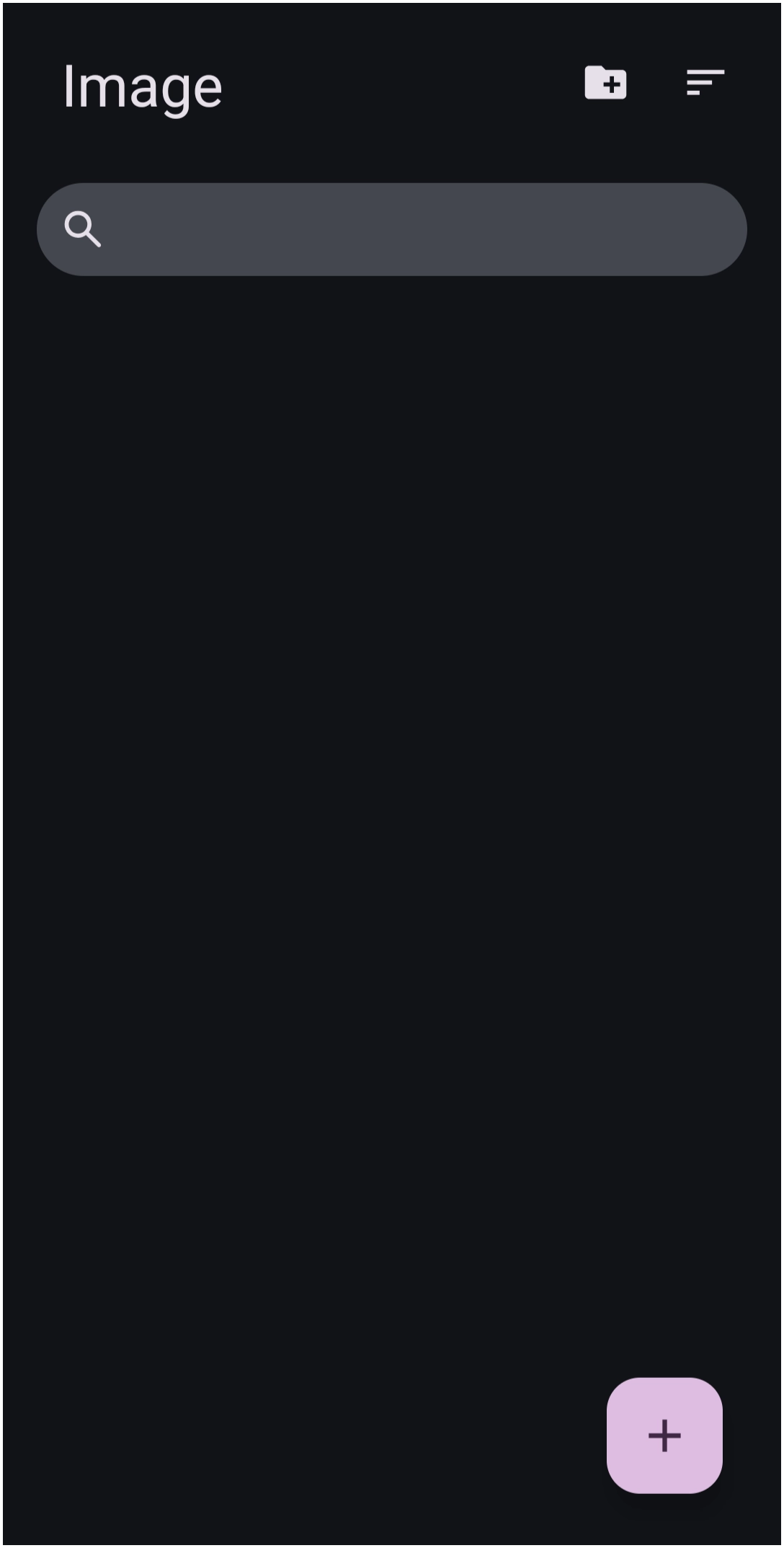 | Figure 3 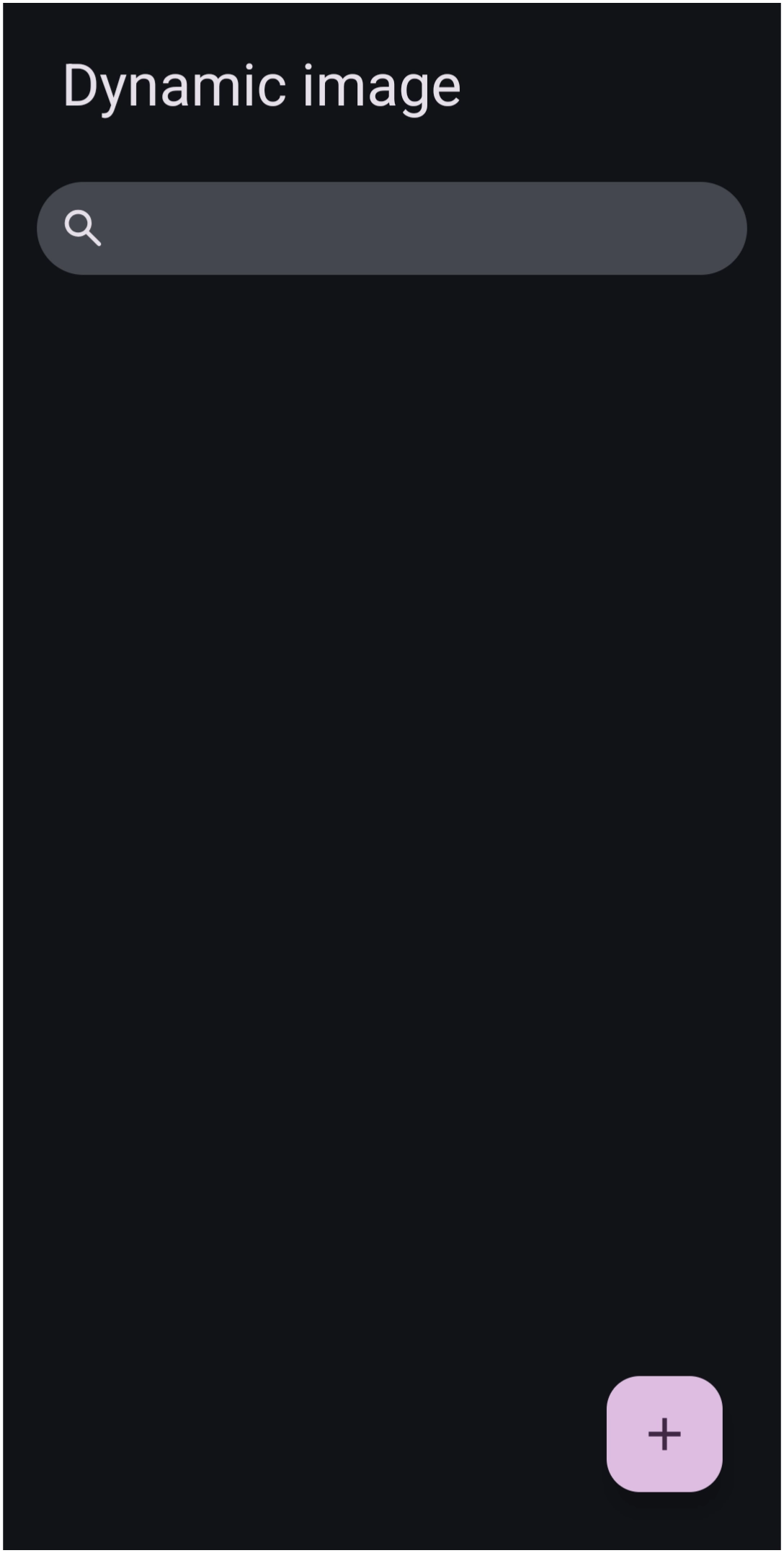 | Figure 4 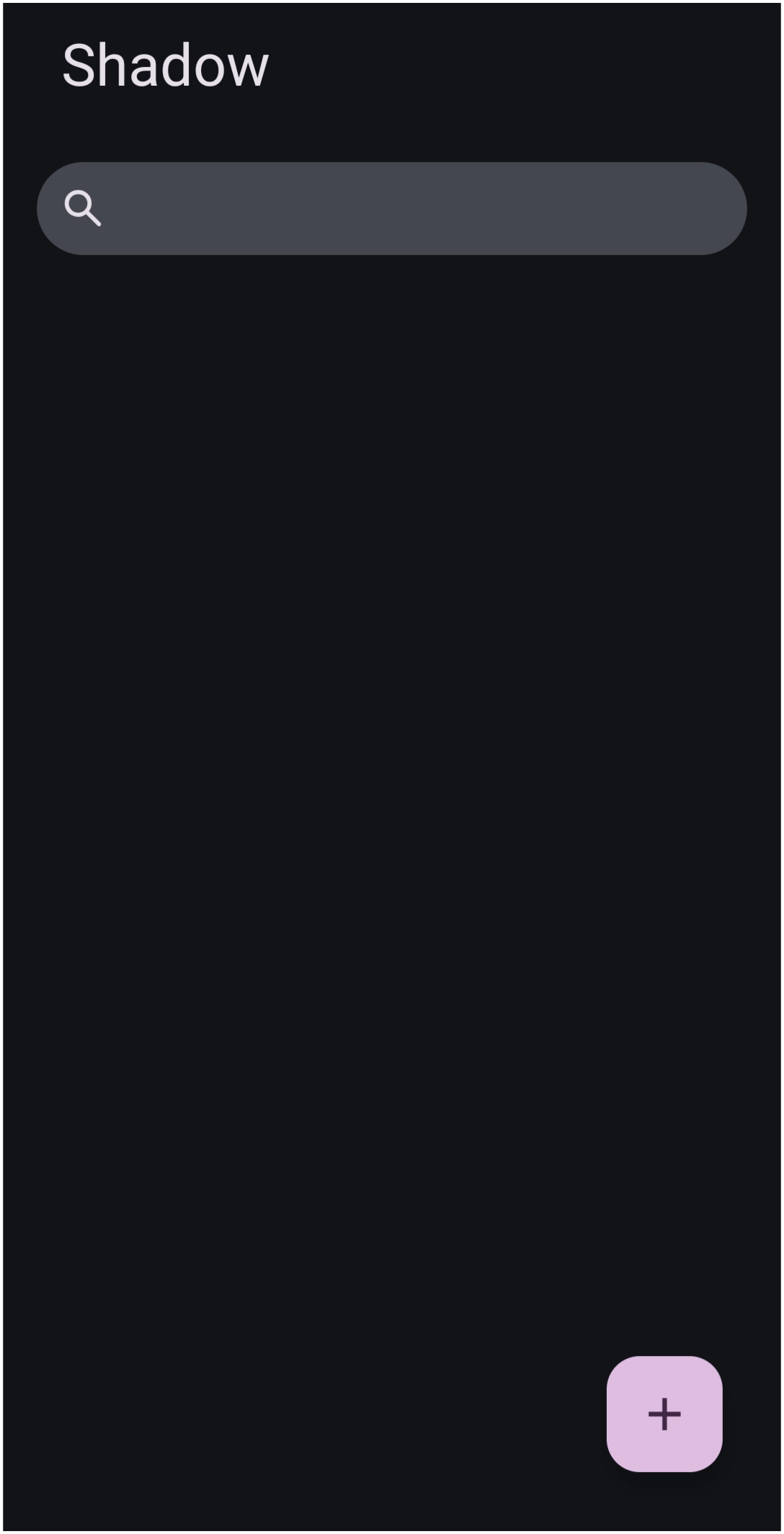 | Figure 5 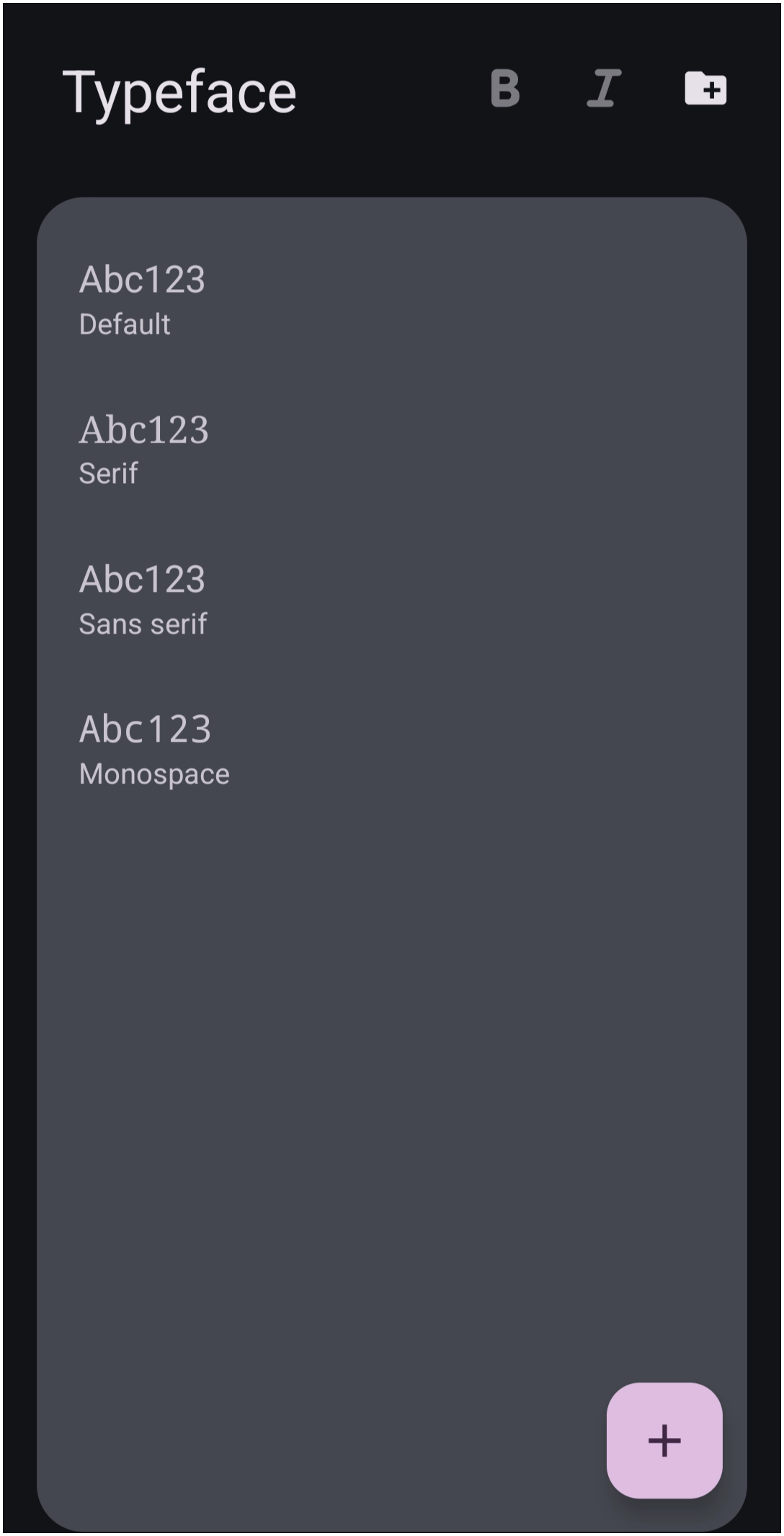 | Figure 6 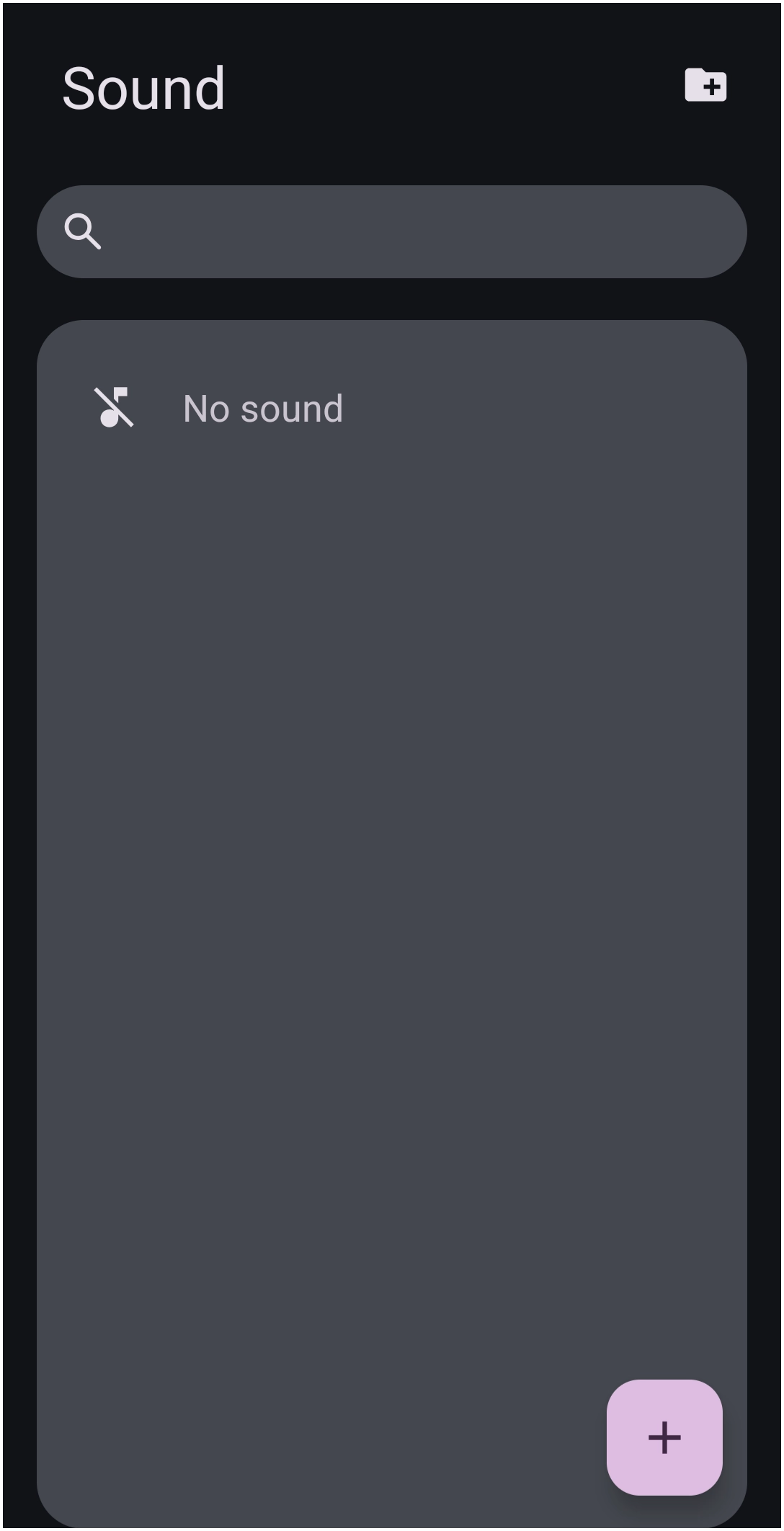 | Figure 7 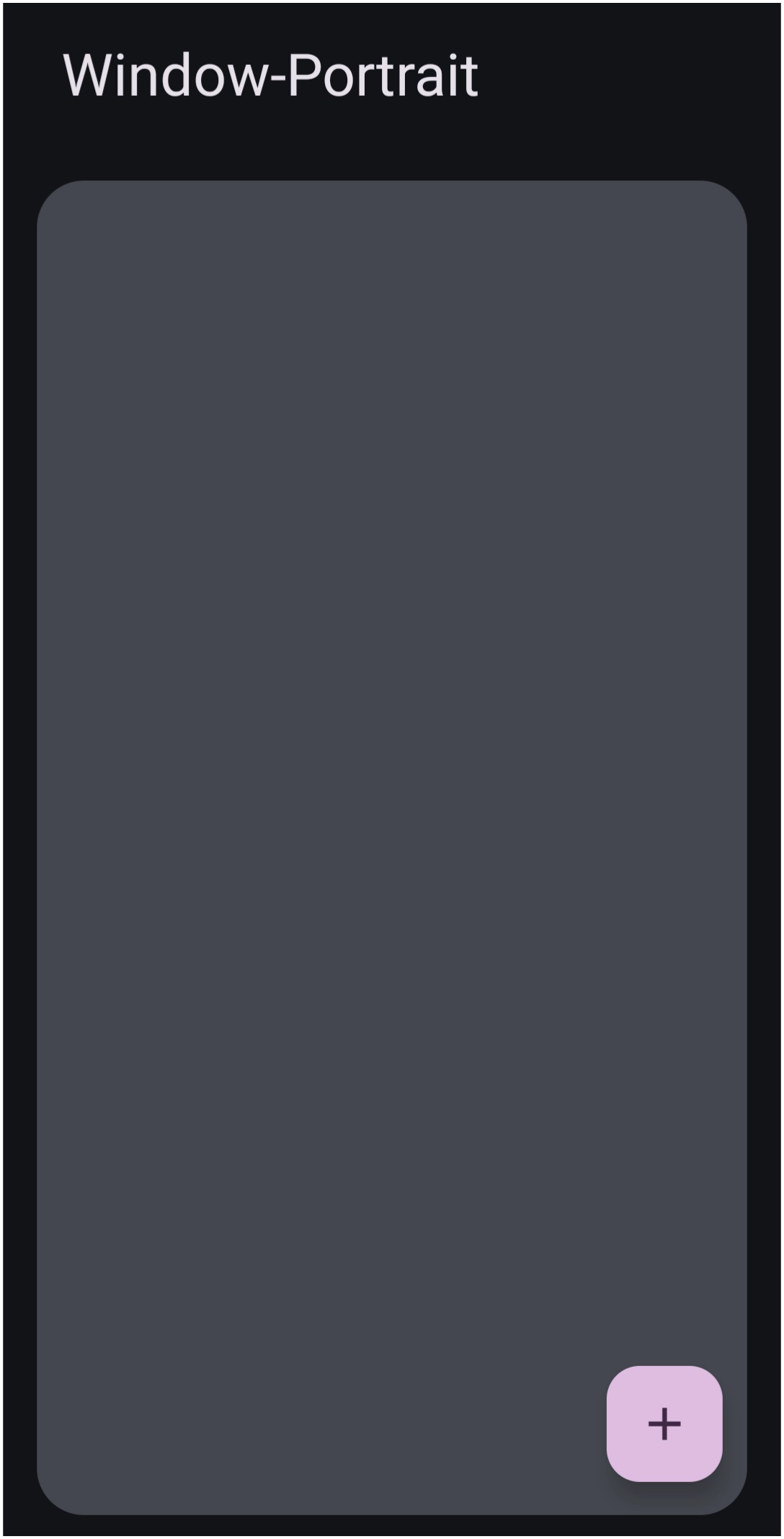 | Figure 8 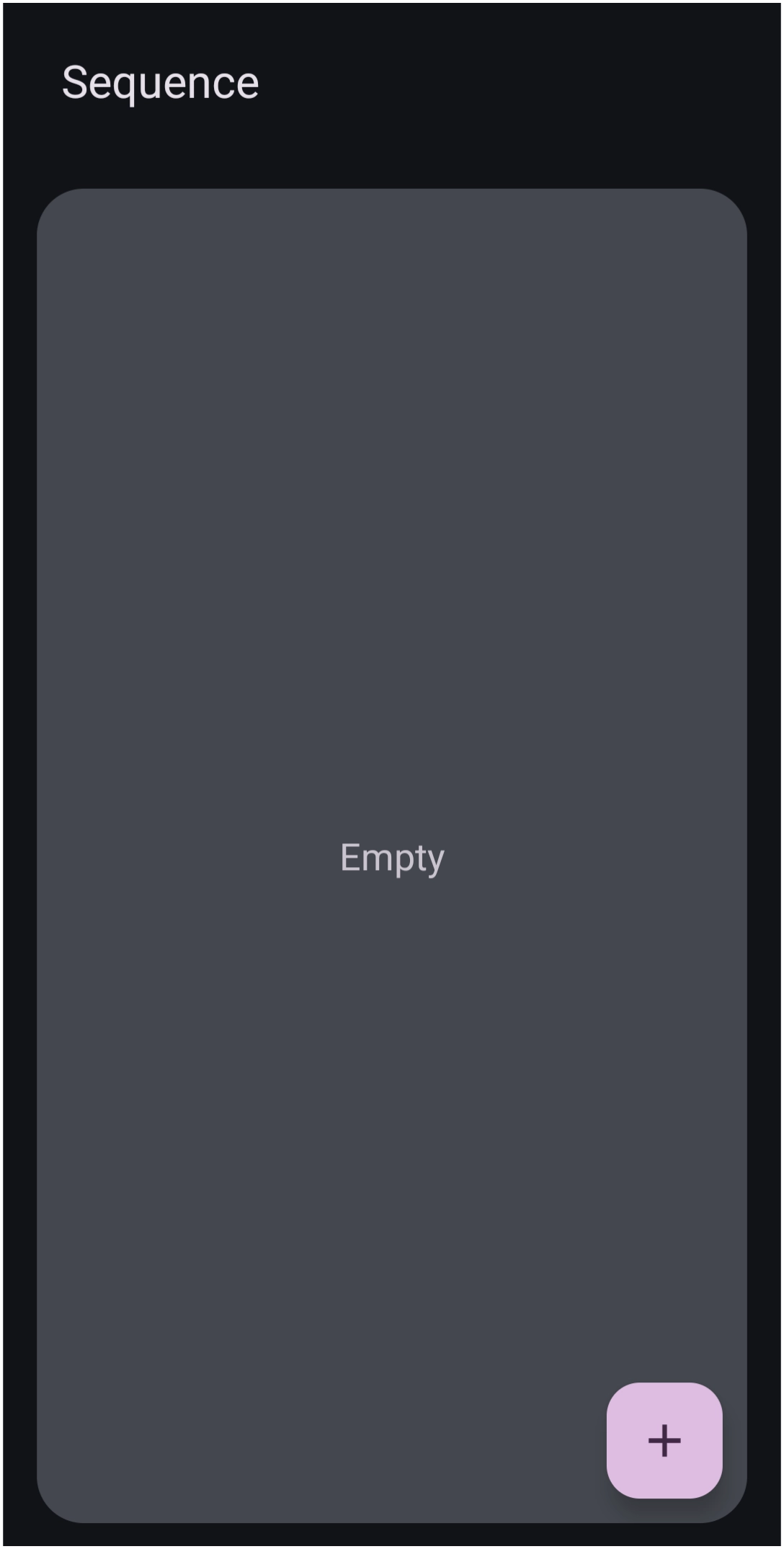 |
- Add icon -

- The shape, image, dynamic image, window, and sequence objects can be created by tapping the “+”.
- This action is also available during the Add Object >; Graphic >; Image >; Do Nothing process as shown in this video demo
- Or the action can also be accomplished when working with an existing object through the top Object Design Menu > Options > Edit > Image process as shown in this video demo
- The sequence and window elements can also be created by tapping theor, alternatively, Add > Graphic > Image > Do Nothing > Design Menu > Action - Action-on-Tap
- Search icon -

- Located at the top of the dialogs in the shape, image, dynamic image, shadow, and sound resources, search provides for user input to locate previously saved or imported elements.
- Folder Add icon -

- Located at the top right in the image, typeface (fonts), and sound resources, this allows the user to select any folder on the device and add that folder's entire contents to the Total Launcher resource category.
- Bold/Italic -


- Located at the top of the Typeface dialog, these icons are used to search for fonts exhibiting the characteristic.
- The typeface (fonts) element can also show the bold type (B) and italic type (I) fonts available.
- Sort icon -

- Located at the top right in the image element in Resource - Image, this sets the sequencing format to either
- Filename
- Recently added
- File size


Resources – Add to a Category's Storage
Resources - Add if rooted
It is possible to place a file directly in Total Launcher's file storage area if the user's device is rooted.
- /Android/data/com.ss.launcher2/
- miXplorer from the Google Play Store can access /Android/data/com.ss.launcher2/files/backups, which could be helpful for the Launcher options
Backup center
- Tap any open area of the screen
- If password or fingerprint protected, enter the appropriate security action.
- Select the Main Menu icon in the lower left of the screen
- Select Launcher options
- Select Resources
- Select the desired element category
- To add a single element
- Press the add icon (+) in the lower right screen
- The device file manager will open. Navigate to the desired device folder or cloud, select the desired file
- To add all elements in a single folder
- Press the folder add icon [[:ui:ui-icon_folder_add.webp?direct&25}} in the upper right screen
- The device file manager will open. Navigate to the desired device or cloud folder, then select it.
- For additional detail on creating
- Shapes, see Object: Customizing - Shapes
- Images, see Dynamic Image – Built-in [insert new link]
- Windows, see [add the section here]
- Sequences, see [add the section here]
Resources – Delete from Storage
The user can delete any element in the 8 resource categories.
- Tap any open area of the screen
- If password or fingerprint protected, enter the appropriate security action.
- Select the Main Menu icon in the lower left of the screen
- Select Launcher options
- Select Resources
- Select the desired element category
- Press and hold the desired element to highlight
- Select the delete icon
 in the lower right of the screen to delete the element
Comments & Feedback
Toby Lancer is ready to help! Look for the Quick Help form:
► Desktop: left sidebar located near the bottom for Private to Admin
► Mobile: 3-bar menu at page top.
► Use the Discussion section below to share any experiences and communications with other Total Launcher users.
► Any Registered User can directly update this and any wiki page if desired.
Moderation: To keep the manual clean, all comments are held for appropriateness review. Preview any comment before submitting it. It will not be displayed after submission until it is reviewed. So, please, do not resubmit.
Formatting: If using any code snippets, place them inside code tags (e.g., 'code') using double single quotes (') before and after to keep them readable.
Be Kind: This is a community effort. Please keep feedback constructive and on topic.
~~DISCUSSION~~