meta data for this page
How To: Set a different "Wallpaper" (Background) for Each Page
Wallpaper is different from a page background. Learn how to have a different background for each page in a setup by following the steps below and see the demo video on the uiTLM YouTube Channel here.
- Wallpaper is for every page. If the objective is to have different images on each page
- Set wallpaper to
None - With no wallpaper, the “wallpaper” may be black. That is OK.
- Back out of the menus to the page.
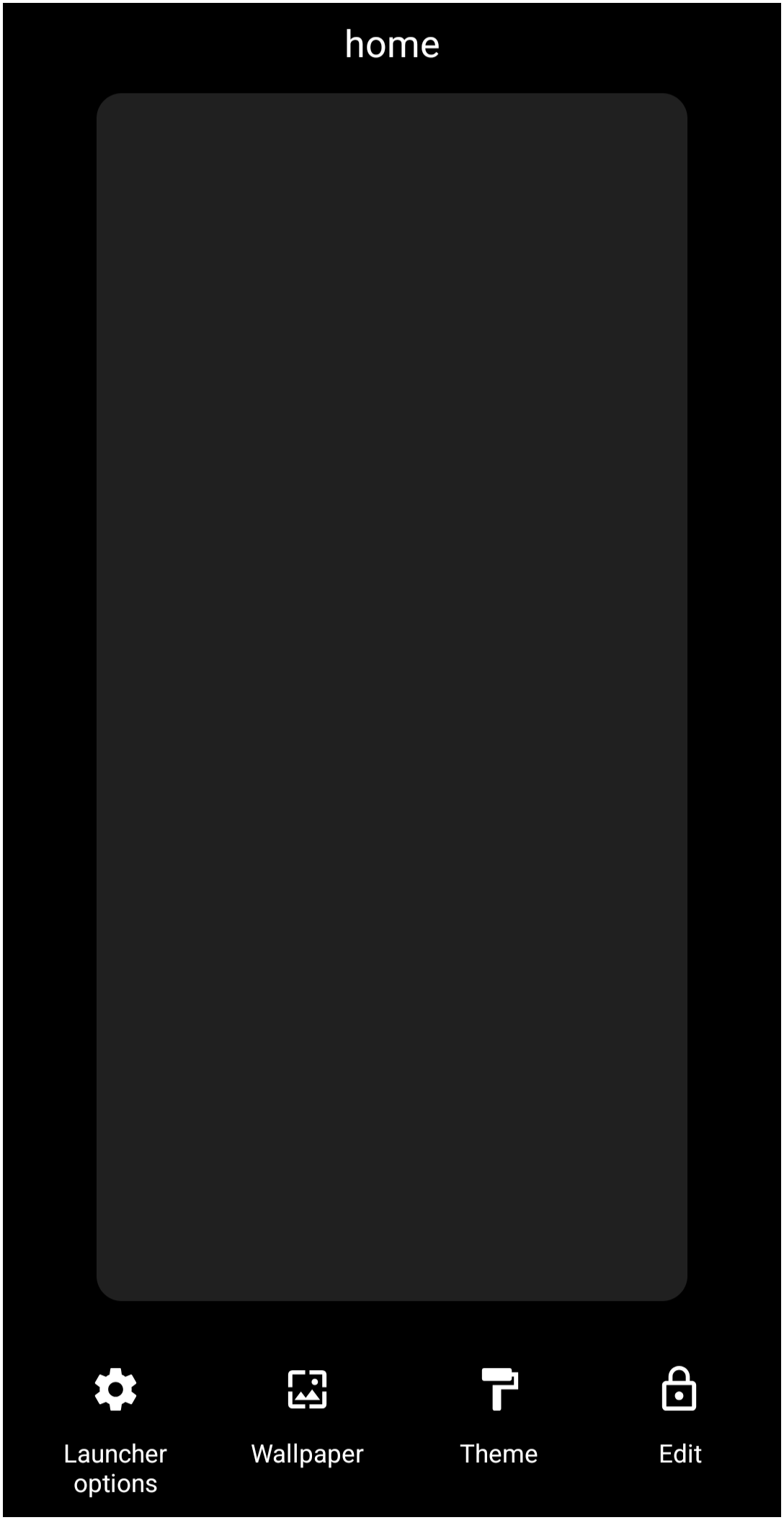
- Open the ''Page Edit mode'' (“pinch in”).
- Tap the ''Edit Off'' icon in the lower right to change it to an ''Edit On'' icon . This opens the "Page Edit" mode (see here also for a complete guide). At the bottom of that page are 3 icons, with the center icon showing a mountain. This is the “background” icon
 for setting the image for that page. Each page must be handled separately.
- Tap that
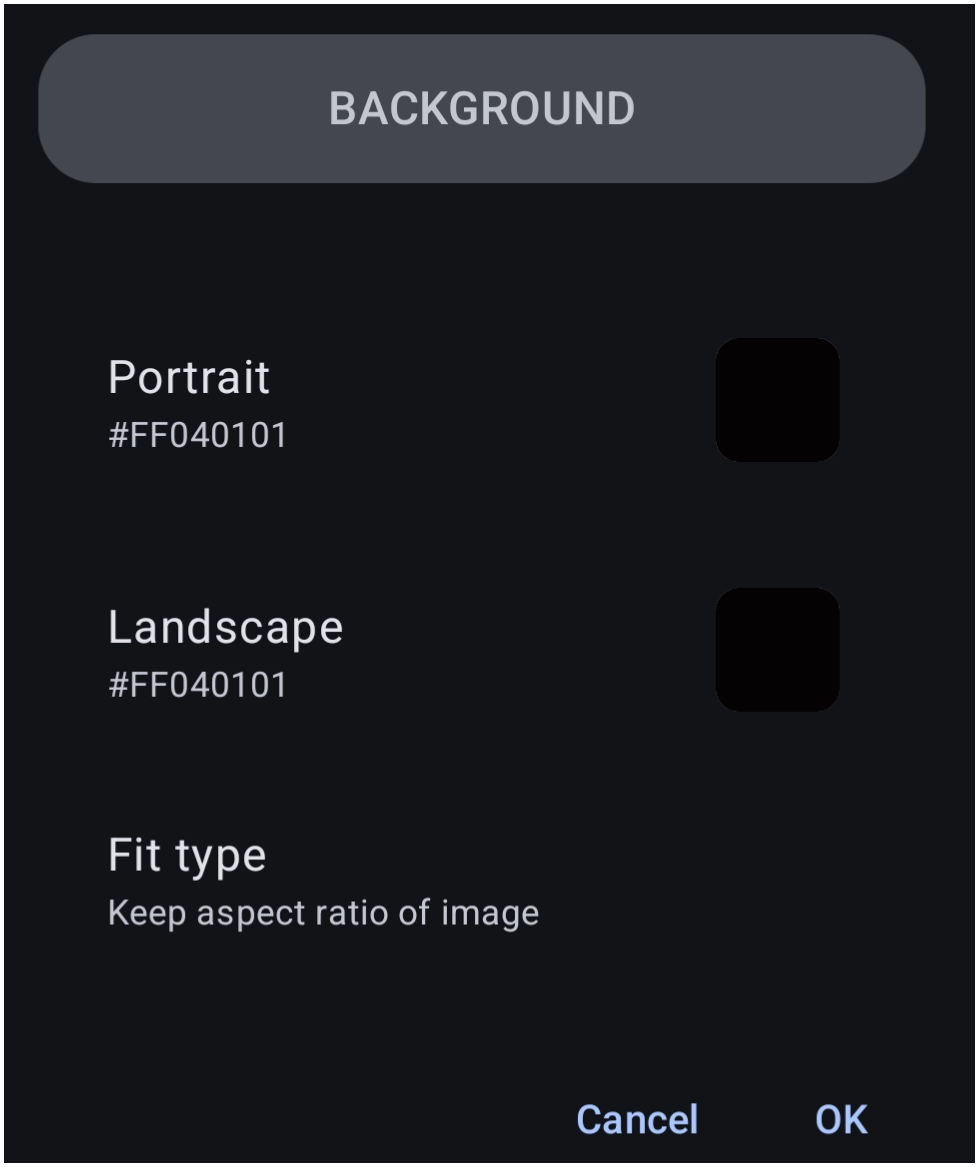
backgroundicon to reveal this dialog.- Notice that “Portrait” and “Landscape” are set separately for each screen orientation.
- Tap 'Portrait' to open another “Background” dialog and select
Imageto open the “Image Resource” dialog showing thumbnails of all existing images in resources.- If the image desired is not shown, it must be imported.
- Tap the
+icon in the lower right corner to open the device's “Photos” folder (default). - Scroll and tap to select or; if the image desired is not there, then tap the 3-dot icon
 in the middle-right of the screen, and select
 Browse, which will open the device's default file manager. - Navigate to the location of the desired image and tap it. The dialog now returns to the “Image Resource”
- Scroll to the image just imported and tap that image. The screen returns to the “Background” dialog with the image now showing in the “Portrait” frame.
- Before selecting OK, there is a “Fit type” option. Tap it to open 3 settings which configure how the image is “stretched” on the screen.'
- Keep aspect ratio of image: - No changes made. Keeps it as it is
- Stretch to screen: - Forces the image to fill every pixel of the display. Good for patterned backgrounds or abstract art.
- Stretch to content: - This “scales” the background image. Try it to see if that is what is wanted.
- Once the selection is made above, tap OK to return to the page with the selected background showing for that page.
- Repeat from the beginning for each other page in the setup to assign a specific background.






Toby says: Meaningful Image Filenames are Helpful
Most images in the Image Resource dialog have names assigned by Total Launcher that may not reflect their content or aid in searching for an image. Unfortunately, the names assigned by Total Launcher cannot be changed.
To cause images to have filenames desired by the user:
- use the
+icon and select the 3-dot icon - select
Browse. Navigate to the desired image and tap it. This causes Total Launcher to assign the existing filename to the image in its Image Resource dialog.
Therefore, if filenaming is thought to be helpful in Image Resource searching (rather than visual scrolling), ensure the image to be “imported” has the desired filename in its device folder before importing to Image Resources
Comments & Feedback
Toby Lancer is ready to help! Look for the Quick Help form:
► Desktop: left sidebar located near the bottom for Private to Admin
► Mobile: 3-bar menu at page top.
► Use the Discussion section below to share any experiences and communications with other Total Launcher users.
► Any Registered User can directly update this and any wiki page if desired.
Moderation: To keep the manual clean, all comments are held for appropriateness review. Preview any comment before submitting it. It will not be displayed after submission until it is reviewed. So, please, do not resubmit.
Formatting: If using any code snippets, place them inside code tags (e.g., 'code') using double single quotes (') before and after to keep them readable.
Be Kind: This is a community effort. Please keep feedback constructive and on topic.
~~DISCUSSION~~