meta data for this page
Image Edit
Dialog selections are discussed below the image. For navigation to an item, make a selection in the Image Edit image.
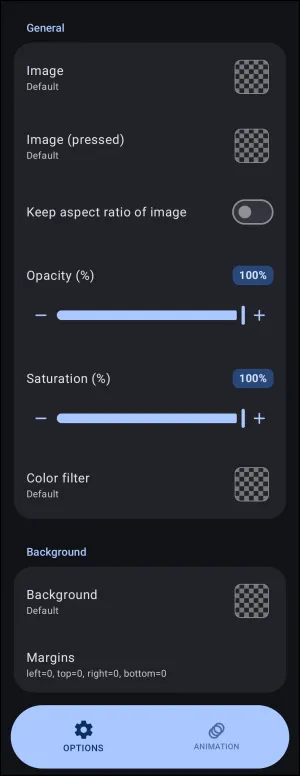
Image Edit dialog. Make selection above.
This dialog screen shows options for:
- Image - The image does not have to be an image (just a picture). Options will include color, dynamic color, icon, shape, image, or dynamic image.
- Image (pressed) - Sets the color or image displayed when the object is pressed, similar to the above-described “Image”.
- Keep aspect ratio of image - Activate this selection to crop the image to the original aspect ratio if the object size differs. This may result in some portions of the image being unviewable if used.
- Opacity (%) - Adjust the opacity of the image in this dialog, where
100is fully visible and0is transparent. In the app, the slider is used to adjust the value. - Saturation - Adjust the saturation of the image in this dialog, where
100is full color and0is gray scaled. In the app, the slider is used to adjust the value. - Color filter - Applies a specific color to be drawn over the image by using the Launcher's Color Picker utility.
- Background - Configures the background of the graphic object in a Background options dialog.
- Margins - Sets the margin space around the graphic object. If selected this dialog would appear for the input.
- Animation - Will open the Animation dialog for the object.

===== Hidden Index Anchors ===== ui-object-edit-option-image-source ui-object-edit-option-image-source ui-object-edit-option-image-opacity ui-object-edit-option-image-saturation ui-object-edit-option-image-color_filter-source ui-generic-background ui-generic-margin ui-animation-no_exit
Comments & Feedback
Toby Lancer is ready to help! Look for the Quick Help form:
► Desktop: left sidebar located near the bottom for Private to Admin
► Mobile: 3-bar menu at page top.
► Use the Discussion section below to share any experiences and communications with other Total Launcher users.
► Any Registered User can directly update this and any wiki page if desired.
Moderation: To keep the manual clean, all comments are held for appropriateness review. Preview any comment before submitting it. It will not be displayed after submission until it is reviewed. So, please, do not resubmit.
Formatting: If using any code snippets, place them inside code tags (e.g., 'code') using double single quotes (') before and after to keep them readable.
Be Kind: This is a community effort. Please keep feedback constructive and on topic.
~~DISCUSSION~~