meta data for this page
Object Margins
Dialog selections are discussed below the image. For navigation to an item, make a selection in the Object Margins image.
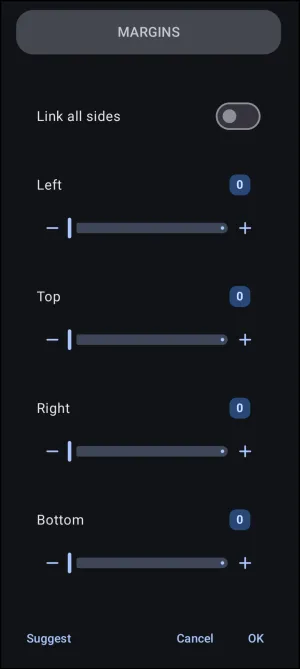
Object Margins dialog. Make selection above.
For simple, non-container objects, the margin defines the empty space outside the object's boundary. For objects that act as containers for other items, the Margin setting functions exactly like a Page Margin. It defines the usable space inside the container's own borders.
A broader review of margins can be found at Understanding Margins.
The clickable items in the above dialog are:
- None
Other items in the above dialog are:
- Link all sides - If activated, any change to any margin will be applied to the other 3 sides.
- Left, Top, Right, Bottom - These represent the object's container sides. Margin numbers are positive only and represent a “padding” applied to the boundary edges, moving the object further from the edge. This is useful when applying a shadow, especially for a radius greater than 10. See also the
Suggestbutton for Launcher recommendations. - Suggest - The Launcher pre-calculates and 'suggests' the four margins for the object. This is a good starting point which can be modified by direct input. If selected, the 'suggestions' are placed in the 4 margin input lines. The user must select OK to accept them.
- OK - The data entry is accepted, and the user is returned to the previous dialog. In this demo, the user must swipe right-to-left or use the browser's back arrow.
===== Hidden Index Anchors ===== * ui-graphic-text
Discussion