Index Key Link
action Click to view
add Click to view
affiliation Click to view
align Click to view
alignment Click to view
alpha Click to view
analog clock Click to view
animated image Click to view
app drawer Click to view
app group Click to view
application Click to view
audio Click to view
background Click to view
backup Click to view
beginner Click to view
behavior Click to view
blur Click to view
calendar Click to view
card Click to view
checklist Click to view
circle indicator Click to view
clean slate Click to view
clock Click to view
code block Click to view
code of conduct Click to view
color picker Click to view
communities Click to view
compass Click to view
compatibility Click to view
complementary color Click to view
conceptual learning Click to view
configure Click to view
contact Click to view
contrast Click to view
contribute Click to view
date Click to view
date / time Click to view
default launcher Click to view
delete Click to view
desktop Click to view
developer Click to view
discussion guideline Click to view
distribution Click to view
drawer Click to view
drawer handle Click to view
dual-screen Click to view
dynamic color Click to view
dynamic image Click to view
dynamic text Click to view
edit Click to view
editing Click to view
edit mode Click to view
export Click to view
feature Click to view
file naming Click to view
flip-style Click to view
foldable Click to view
folder Click to view
font Click to view
full screen Click to view
gaussian Click to view
gesture Click to view
getting started Click to view
gradient Click to view
group Click to view
heading Click to view
help Click to view
hide Click to view
html Click to view
hue Click to view
icon Click to view
import Click to view
install Click to view
installation Click to view
instructable Click to view
intellectual property Click to view
issue Click to view
key Click to view
keys & gestures Click to view
label Click to view
landscape mode Click to view
launcher action Click to view
layout Click to view
liability Click to view
lifetime purchase Click to view
light source Click to view
link Click to view
list Click to view
luminance Click to view
macro Click to view
macrodroid Click to view
margin Click to view
mask Click to view
media controller Click to view
mobile Click to view
month/year/day Click to view
move Click to view
multi-screen Click to view
namespace Click to view
navigation Click to view
object Click to view
object design menu Click to view
official Click to view
official blog Click to view
offset Click to view
option Click to view
ordinal Click to view
page Click to view
page indicator Click to view
paste Click to view
performance Click to view
permission Click to view
pin Click to view
png Click to view
quoting Click to view
radius Click to view
registration Click to view
reminder Click to view
remove Click to view
resource Click to view
rotate Click to view
rss Click to view
save Click to view
scroll Click to view
search Click to view
select Click to view
shadow Click to view
shape Click to view
share Click to view
sidebar Click to view
slider Click to view
sliding drawer Click to view
spacing Click to view
stretch Click to view
syntax Click to view
system setting Click to view
system ui Click to view
table Click to view
table of content Click to view
tasker Click to view
taxonomy Click to view
temperature Click to view
termination Click to view
terms of use Click to view
text Click to view
theme Click to view
toby Click to view
trademark Click to view
transform Click to view
transparency Click to view
transparent Click to view
troubleshooting Click to view
typeface Click to view
ui Click to view
user conduct Click to view
user interface demo Click to view
variable Click to view
wallpaper Click to view
warranties Click to view
weather Click to view
webp Click to view
website Click to view
welcome Click to view
widget Click to view
wiki Click to view
wiki editing Click to view
window Click to view

<!-- googleoff: index -->

⚠️ v4.0 UI Transition Notice - In Process: The release of Total Launcher v4.0 has introduced significant user interface changes. Please note that this page does not yet reflect these updates. The new layout paths, folds, and visual maps are currently being compiled and will be deployed shortly.

<!-- googleon: index -->


Note: The image below is a static preview and contains no clickable dialogs. To navigate away after reviewing:

  1. Go Back: Return to the Widget Select page or use the browser's back arrow (swipe right-to-left).
  2. Explore: Choose a new topic from the left sidebar menu.

Widget: App Drawer (pager)
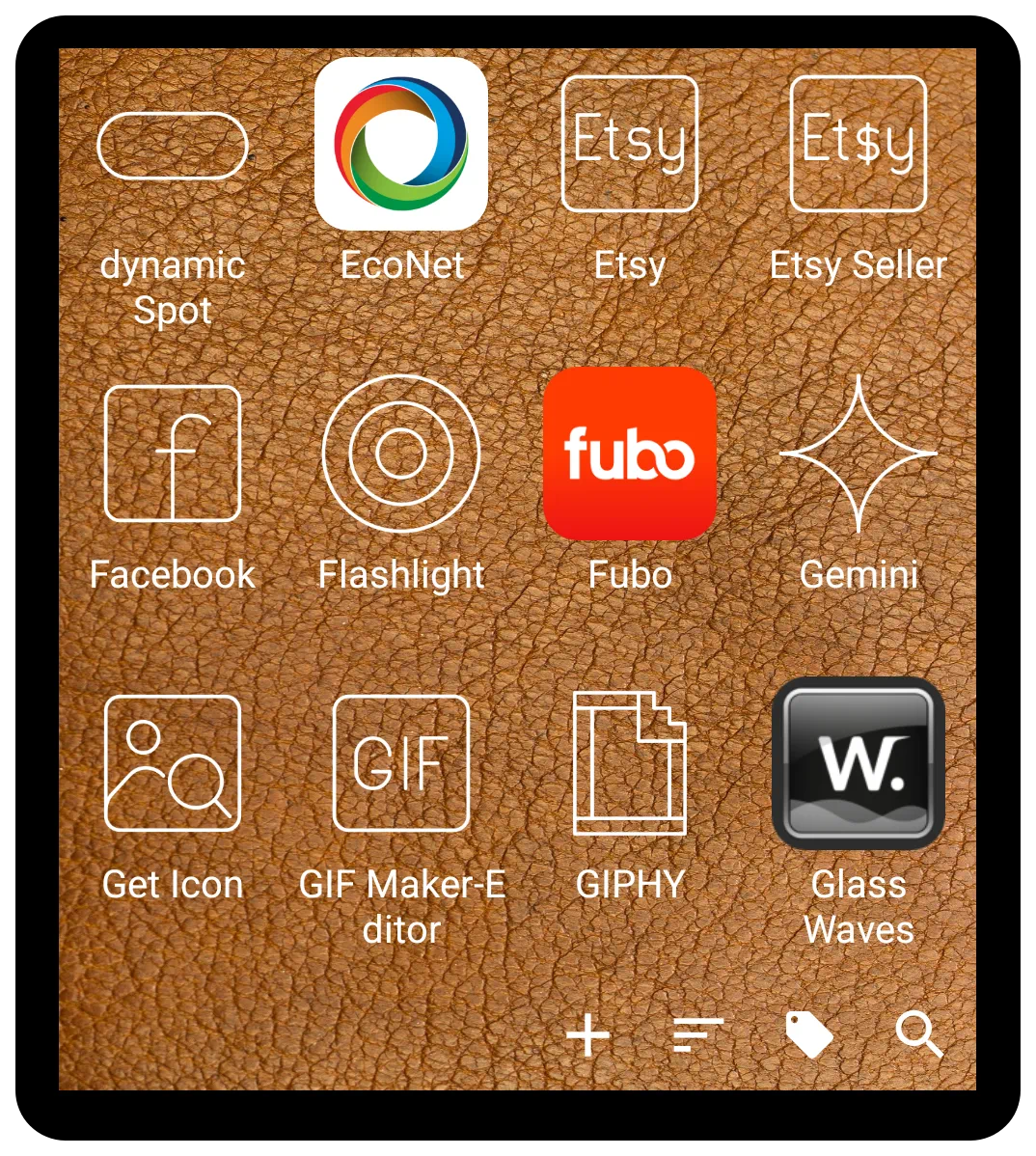
App Drawer (pager)  The App drawer (pager) is a distinct, built-in widget that offers an alternative to the standard 'App drawer' for displaying and organizing applications.

It is designed as a customizable container that holds user-selected apps and folders, featuring either vertical or horizontal scrolling.

Its primary difference lies in its presentation and built-in functionalities, which can provide a more structured and efficient user experience.

The App drawer (pager) can be accessed and added by entering Edit Mode > the Add icon (+) > Widget, then navigating the list of built-in widgets and selecting it.

Key Differences and Benefits

While the standard “App drawer” is highly customizable, the App drawer (pager) widget provides a different structural approach and unique features. A user may prefer this format for the following reasons:

  • Paging versus Scrolling: The fundamental difference is the paginated layout. Instead of a single continuous list, applications are organized across distinct pages that are navigated with a swipe. This can improve organization by allowing users to group apps by category or frequency of use on separate pages. Quick scrolling is also offered as in this demo of both vertical and horizontal scrolling.
  • Built-in Search Functionality: The 'App drawer (pager)' widget includes an integrated app search feature. This provides a significant advantage for users who want to quickly find an application without scrolling through pages or returning to the home screen to use a separate search widget.
  • Display Customization: This widget allows for specific display configurations that differ from the standard drawer.
    • An option exists to display applications as a text-only list, without icons. This is beneficial for users seeking a minimal and clean interface.
  • Sorting Options: It can be configured to show the most recently used applications at the top of the list, providing quicker access to frequently opened apps.

2026/03/30 18:29

Discussion

Enter your comment. Wiki syntax is allowed:
Please solve the following equation to prove you're human. 177 -2 =