meta data for this page
Action - Tap or Swipe
Dialog selections are discussed below the image. To navigate to an item, select it in the Action - Tap or Swipe image. If NOT selecting any item and wanting to return to the prior page: swipe right-to-left; use the browser’s ‘back’ arrow; or use the Wiki’s Backlink icon  on the right sidebar (mobile: drop-down dialog at the top of the page).
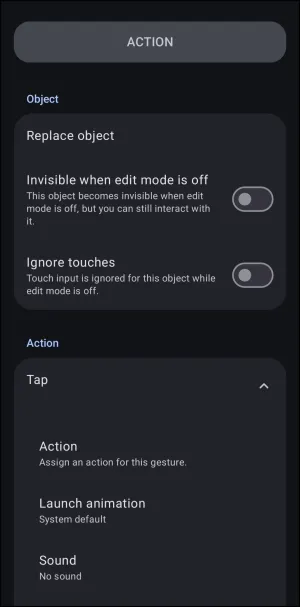
Action - Tap or Swipe dialog elements discussed below. To navigate, click the element in the figure above.
Dialog selections are discussed below the image. To navigate to an item, select it in the Action - Tap or Swipe image. If NOT selecting any item and wanting to return to the prior page: swipe right-to-left; use the browser’s ‘back’ arrow; or use the Wiki’s Backlink icon on the right sidebar (mobile: drop-down dialog at the top of the page).
- Action - ⬇️ Selecting
Actionwill show these 6 actions are defined by making a selection in the Option Action image- Default (Do nothing)
- Application
- Window
- Folder
- Launcher action
- Sequence
- All other
Swipeactions offer the same results and are not presented in this demo but are described below:- Swipe up - finger or mouse on object, then an upward movement
- Swipe down - finger or mouse on object, then a downward movement
- Swipe to the left - finger or mouse on object, then a push to the left movement
- Swipe to the right - finger or mouse on object, then a push to the right movement
- Launcher animation - Choose how the object presents itself when returning to the page
- Sound - Choose a Launcher resource sound when the object is “tapped/swiped”
The top three actions are not “tap” or “swipe” options but do give the user a direct action on the selected object:
- Replace object - The “on-the-fly” method to change the existing object. Selecting here will open the “Graphic - Selection” dialog (
Object Design menu>Add>Graphic). Note that this applies only to “objects,” not to “widgets” or “layouts”. - Invisible when edit mode is off - Checking this box will hide the selected object when the setup is running normally. If the object has an action linked to it (tap or swipe), that action can still be triggered via a 'Launcher action'. Think of this as a method to unclutter a display or hide a secret.
- Ignore touches - When objects (such as images) are on the page for design reasons only, by default a touch may cause a momentary highlight as a reaction. Selecting this option makes the object totally stationary with no actions associated with it. Additionally, if added to an object that has the above
Invisible when edit mode is offsetting, the object cannot then be activated by touch, even when invisible.
Think of all the possibilities with a single object… 💭
☛ tap to open a financial app
- swipe down to open an expense folder
- swipe up to open the device's camera to capture an expense receipt
- swipe left to open the URL for investment portfolio ABC
- or swipe right to open the URL for portfolio XYZ.
☛ Use of a window(s) as well as sequences could be included to become even more powerful and creative.
Navigate through this wiki's user interface pages to get acquainted with how to do so.
===== Hidden Index Anchors ===== start ui-option-action_tap-selection ui-option-action_tap-launch_animation ui-resource-sound
Comments & Feedback
Toby Lancer is ready to help! Look for the Quick Help form:
► Desktop: left sidebar located near the bottom for Private to Admin
► Mobile: 3-bar menu at page top.
► Use the Discussion section below to share any experiences and communications with other Total Launcher users.
► Any Registered User can directly update this and any wiki page if desired.
Moderation: To keep the manual clean, all comments are held for appropriateness review. Preview any comment before submitting it. It will not be displayed after submission until it is reviewed. So, please, do not resubmit.
Formatting: If using any code snippets, place them inside code tags (e.g., 'code') using double single quotes (') before and after to keep them readable.
Be Kind: This is a community effort. Please keep feedback constructive and on topic.
~~DISCUSSION~~