meta data for this page
Keys & Gestures
The dialog is divided into three sections, and the selections are discussed beside the images. Within the descriptions of the gestures below, navigation as if in the app is provided by:
- Select action or
- selecting here to return to the "Launcher Options Menu" dialog.
- All gestures will start a Launcher action.
- Each user knows or will decide which action the Launcher is to take.
- All Launcher actions originate from the Action dialog.
- Any click on this Key & Gesture dialog will navigate to the Action dialog.
Use this Key & Gesture dialog to become familiar with the keys and gestures supported by Total Launcher. Be creative and productive.
Keys & Gestures
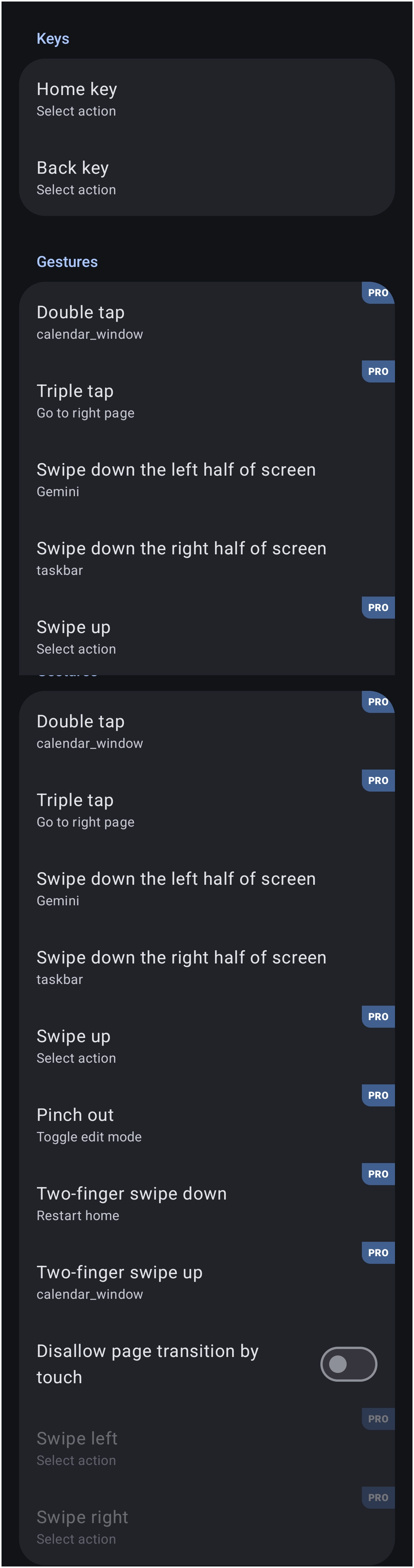
| Keys & Gesture Input | Description |
|---|---|
| Home key | For devices using Android's “Back-Home-Recent Apps” navigation controls, the command can be re-assigned. The Android operating system does not allow third-party launchers to override the input of the Recent Apps button directly. However, any gesture could be assigned by “Launcher actions” Recent Apps. • Select action |
| Back key | |
| Double tap | Executes a command when quickly tapping the screen background twice. • Select action |
| Triple tap | Executes a command when tapping the screen background three times. • Select action |
| Swipe down (Left half / Right half) | Distinct actions can be assigned to swiping down on the left half versus the right half of the screen. • Select action |
| Swipe up | Triggers an action when swiping upward on an empty area. • Select action |
| Pinch out | Typically used to toggle Edit mode or open menus. • Select action |
| Two-finger swipe (Up/Down) | Supports directional swipes using two fingers simultaneously. • Select action |
| Disallow page transition by touch | Activating the toggle prevents touching to change pages, requiring navigation via buttons, sequences, or other links. |
| Swipe left/right | Triggers actions when swiping horizontally across the screen. • Select action |
Landscape Gestures
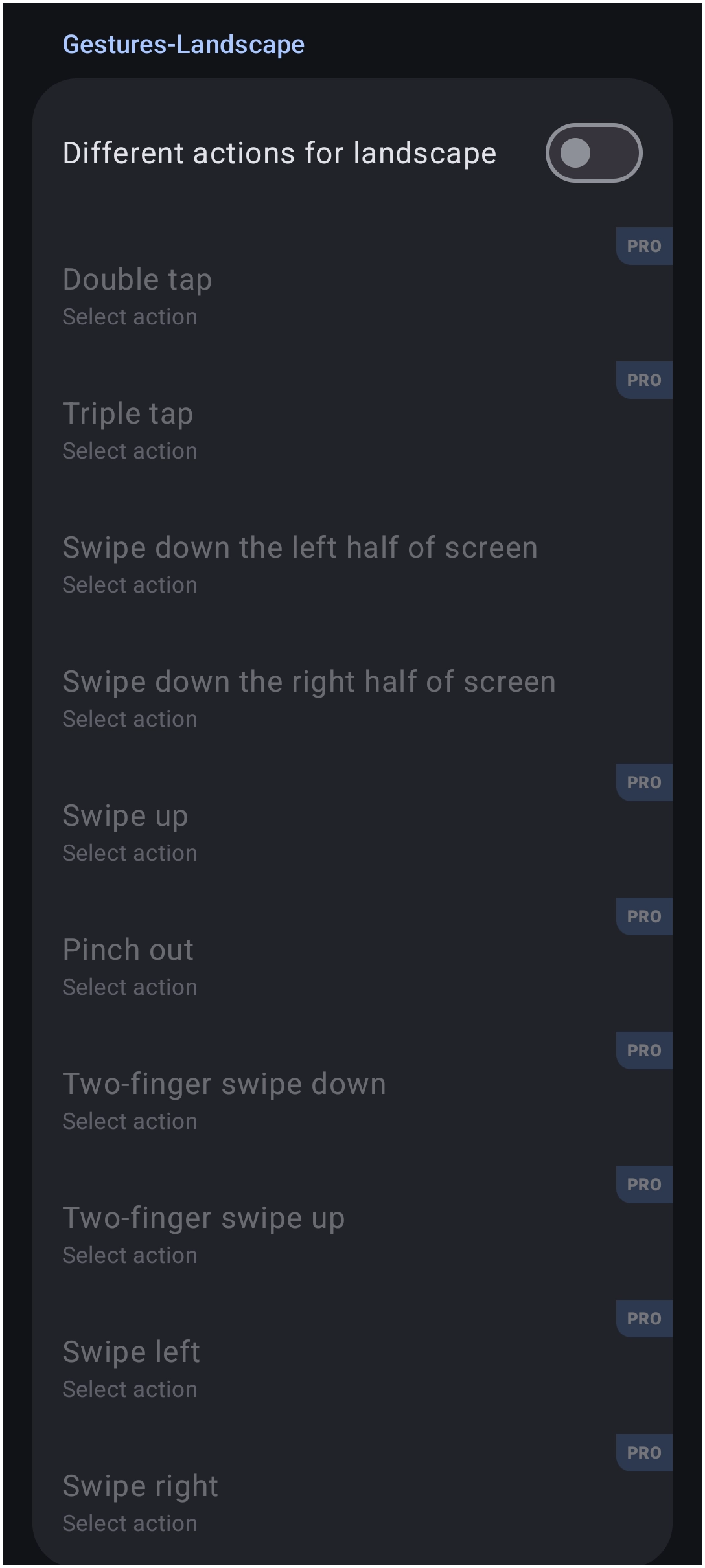
The Gestures Landscape section allows for a distinct set of actions when the device is rotated.
- Different actions for landscape: - Activating this toggle allows the user to assign unique actions to the gestures listed above when the device is in landscape orientation.
- All gestures on this dialog - Every gesture available for landscape is the same as in portrait mode. See above for descriptions.
The Others & Advanced

Advanced Settings configuration options are available for all devices.
| The Others | |
| Face down | Executes an action when the device is placed screen-down on a flat surface. • Select action |
| Face up | Executes an action when the device is placed screen-up. • Select action |
| Shake device | Triggers an action when the device is shaken. • Select action |
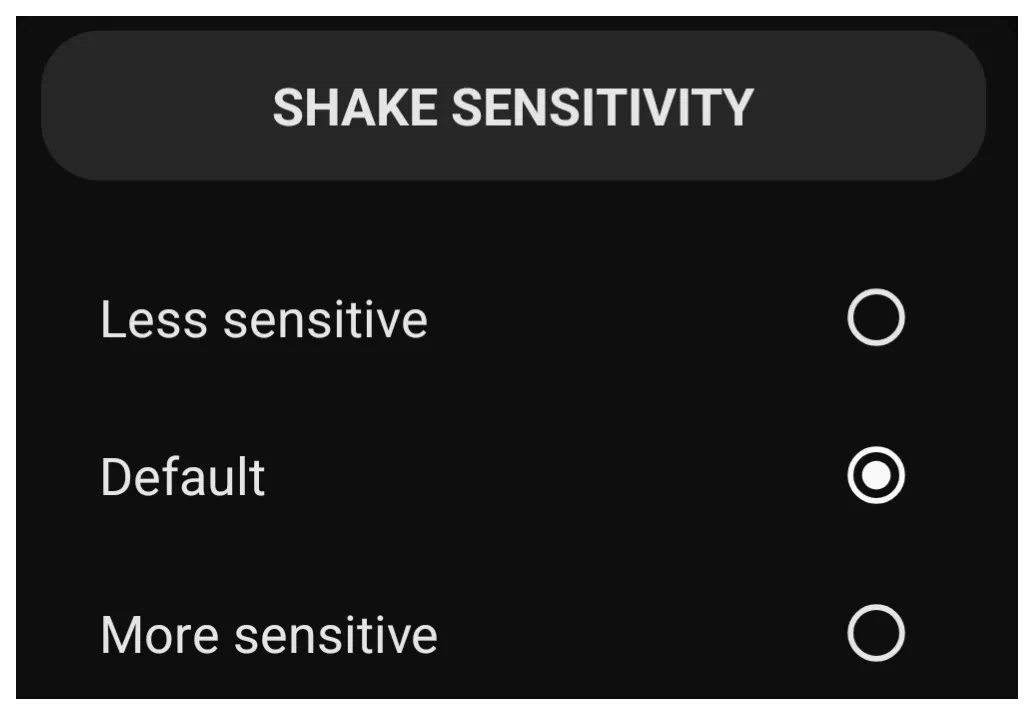
| Shake sensitivity | The intensity of the shake is chosen in the dialog as Less sensitive, Default, or More sensitive |
| Advanced | |
| Gesture animation | Activating the button toggles the visual feedback when a gesture is recognized. |
| Gesture vibration | Activating the button toggles haptic feedback when a gesture is executed. |
| Disable long-press background | Activating the button// prevents// the long-press action from opening the launcher menu. Note that the menu would still be accessed via the Pinch out gesture (or Pinch in depending on configuration) even if this is enabled. |
Comments & Feedback
Toby Lancer is ready to help! Look for the Quick Help form:
► Desktop: left sidebar located near the bottom for Private to Admin
► Mobile: 3-bar menu at page top.
► Use the Discussion section below to share any experiences and communications with other Total Launcher users.
► Any Registered User can directly update this and any wiki page if desired.
Moderation: To keep the manual clean, all comments are held for appropriateness review. Preview any comment before submitting it. It will not be displayed after submission until it is reviewed. So, please, do not resubmit.
Formatting: If using any code snippets, place them inside code tags (e.g., 'code') using double single quotes (') before and after to keep them readable.
Be Kind: This is a community effort. Please keep feedback constructive and on topic.
~~DISCUSSION~~