meta data for this page
Behavior
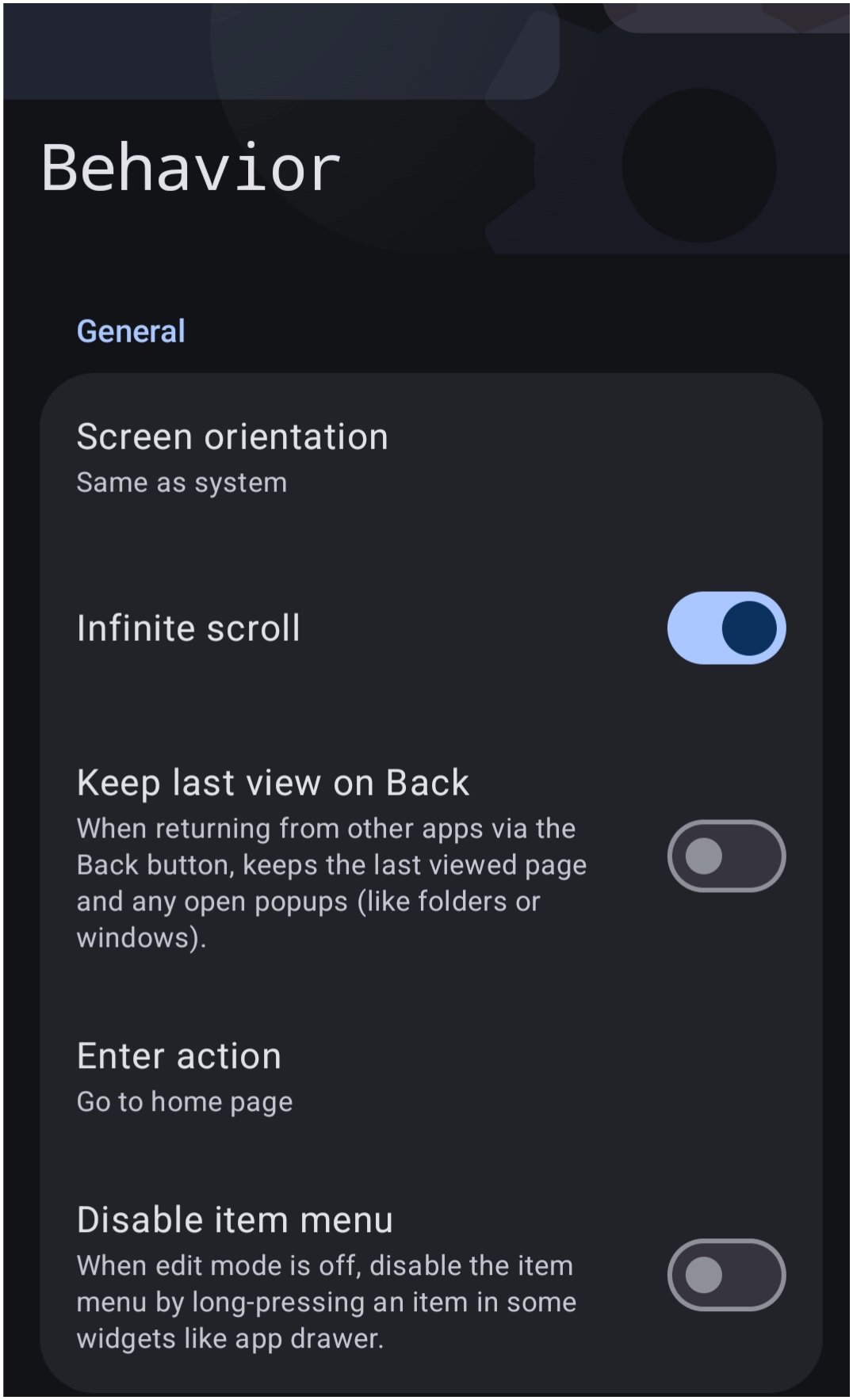
Dialog selections are discussed below the image. To navigate to an item, select in the Behavior dialog image.
This dialog screen shows options for:
🔷 Behavior Options: General
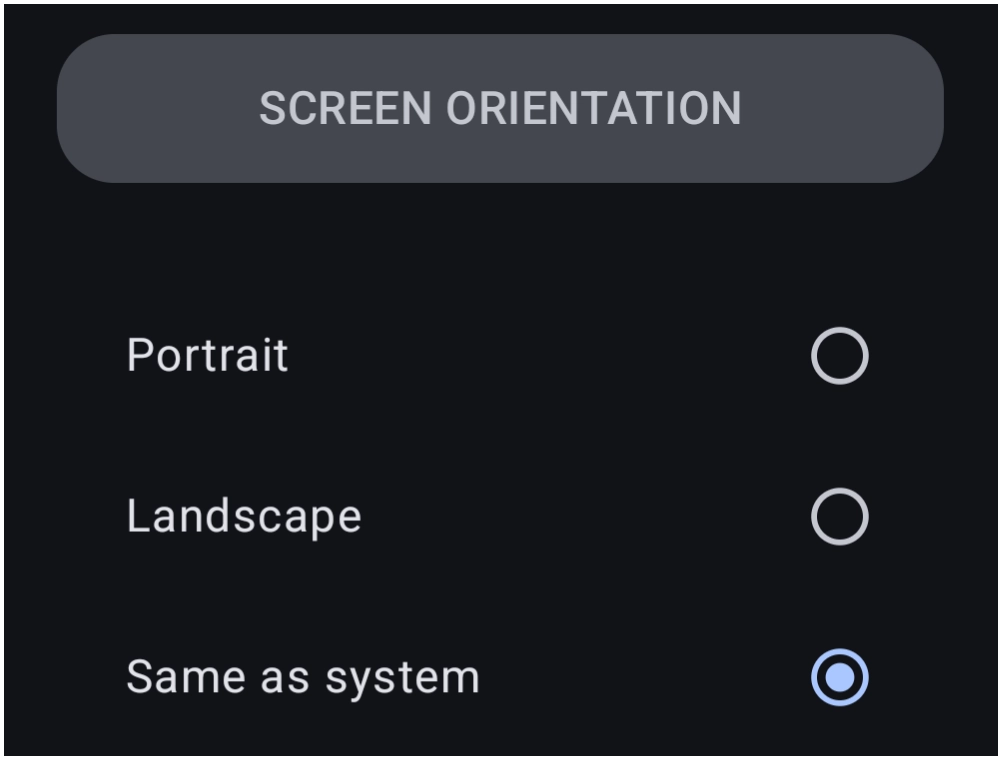
- Screen orientation - Select the screen orientation behavior for the launcher from these options.
- Infinite scroll - Enable or disable continuous page horizontal scrolling across home screens for continuous, recycling scrolling.
- Keep last view on Back - Retain the last viewed page and open popups (such as folders or windows) when returning from other applications when using the Back button. In other words, the last viewed page will remain as it was.
- Enter action - Specify which action is performed when returning to the Launcher. While this offers many actions, the
Go to home pageoption is frequently used. To navigate, Select action. To only view the dialog press here.

- Disable item menu - Disable the context menu (see here) triggered by long-pressing items in certain widgets (such as the app drawer) when edit mode is turned off.
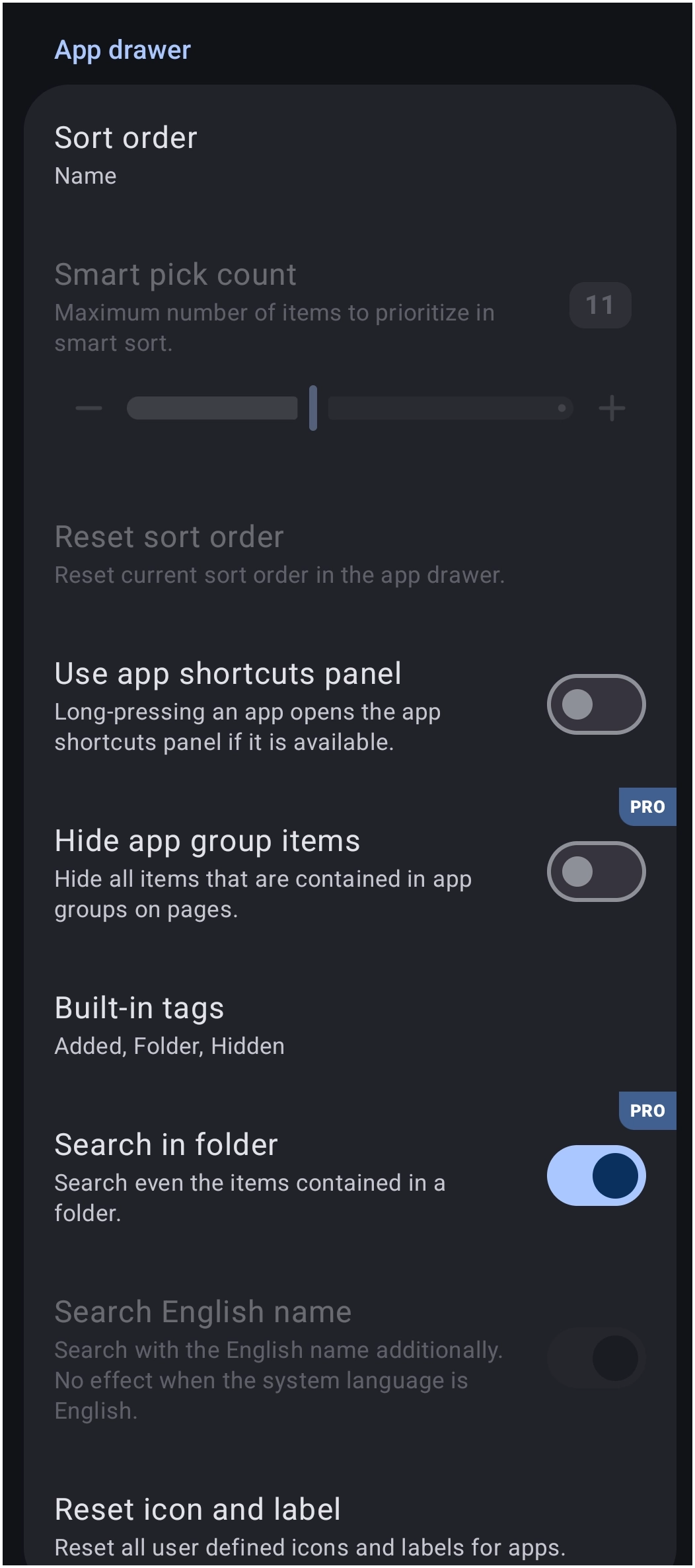
🔷 Behavior Options: App drawer
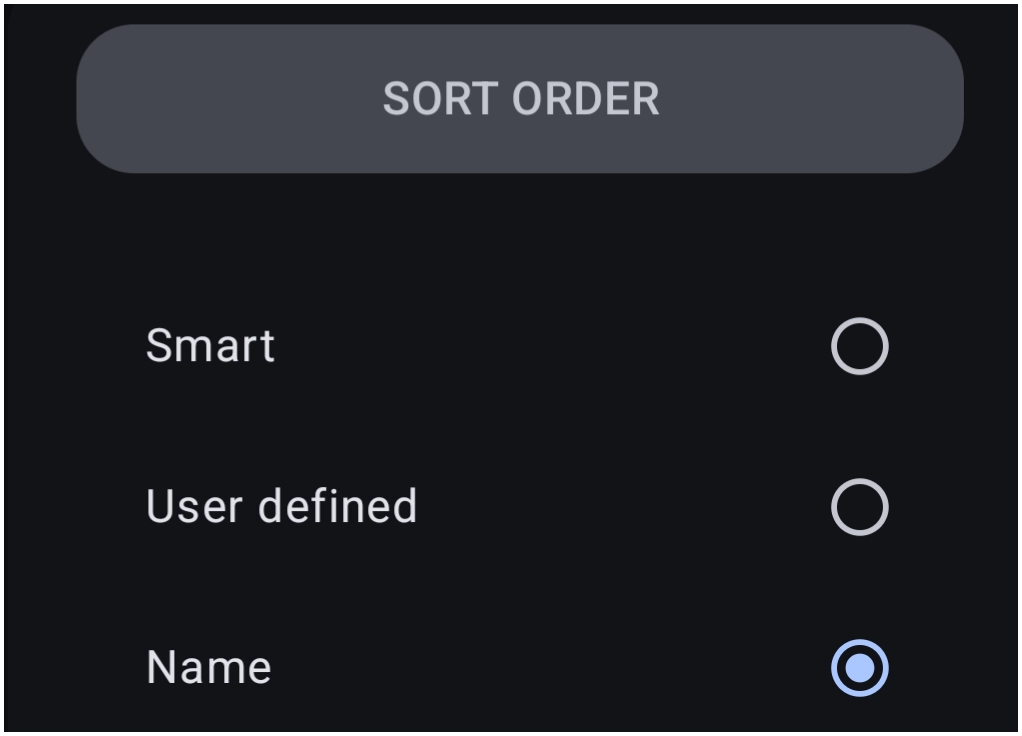
- Sort order - Set the sorting method for applications in the app drawer, as shown here.
- Smart - Places the most recently used apps at the beginning of the sort order
- User defined - The user sets the order by sequencing the icons in the desired order.
- Name - Apps are sequenced alphabetically.
- Use app shortcuts panel - Display the app shortcuts panel when long-pressing an application icon, if supported by the app.
- Hide app group items - If apps are located on a page, hide those applications in the app drawer.
- Built-in tags - View and manage built-in organizational tags as shown here.

- Search in folder - Include any object located inside folders when executing a search in the app drawer.
- Search English name - If the Launcher is set to a language other than English, then activating this item will automatically include English in any search.
- Reset icon and label - Resets all custom user-defined application icons and labels back to default settings.
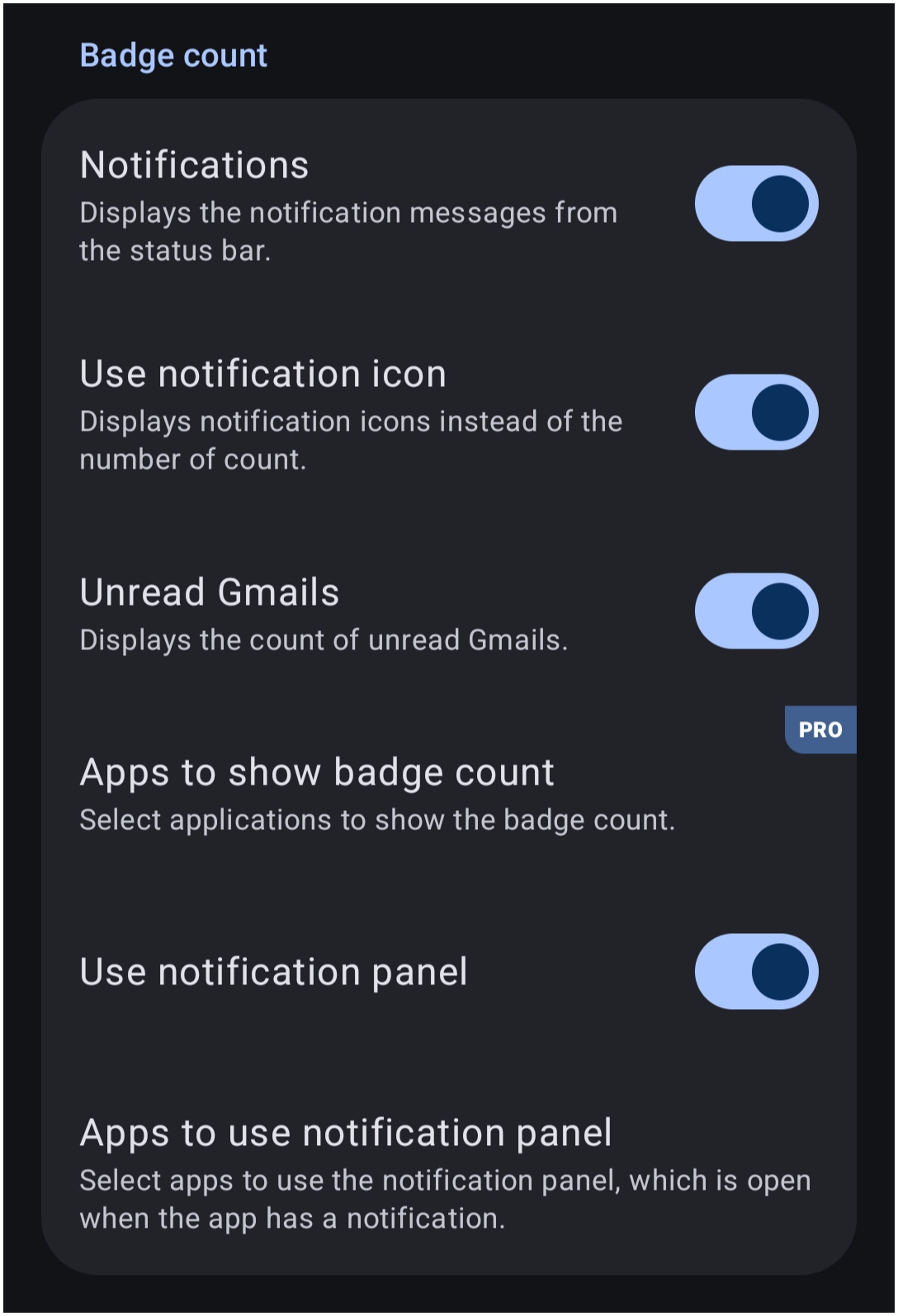
🔷 Behavior Options: Badge count
- Notifications - Icons in app drawers, sliding drawers, or pages will display notification count badges based on status bar notifications.
- Use notification icon - Display application notification icons on badges instead of numerical counts.
- Unread Gmails - Display a notification badge for unread Gmail messages.
- Apps to show badge count - Choose specific applications authorized to display notification badge counts.
- Use notification panel - Enable the pop-up notification panel for applications with active notifications.
- Apps to use notification panel - Select specific applications that trigger the notification panel when notifications are present.
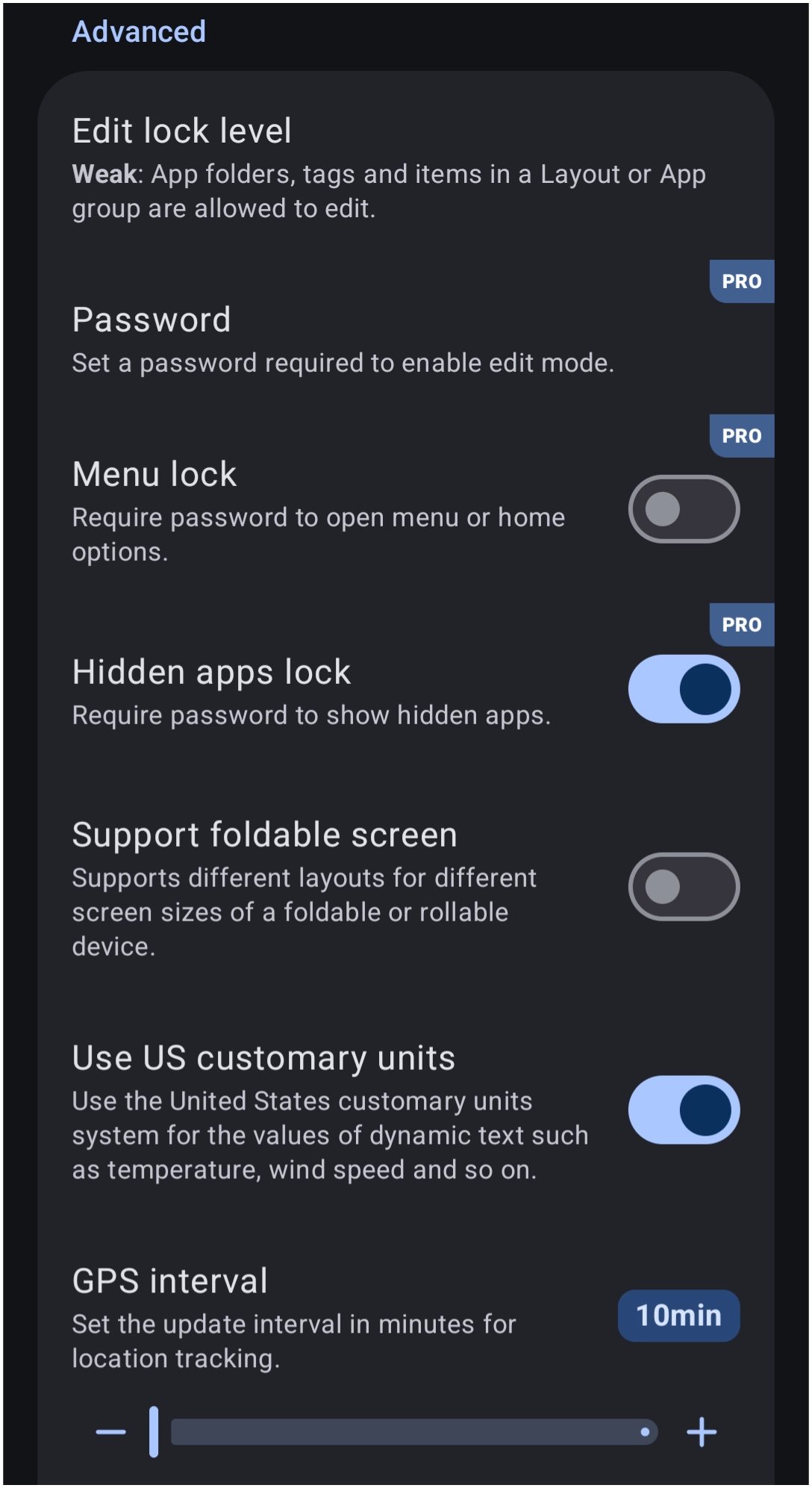
🔷 Advanced
- Edit lock level - Set the security restriction level for editing Launcher elements, such as
Weak.- Weak: Provides basic protection against accidental touch shifts or unintended dragging. Standard long-press gestures on empty screen areas or elements can still easily trigger edit mode options without extra confirmation prompts.
- Normal (default): Requires deliberate menu interaction or single-prompt verification if a password is set under “Password” to open menu or home options before layout edit mode can be enabled.
- Strong: High-level enforcement that fully suppresses home screen long-press edit triggers and requires full password/PIN authentication to modify any layout elements, enter the Launcher option drawer, or access hidden app settings.
- Password - Configures a password required to unlock Launcher edit mode.
- Menu lock - This option sets a requirement for password verification before opening the Launcher menu system.
- Hidden apps lock - Requires password authentication to view or access hidden applications.
- Support foldable screen - Enables adaptive layouts tailored for different screen sizes on foldable or rollable devices.
- Use US customary units - Display values for dynamic text (such as temperature and wind speed) using the United States customary measurement system.
- GPS interval - Adjust the frequency interval in minutes (range of
10minto120min) for location tracking updates. More frequent intervals can impact battery recharging frequency.
 Tip:
Tip:
Hidden apps lock
This restricts access to applications tagged as hidden within the app drawer.
In contrast, Edit lock level and Password secure layout configurations from being modified or inspected in Edit Mode.
Invisible when edit mode is off
Location:Object Design menu > Action > Invisible when edit mode is off
This is strictly visual camouflage, not a security feature. The object remains fully clickable on the home screen unless access to the target app itself is restricted.
🔷 Show all tips again
- Tap to relaunch this feature. The Launcher offers it by default for all new installations, providing new users with key guidance statements and visuals during the onboarding process. uiTLM has organized these tips for easy viewing.
===== Hidden Index Anchors ===== * target_page_1 * target_page_2
You could leave a comment if you were logged in.
Comments & Feedback
Toby Lancer is ready to help! Look for the Quick Help form:
► Desktop: left sidebar located near the bottom for Private to Admin
► Mobile: 3-bar menu at page top.
► Use the Discussion section below to share any experiences and communications with other Total Launcher users.
► Any Registered User can directly update this and any wiki page if desired.
Moderation: To keep the manual clean, all comments are held for appropriateness review. Preview any comment before submitting it. It will not be displayed after submission until it is reviewed. So, please, do not resubmit.
Formatting: If using any code snippets, place them inside code tags (e.g., 'code') using double single quotes (') before and after to keep them readable.
Be Kind: This is a community effort. Please keep feedback constructive and on topic.
~~DISCUSSION~~