meta data for this page
Folder Options With Header
Dialog selections are discussed below the image. For navigation to an item make a selection in the Folder Show Header image.
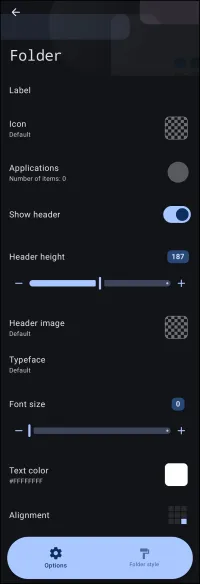
Folder Show Header dialog. Make selection above.
Toby says  Make Selections Now but They Will Also Be Available Later
Some selections on this new Folder Options Edit screen are also available later in Edit ON mode with a slight tap to the folder, opening the Options dialog and the Folder Style dialog. Make sure to visit Folder Style located next to Options at the bottom of this dialog.
This page shows Options for folders:
- Label - Defines the text title displayed below or associated with the folder icon.
- Icon - Opens an image selector to choose a custom icon representing the folder.
- Applications - Opens the application selection menu to choose which installed applications are contained within the folder.
- Show header - Toggles the visibility of the top header section on the expanded folder. Enabling this switch reveals controls for adjusting header height, background image, typeface, font size, text color, and alignment.
- Header height - Sets the vertical height of the folder header in pixels using the slider or numeric value field (default:
187with a range of0to370). - Header image - Opens the Launcher's Image Resource dialog to select a custom background image for the folder header.
- Typeface - Opens the Typeface selection dialog to choose the font family for the header text.
- Font size - In the app, the slider is used to adjust the text size inside the folder header. A numeric value field can also be entered manually. The default is
0, with a maximum value of370. - Text color - Opens the Launcher's Color Picker utility to set the hex color value for the header text (default:
#FFFFFFFF). - Alignment - Configures the layout alignment of the text content within the folder header area using the Alignment dialog.
- Options - This is the current dialog as shown.
- Folder style - Switches to the layout and visual customization dialog to adjust grid parameters (columns and rows), dimensions, sort order, animations, sounds, closure actions, backgrounds, margins, and label styling.
<wrap hide>
Comments & Feedback
Toby Lancer is ready to help! Look for the Quick Help form:
► Desktop: left sidebar located near the bottom for Private to Admin
► Mobile: 3-bar menu at page top.
► Use the Discussion section below to share any experiences and communications with other Total Launcher users.
► Any Registered User can directly update this and any wiki page if desired.
Moderation: To keep the manual clean, all comments are held for appropriateness review. Preview any comment before submitting it. It will not be displayed after submission until it is reviewed. So, please, do not resubmit.
Formatting: If using any code snippets, place them inside code tags (e.g., 'code') using double single quotes (') before and after to keep them readable.
Be Kind: This is a community effort. Please keep feedback constructive and on topic.
~~DISCUSSION~~