meta data for this page
Transition ID
Dialog selections are discussed below the image. To navigate to an item, select it in the [insert] image. If NOT selecting any item and wanting to return to the prior page: swipe right-to-left; use the browser’s ‘back’ arrow; or use the Wiki’s Backlink icon  on the right sidebar (mobile: drop-down dialog at the top of the page).
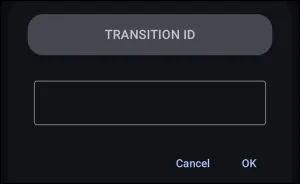
Transition ID dialog. Make selection above.
The explanation of this dialog is as follows:
- Transition ID: This demo does not allow for input. However, the key points are shown below.
- The Transition ID acts as a digital handshake that connects two separate objects so they can fluidly morph into each other. For this effect to work, assign the exact same ID to both the starting object and its destination target, and the two items cannot share the same space; typically, one sits on a main page while the other waits inside a pop-up window or on another screen. When the window opens or closes, Total Launcher spots the matching IDs and animates a seamless transformation between their positions, shapes, and sizes instead of triggering a standard slide or fade.
- These identifiers are case-sensitive and must match character for character. To prevent connection issues, stick to simple lowercase letters, numbers, and underscores while steering clear of spaces and special punctuation. Choosing a descriptive name like `music_art_cover` or `weather_card_main` saves guesswork as the layout expands, ensuring the paired objects link up without a hitch.
- Cancel: Changes previous or current settings to default and returns the user to the prior page.
- OK: Accepts the current input and returns the user to the prior page.
===== Hidden Index Anchors ===== ui-animation-no_exit
Comments & Feedback
Toby Lancer is ready to help! Look for the Quick Help form:
► Desktop: left sidebar located near the bottom for Private to Admin
► Mobile: 3-bar menu at page top.
► Use the Discussion section below to share any experiences and communications with other Total Launcher users.
► Any Registered User can directly update this and any wiki page if desired.
Moderation: To keep the manual clean, all comments are held for appropriateness review. Preview any comment before submitting it. It will not be displayed after submission until it is reviewed. So, please, do not resubmit.
Formatting: If using any code snippets, place them inside code tags (e.g., 'code') using double single quotes (') before and after to keep them readable.
Be Kind: This is a community effort. Please keep feedback constructive and on topic.
~~DISCUSSION~~