meta data for this page
Section 1.2.b.1 - How to Install the Total Launcher App and Themes
Installing the Total Launcher app from the Google Play Store:
- On your device's browser, enter https://play.google.com/store
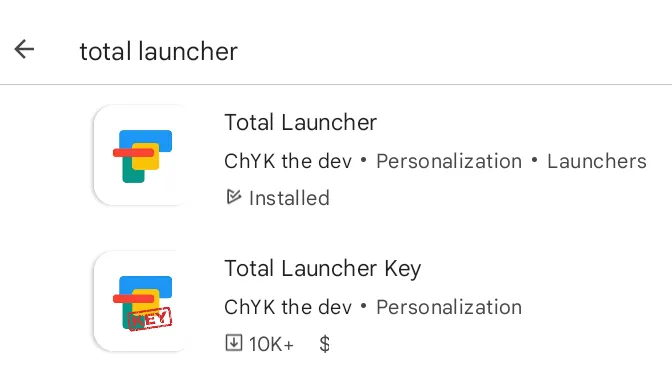
- On the “Search Apps and Games” dialog, enter Total Launcher
- Select Total Launcher for the free version. Upon deciding to continue using the app and benefit from all features [see Benefits - Full Version], select Total Launcher Key. The Key will install and grant full access to the existing Total Launcher app.

- After making the choice(s) above, Google Play displays the description, credentials, and “install” button. Select it. Google Play proceeds with the installation.

- Total Launcher will then open the device's screen with the first of its “tips” (how to select an area to highlight an object):
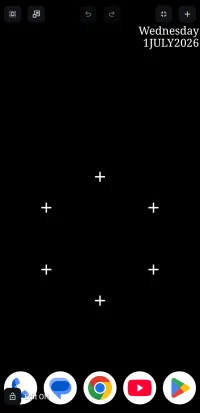
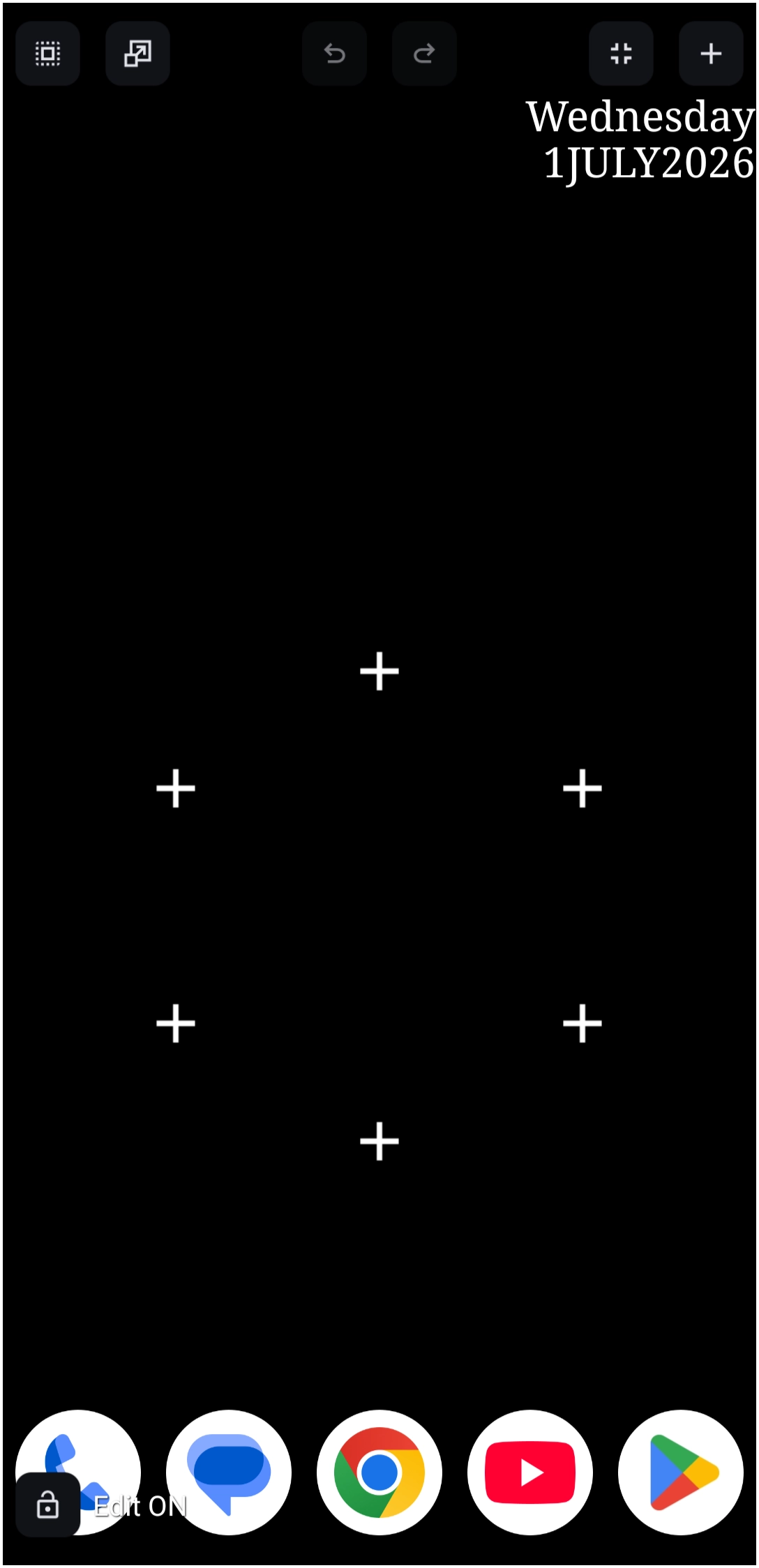
- Tap the arrow in the upper left corner to proceed and display the default installation layout, a basic and unattractive setup … but the purpose of this manual is to guide the creative genius with the know-how to improve!
- The basic installation is now complete. Read on and, as the developer emphasizes:** “Imagine it. Make it” **

Installing a Theme
A theme is a packaged setup that includes a preset home screen and perhaps pages, along with a collection of objects to create a functional and attractive design for a user's device. Themes can be professionally developed and distributed through services, such as Google Play Store, YouTube, or personal websites, or shared by other users on a personal basis.
Distributed Themes
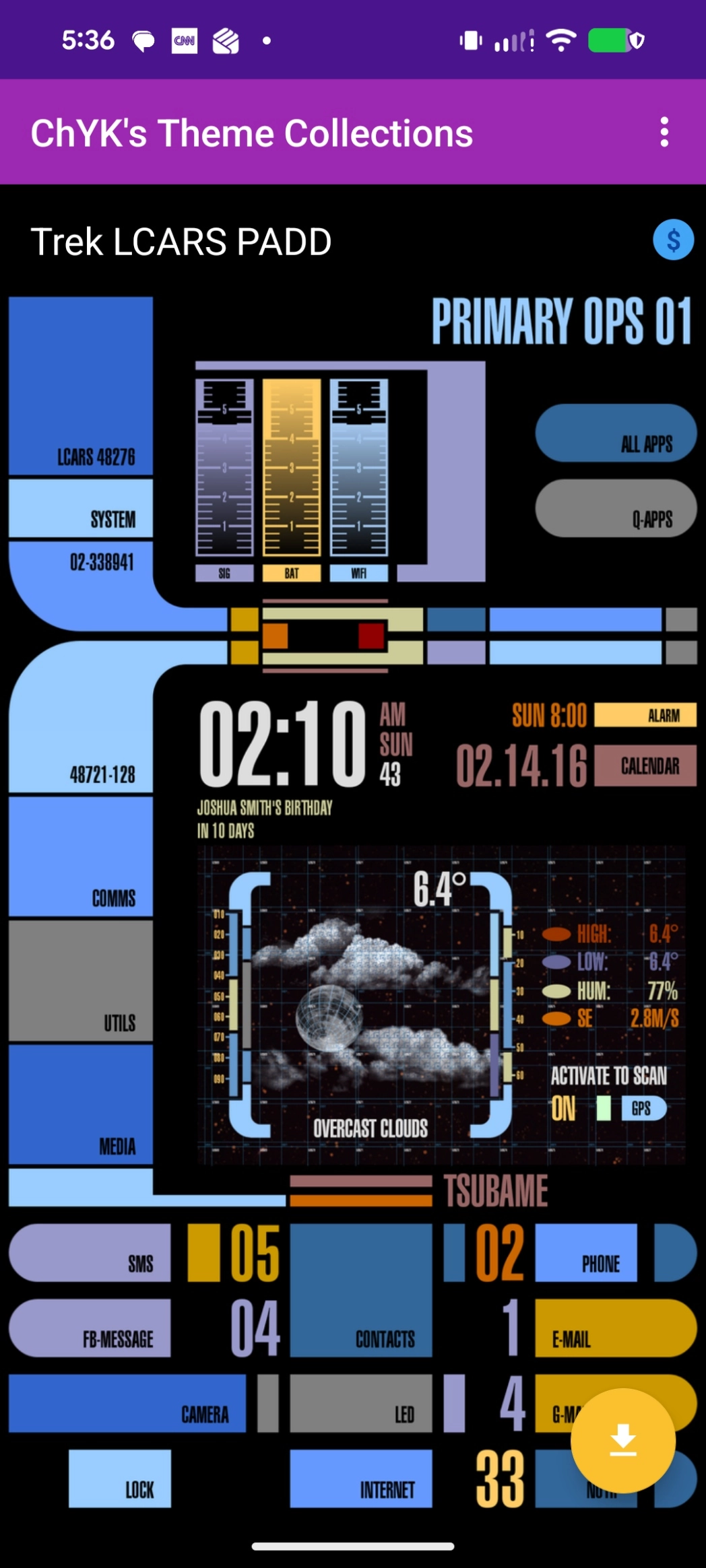
- This installation example will use Total Launcher developer's ChYK's TL Theme Collections currently available on the Google Play Store.

- After downloading the app (see Using the Google Play Store Installation above), scroll right to view the setups included.
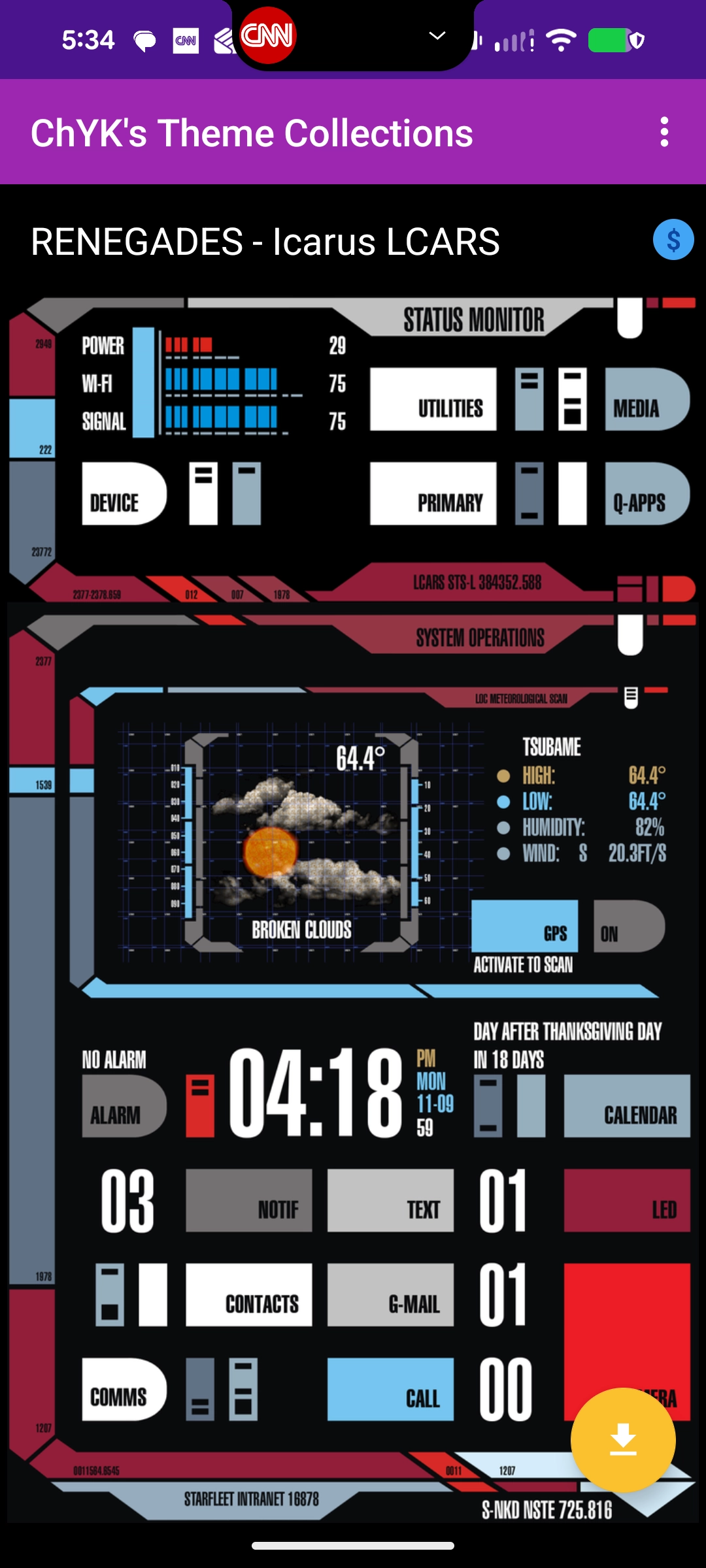
- If there is a charge for the setup, a “$” will show in the upper right corner.
- Selecting one of these will download the setup to the user's device. A screen message will indicate that the setup was not completed, usually because an “icon set” is required. To proceed, tap the message to open the Google Play Store and review the 3rd-party developer's description and the charge that was created. For no-charge setups, no “$” will be displayed.
- The current Total Launcher distribution program provides links to 5 distribution setups (note whether the images have a “$”; some do not). Home page views are shown here:
- For purposes here, the selection to install will be “Neon theme for TL”. Scroll right to view and select either the Blue or Pink edition.
- The lower right corner of the screen will have an arrow pointing down
 or a checkmark ✅ to start the download and installation.
- A dialog requests confirmation to apply the theme to the device.
- The install process is completed. However, the user can abort the setup finalization by tapping a top menu item “Revert” or continue with “Apply”
- Once the download is complete, the screen will change slightly, showing an “APPLY” in the upper right corner. Tapping this will start the installation process.
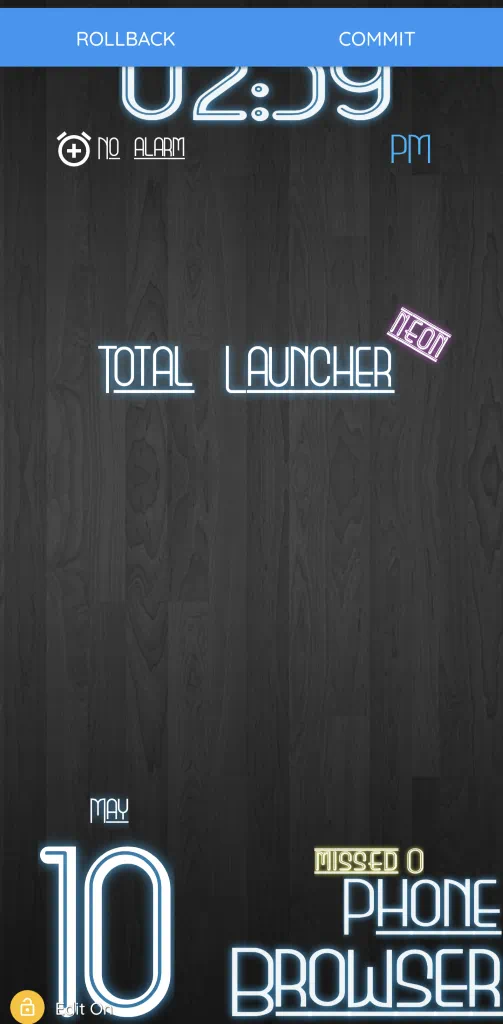
- The installation will request a “ROLLBACK” to cancel the install, or a “COMMIT” to finish the install.

- The resulting install will be a Home Page and 2 additional screens for the Neon setup with the following objects:




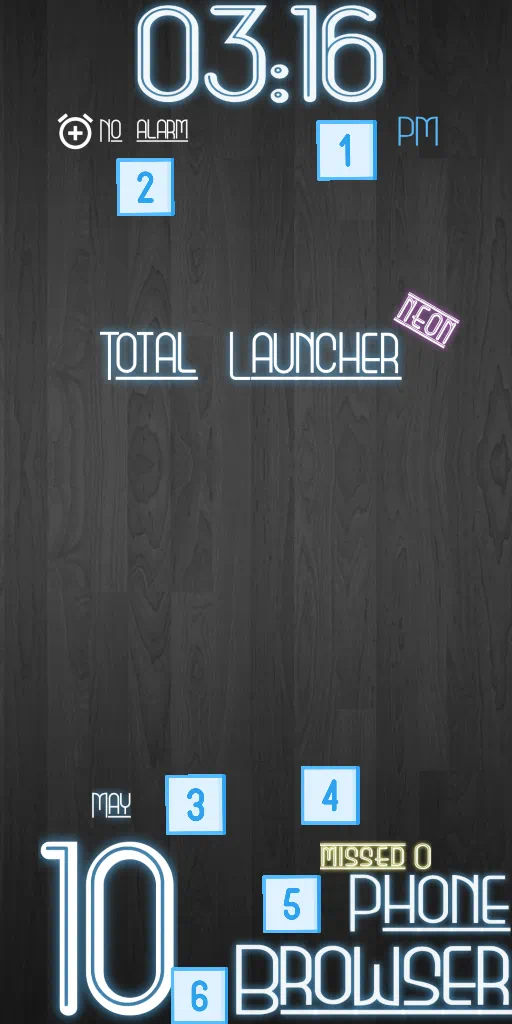 Home Page 1 - Time 2 - Clock/alarm app 3 - Month / Date 4 - Phone calls missed 5 - Phone app 6 - Internet browser |  2nd Page by scrolling right 1 - These items are “pinned” to all pages Below items are new to page: 2 - Contact drawer showing alphabetical listing with icons (image if included in contact app). Scroll down to reveal all. |  3rd Page, scroll right again 1 - These items are “pinned” to all pages Below items are new to page: 2 - App drawer showing alphabetical list of all apps (or folders if set up). Scroll down to reveal all. 3 - Sort order; Tags; Search |
e. The transition between pages (scrolling right) has been pre-set to “sliding” at 400ms duration with the “decelerate” effect. (see xxx
f. On any page, after selecting any item (clock, apps, contacts, etc), the setup will return to the Home Page, not the current page. This result is pre-set as seen in Menu> Launcher options> Behavior> Keep Status when back> Unchecked. See more about Launcher options here.
Install from a Theme Collection
Theme collections, once installed on the user's device as described above, are retained in Total Launcher's memory.
To Access Theme Collections:
- Tap any open area of the screen
- If password or fingerprint protected, enter the appropriate security action
- The Launcher's Edit Mode dialog will open.

- Select
Theme
- The open Theme dialog will list themes of distributed collections that the developer of Total Launcher has included.

- Making a selection will open the Google Play Store page for the theme.
- To use themes offered by other users as ZIP files, see the section below.


Install a Shared Theme or Setup
For installing a setup shared by another user, such as an exported backup ZIP file and not in a distribution pack, see here.
Now is the time to back up Total Launcher as a fallback should an error due to the device or software occur. See Backup: Access, Create, Export, Import.
Be sure to grant Total Launcher the permissions to manage the user's device andbe the default launcher.
Comments & Feedback
Toby Lancer is ready to help! Look for the Quick Help form:
► Desktop: left sidebar located near the bottom for Private to Admin
► Mobile: 3-bar menu at page top.
► Use the Discussion section below to share any experiences and communications with other Total Launcher users.
► Any Registered User can directly update this and any wiki page if desired.
Moderation: To keep the manual clean, all comments are held for appropriateness review. Preview any comment before submitting it. It will not be displayed after submission until it is reviewed. So, please, do not resubmit.
Formatting: If using any code snippets, place them inside code tags (e.g., 'code') using double single quotes (') before and after to keep them readable.
Be Kind: This is a community effort. Please keep feedback constructive and on topic.
~~DISCUSSION~~