meta data for this page
Translations of this page:
- en
<insert previous page>
Round Rectangle Options
Dialog selections are discussed below the image. For navigation to an item make a selection in the Round Rectangle Options image.
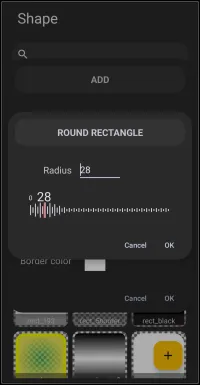
Round Rectangle Options dialog. Make selection above.
Round rectantangles begin as a square with square corners. At this point the user can cause the corners to be rounded but the side dimensions can not be altered (this is done when the object is on the page while in Edit Mode).
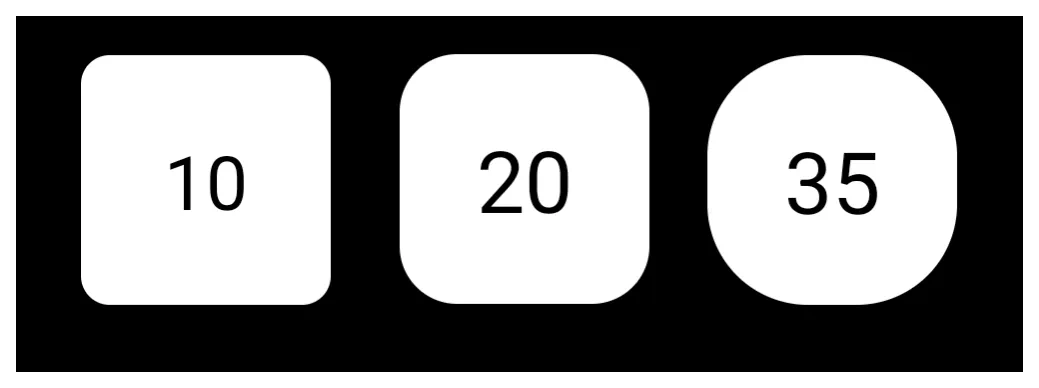
- Radius - To cause rounded corners the user inputs a radius number to be applied to all corners or uses the slider scale. The range defaults at 0 (square) with a high of 287 (causing the object to become a complete circle and some undetermined range). The visibility of rounded corners is dependent on the size the user ultimately creates on the page. It is not as readily visible at this stage. See an example below.
- Cancel - void any input and return to the previous screen
- OK - activate any input and return to the previous screen
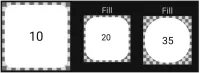
An example with input number is shown below for image comparison of in app and on page:
| In the app |
|---|
| On the page |
|---|
Comments & Feedback
Toby Lancer is ready to help! Look for the Quick Help form:
► Desktop: left sidebar located near the bottom for Private to Admin
► Mobile: 3-bar menu at page top.
► Use the Discussion section below to share any experiences and communications with other Total Launcher users.
► Any Registered User can directly update this and any wiki page if desired.
Moderation: To keep the manual clean, all comments are held for appropriateness review. Preview any comment before submitting it. It will not display after submission until reviewed. So, please, do not resubmit.
Formatting: If using any code snippets place them inside code tags (e.g., 'code') using double single quotes (') before and after to keep them readable.
Be Kind: This is a community effort. Please keep feedback constructive and on topic.
~~DISCUSSION~~