meta data for this page
Translations of this page:
- en
section-object-text-option
<insert previous page>
Object: Text - Options - Edit
Dialog selections are discussed below the image. For navigation to an item make a selection in the Text Edit image.
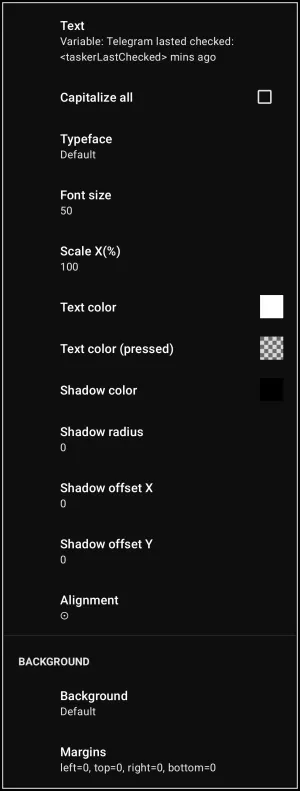
Text Edit dialog. Make selection above.
This page shows options for:
- Text - The actual content field for the object or “code” for specialized text. Actual is static text and “code” would be dynamic variables (e.g.,
<taskerLastChecked>) to display real-time data from external apps like Tasker orMMMM d, yfor month date, year. - Capitalize all - A toggle checkbox that, when checked, forces all text within the object to appear in uppercase letters regardless of the input source.
- Typeface - Opens the font selection dialog to choose the font family for the text.
- Font size - Sets the height of the text characters.
- Scale X(%) - Adjusts the horizontal width of the text characters, allowing the text to stretch or compress font width without changing its height.
- Text color - Selects the default color for the text.
- Text color (pressed) - Selects the color the text will change to temporarily when the object is tapped by the user (provides visual feedback for interactions).
- Shadow color - Sets the color of the drop shadow behind the text.
- Shadow radius - Determines the blurriness or spread of the drop shadow; a value of 0 results in sharp edges.
- Shadow offset X - Moves the drop shadow horizontally (positive values move right, negative move left).
- Shadow offset Y - Moves the drop shadow vertically (positive values move down, negative move up).
- Alignment - Toggles the horizontal justification of the text within its bounding box (e.g., Left, Center, Right).
- Background - Opens the background settings to apply colors, images, or effects behind the text object.
- Margins - Configures the padding around the text object, defining the distance between the text and the edges of its bounding box (Left, Top, Right, Bottom).
Comments & Feedback
Toby Lancer is ready to help! Look for the Quick Help form:
► Desktop: left sidebar located near the bottom for Private to Admin
► Mobile: 3-bar menu at page top.
► Use the Discussion section below to share any experiences and communications with other Total Launcher users.
► Any Registered User can directly update this and any wiki page if desired.
Moderation: To keep the manual clean, all comments are held for appropriateness review. Preview any comment before submitting it. It will not display after submission until reviewed. So, please, do not resubmit.
Formatting: If using any code snippets place them inside code tags (e.g., 'code') using double single quotes (') before and after to keep them readable.
Be Kind: This is a community effort. Please keep feedback constructive and on topic.
~~DISCUSSION~~