meta data for this page
Translations of this page:
- en
This is an old revision of the document!
UI & Animation: Launcher Options
Dialog selections are discussed below the image. For navigation to an item make a selection in the UI & Animation: Launcher Options image.
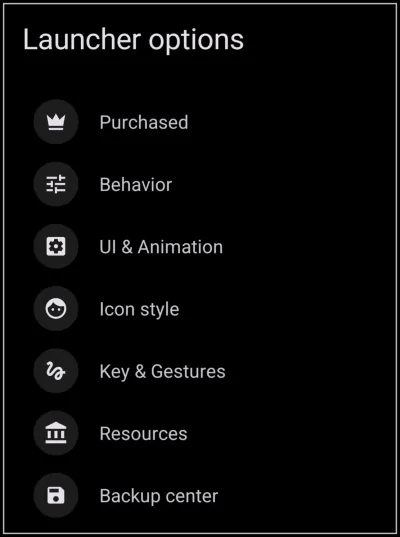
UI & Animation: Launcher Options dialog. Make selection above.
This dialog screen shows options for:
Some options listed will be premium features (denoted by a  icon).
- Purchased - Opens the menu to verify premium status and manage the activation of premium features.
- Behavior - Accesses settings configuring global launcher operations, such as infinite scrolling, screen orientation, app drawers, badge counts, lock levels, and more.
- UI & Animation - Provides options to adjust visual transitions, the device's system interface visibility, blurs/dims, sliding drawer availability and animation speeds.
- Icon style - Configures global settings for applying icon packs, adjusting default icon sizes, and defining icon shapes.
- Key & Gestures - Determines the actions assigned to device hardware buttons and screen touch gestures for both portrait and landscape positions of the device.
- Resources - Opens the manager for handling images, fonts, shapes, sounds, windows, sequences and other assets utilized within the current design.
- Backup center - Accesses the interface for saving, restoring, and managing backup files of the launcher layout. It also includes the capability to import backup files from external sources or users
Comments & Feedback
Toby Lancer is ready to help! Look for the Quick Help form:
► Desktop: left sidebar located near the bottom for Private to Admin
► Mobile: 3-bar menu at page top.
► Use the Discussion section below to share any experiences and communications with other Total Launcher users.
► Any Registered User can directly update this and any wiki page if desired.
Moderation: To keep the manual clean, all comments are held for appropriateness review. Preview any comment before submitting it. It will not display after submission until reviewed. So, please, do not resubmit.
Formatting: If using any code snippets place them inside code tags (e.g., 'code') using double single quotes (') before and after to keep them readable.
Be Kind: This is a community effort. Please keep feedback constructive and on topic.
~~DISCUSSION~~