meta data for this page
Translations of this page:
- en
ui-generic-background-selection created by ui-edit_on-page_background
<insert previous page>
Background Selection
Dialog selections are discussed below the image. For navigation to an item make a selection in the Background Selection image.
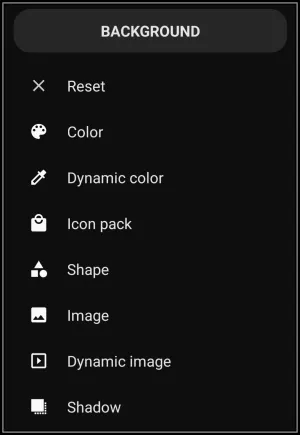
Background Selection dialog. Make selection above.
The dialog's elements shown above are discussed below:
- Reset - When selected, the user is returned to the originating page without any changes being activated. If in trouble, it is a “Get out of jail, free!” card.
- Color - Allows for the selection of ARGB colors using Total Launcher's Color Picker utility. For Text, Shapes, Layouts and Windows this is a very usable background element. For Widget containers, Icons (some), and Images, the selected color could significantly overlap the main object unless it was applied with a more transparent hue. Experimentation is a good teacher. See more about this Color Picker and then return here.
- Dynamic color - The point made in the previous feature “Color” can also apply here in Dynamic Color. Bother are “colors”. Dynamic color are colors based on Android's Material You design language and a system which adapts the Launcher’s color palette based on the user's wallpaper or theme. It uses predefined roles, like “Primary,” “Secondary,” “Error,”, to apply consistent and appealing colors across different UI elements based on the user's setup color scheme. See Customize Dynamic Color for more discussion.
- Icon Pack - Icons or icons from icon packs can be used in backgrounds mostly as an opaque image or in a modified transparency mode which rests behind a foreground such as text or another graphic. This icons can come from applications or included in Total Launcher built-in icons or downloaded from the Google Play Store.
- Shape - Shapes, with their color and gradient fills, can satisfy nicely as backgrounds, but again, have the same cautions as basic color, dynamic color, and icon packs: namely, opaque qualities can cause issues. Shapes can also be used to blur a wallpaper background.
- Image - Displays the launcher's Resource category for image storage.
- Dynamic image - Displays built-in images which automatically change depending upon their state such as a clock, a weather icon, or even the graphic
textwhich can be dynamic if the text variable offered between Total Launcher and external automation apps (Tasker, MacDroid, etc) is used.
- Shadow - Displays a dialog to create a 3-D or elevation or directional effect for the object.
Comments & Feedback
Toby Lancer is ready to help! Look for the Quick Help form:
► Desktop: left sidebar located near the bottom for Private to Admin
► Mobile: 3-bar menu at page top.
► Use the Discussion section below to share any experiences and communications with other Total Launcher users.
► Any Registered User can directly update this and any wiki page if desired.
Moderation: To keep the manual clean, all comments are held for appropriateness review. Preview any comment before submitting it. It will not display after submission until reviewed. So, please, do not resubmit.
Formatting: If using any code snippets place them inside code tags (e.g., 'code') using double single quotes (') before and after to keep them readable.
Be Kind: This is a community effort. Please keep feedback constructive and on topic.
~~DISCUSSION~~