meta data for this page
Translations of this page:
- en
Section 1.2.e - Beginner's Basic Editing Steps
Anxious to begin right now … before reviewing the rest of the manual? Perhaps experimenting just to get the feel of getting started on the first setup or theme?
The following points will serve as a starting point. The sections with a more detailed explanation are in parenthesis.
To Access Main Menu and Launcher Options
- “Tap and Hold” any “open” area of the screen
- Enter the password if the requirement has been set up (see Password Protection)
- Tap Menu in the lower left corner of the page
- The Launcher Options dialog opens.
- For further discussion see:
- Purchase
- Behavior
- UI & Animation
- Icon style
- Key & Gestures
- Resources
- Backup Center
To enter Edit mode:
- “Tap and Hold” any “open” area of the screen
- Enter the password if the requirement has been set up (see Password Protection)
- Tap the “Edit Off” icon in the lower right screen area

- Again, enter a password if required.
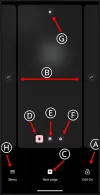
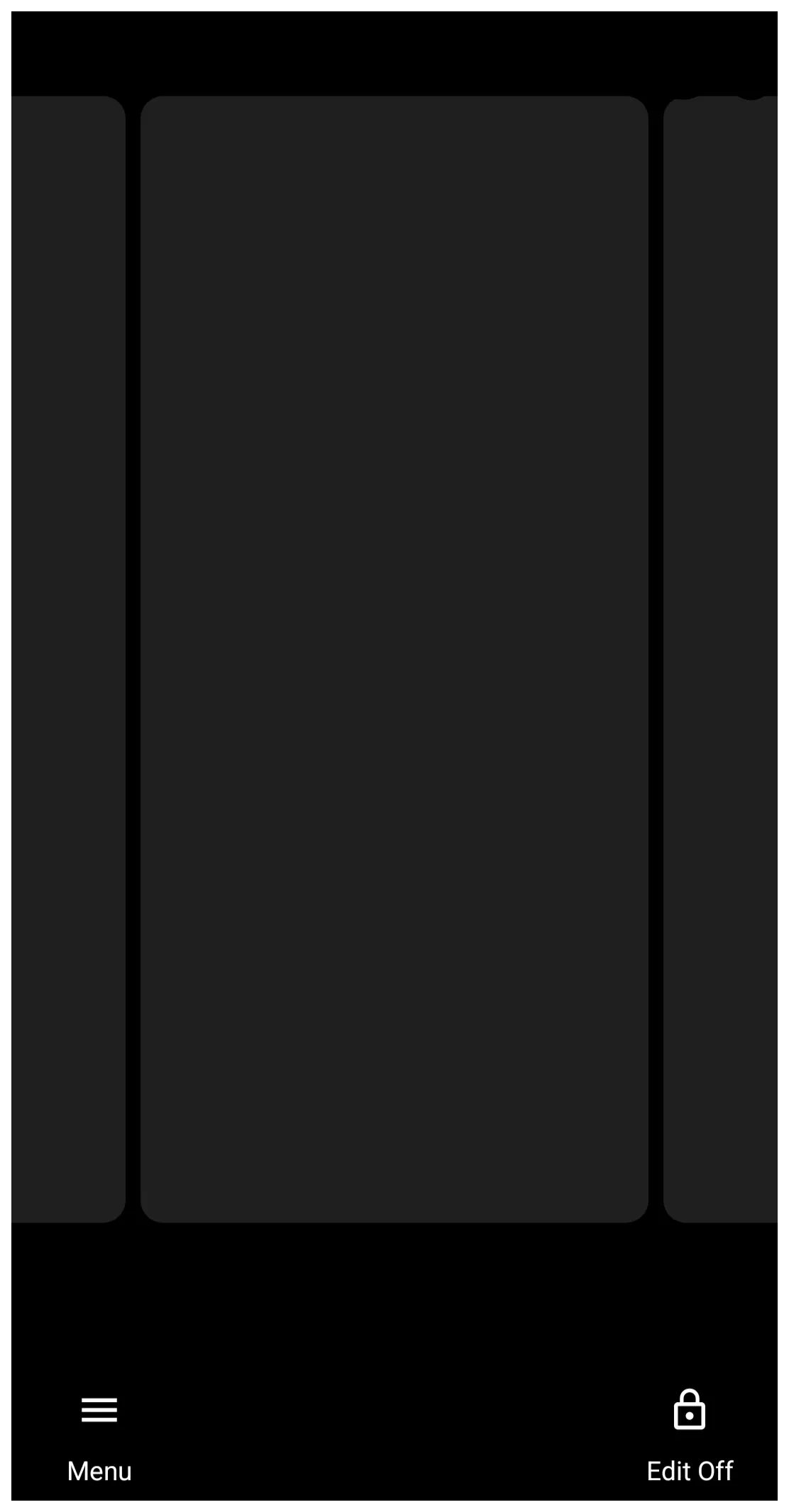
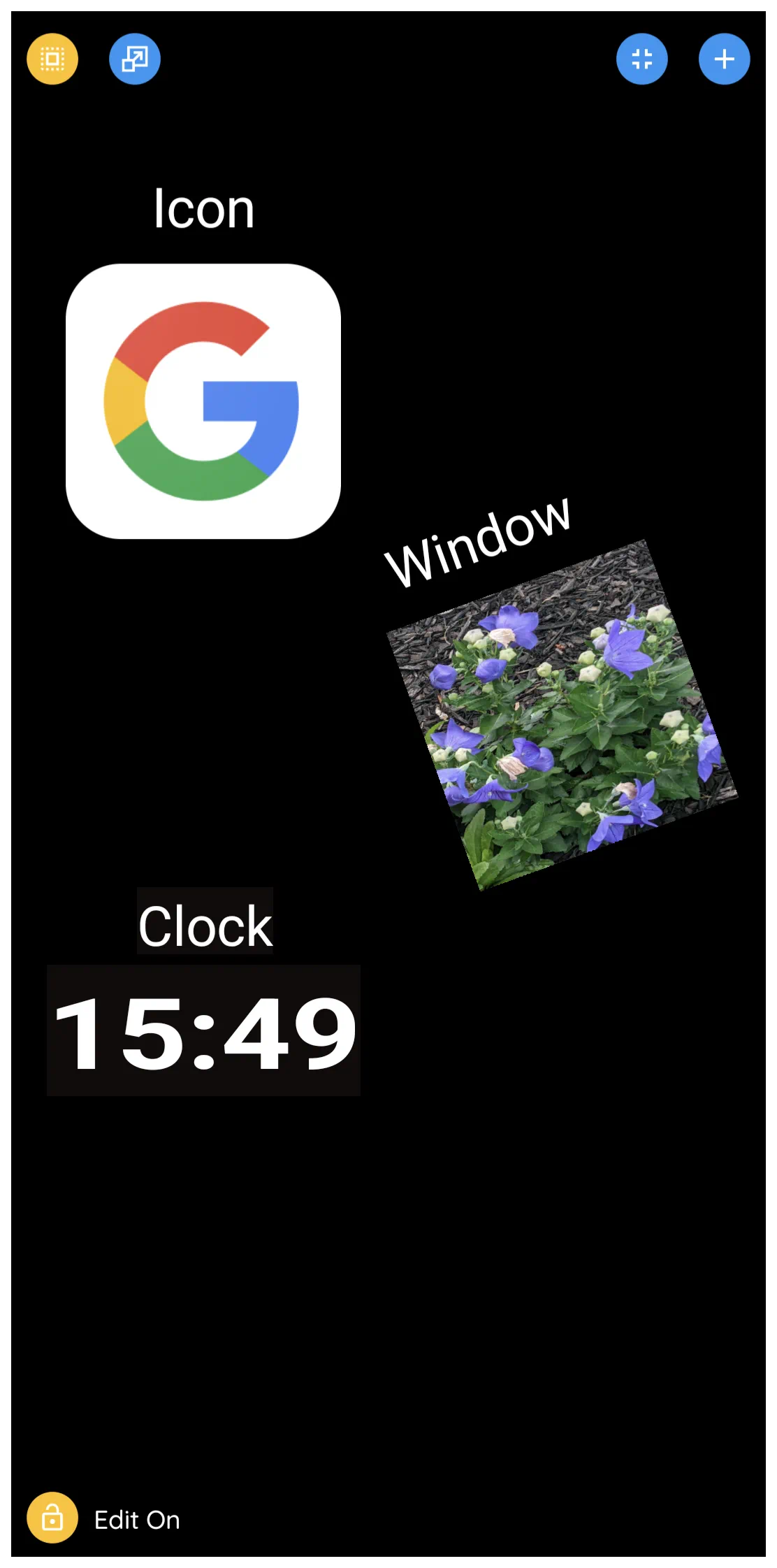
- The image below will display:
 - The “Edit On” indicates the setup is now in Edit mode
- For multiple page setups, the “Home Page” is visible in the center of the screen. On either side are additional pages.
- To add a page, tap the “New page” icon
- To delete the displayed page, tap the trash icon.
- To create a page background, tap the image icon.
- To enter page settings, tap the gear icon.
- To make the current (center) page the “Home Page”, tap the house icon, or horizontally scroll left or right to make the desired screen centered and tap it's house icon.
- To enter Total Launcher's Main menu, tap the hamburger (Menu) icon.
To exit Edit mode:
- To turn off Edit Mode, tap the “Edit On” button icon in the lower left corner of the screen
To toggle Edit mode on/off:
If frequent editing is to be performed, an object can be added to a page to provide for this action.
- Enter Edit mode (see How To Enter Edit Mode above)
- Add an object [see …]: use an image, text, or even a hidden item/location.
- After adding the object, a dialog will list possible actions.
- Select Launcher Options
- Select Toggle Edit Mode
- The object, when tapped, will now toggle between Edit On and Edit Off
To Add an Object
- An object can be images, text, widgets, icons, clocks, windows, and more.
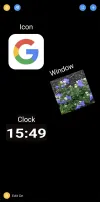
- Enter Edit mode (see How To Enter Edit Mode above)
- In the upper right corner of the screen, tap the “add” icon
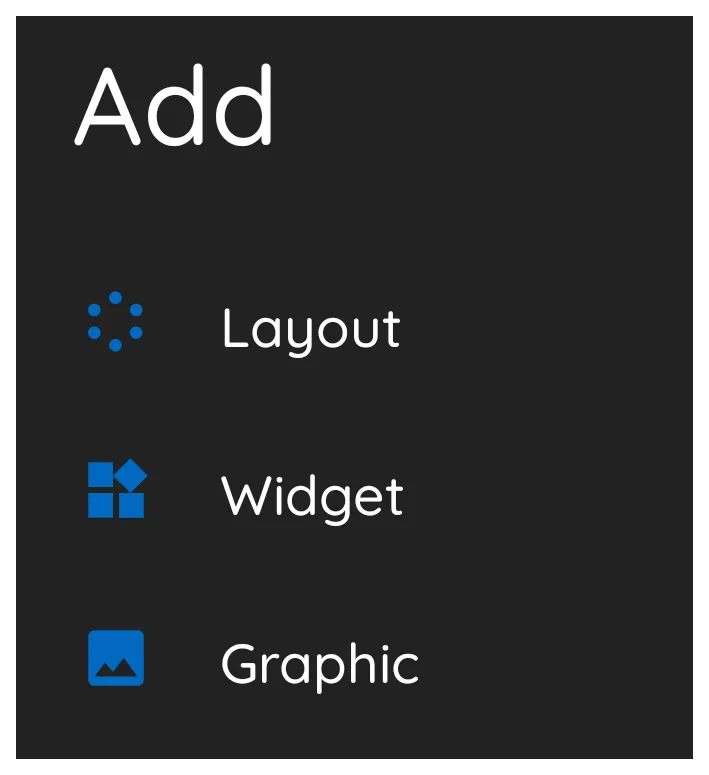
- The Design Add dialog opens in the lower left screen area listing the 3 categories of objects:
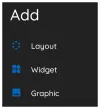
- Layout includes the spatial placement of objects in a grid or circle arrangement, the number of each being changeable.
- Widgets are dedicated objects with specific purpose such as weather data, media controls, app drawers, application widgets, and many more. Most of the special purpose widgets are built into Total Launcher, while application widgets come from the applications which the user has installed on the device.
- Graphics can either be image-based or text-based or a combination (grouped) of the two types. Each can be static or dynamic, such as your background wallpaper, calendar event list or next calendar event, app notifications, and many many more.
Tip: During design, if an object is ever copied with the purpose of placing it elsewhere on the screen(s), a 4th item will be listed in this dialog as “Paste”. Tapping that selection will place the copied object in the center of current screen. - When added to the screen (page), the objects are placed, centered, and already selected. Being selected (highlighted) means it can be moved and edited.
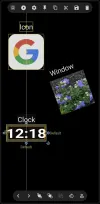
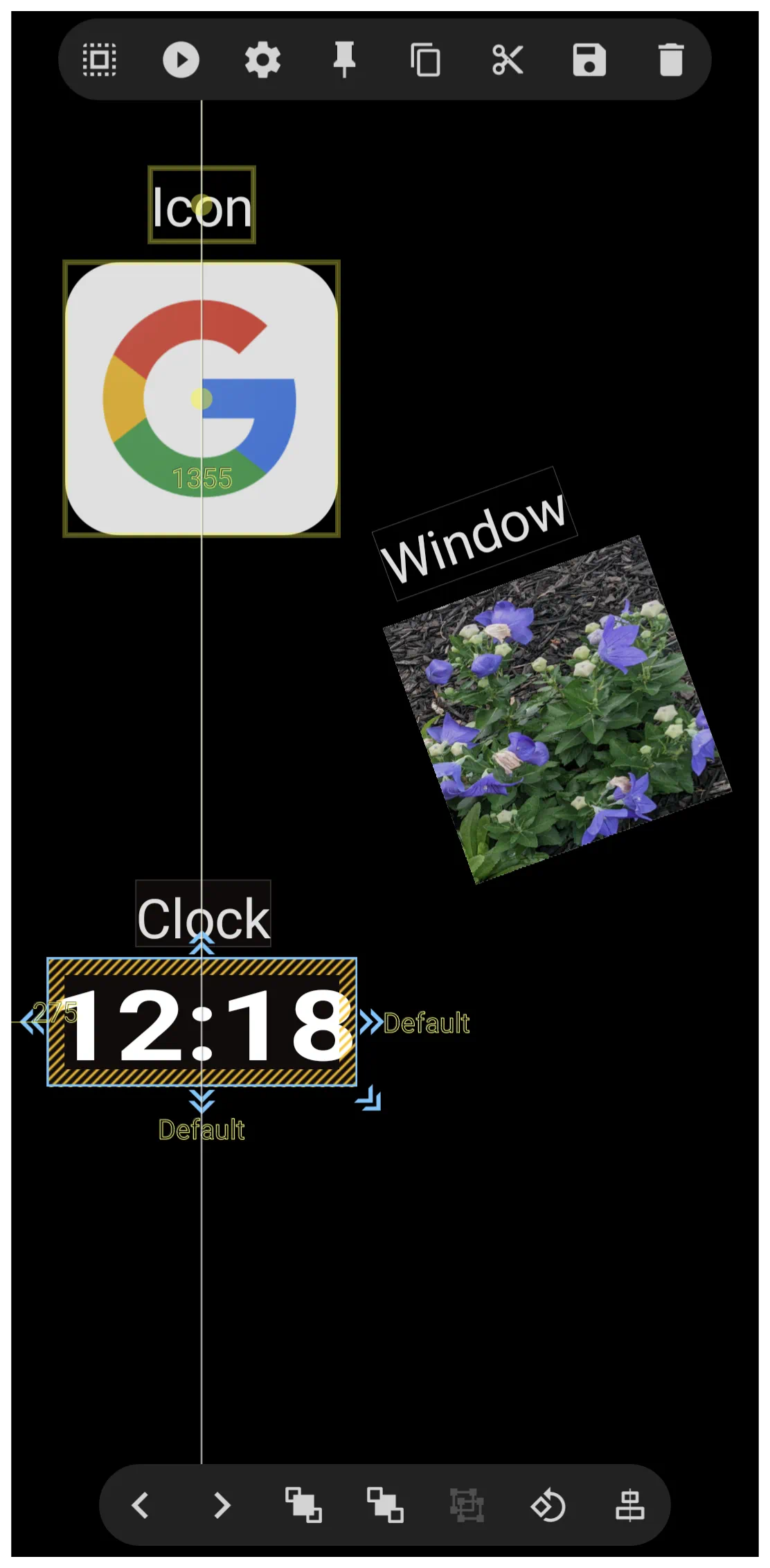
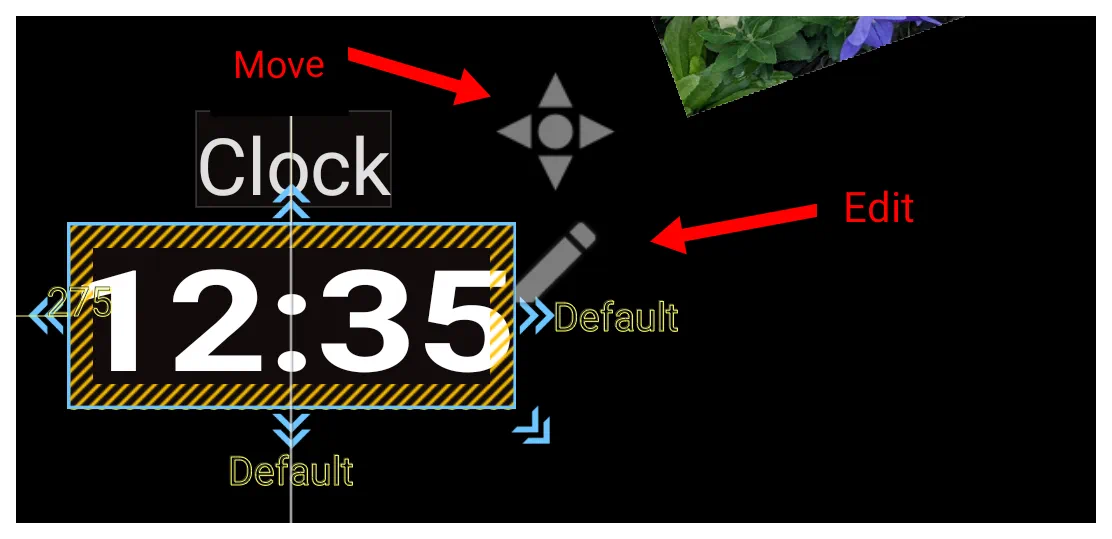
- The above sample includes an icon, image, and clock as objects, each with a text label that are also objects.
- The Time object has been selected by a “tap and hold”. Selection always results in a highlight or outline of the object. Selection can also be made of multiple objects, such as the text “Clock” by another “tap and hold” of that text would expand the selection.
- Notice the vertical white line which runs through the “colon” and the “G”. This is an alignment guideline which will show only when 2 objects are centered. While the sample shows vertical alignment, horizontal alignment is also shown automatically if applicable.
Edit an Object Setting & Actions
- Immediately after selecting an object, 2 edit options will show in the screen center: “pencil” icon for edit and “compass” icon for movement. This icon only stays on the screen for less than 2 seconds, but can be reactivated by tapping the object again.
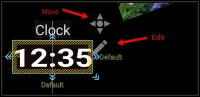 - The “pencil” icon (Edit) opens as shown below
 - “X” and “Y” are the x-axis (horizontal) and y-axis (vertical) position values of the object, in pixels, with 0 for each being in the upper left corner. Screen sizes and resolutions vary, but typically could be an x-axis with 1055 viewable pixels and a y-axis with 2100 viewable pixels.
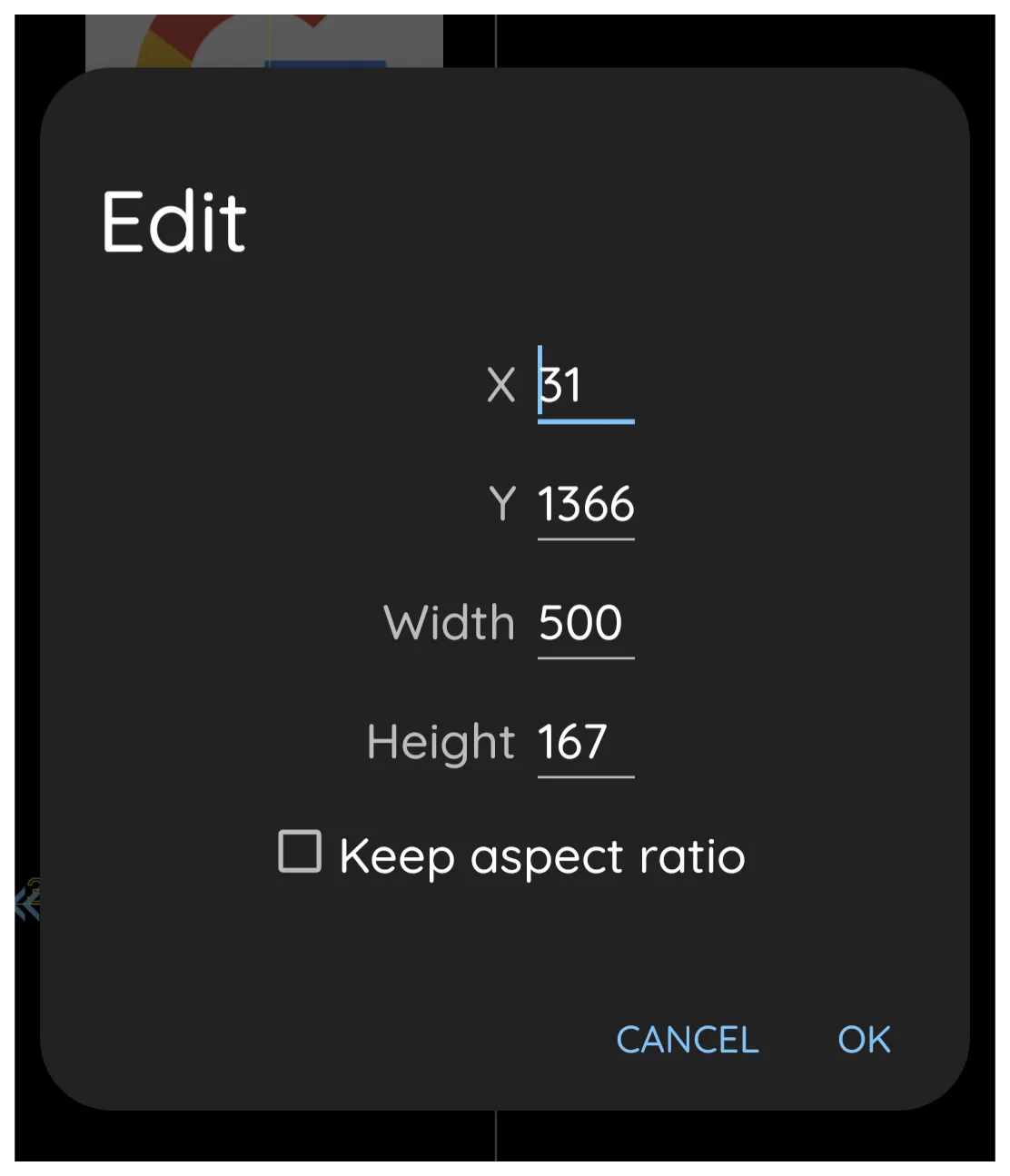
- “Width” and “Height” of the object are in pixels and can be modified. Decreasing these from the initial value will result in part of the object being obscured while increasing the values will be similar (not quite) to adding a border to the object. [Borders will be properly addressed later] However, if “Keep aspect ratio” is checked prior to changing either width or height, the original proportions of the object will be maintained with the object being totally viewable, unless extending off of the screen.
- Tap OK when finished
- The “compass” icon (Movement) is for a more visibly discreet movement of the object that the use of x/y-axis. While the “compass” is viewable, tap and drag in the direction of the desired movement. This action can be repeated while the icon is visible. Select the object again to cause the icon to re-appear.
- When an object is selected, the Design Menu icons will appear at the screen top and bottom.
- Top Design Menu
 -
-  Select – Selects and highlights an object by dragging a stylus/mouse/digit:
- Left-to-right: highlights ONLY objects fully within the boundary
- Right-to-left: highlights objects partially within the boundary
 Action – opens a dialog to specify what the object initiates when selected, including how the object is initiated (such as tap, swiping in a direction)
 Settings – defines the characteristics of the object, such as image, text, font, spacing, opacity, animations, and much more.
 Pin – The selected object will appear on all pages of the setup
 Copy – The selected object will be copied and available for pasting in another location, window, or page. See “Add” in this section for pasting.
 Cut – The selected object will be copied AND deleted from its current location. It is also available for pasting as the copy action above.
 Save – The selected object will be stored in Total Launchers “permanent” memory in 1 of the categories (layout, or graphic [widgets cannot be saved]). It will be available in the future when selecting the Object Design Menu's “Add” icon by then selecting the appropriate category and tapping the page top tab “Saved”
 Delete – The selected object is removed only.
- Bottom Design Menu
 -
-  Change selection (back) - cycles “backwards” through all objects on the page
 Change selection (forward) - cycles “forwards” through all objects on the page
 Z-order (to front) - when object boundaries intersect each other, moves the selected object to the front
 Z-order (to back) - moves the selected object back 1 level
 Group/Ungroup - selected objects are considered anchored together and can be deleted, moved, rotated, etc with a single action
 Rotate/Transform - Repositions the object to provide a 3-dimentional view
- Rotate - Bottom slider moves the object on an x-axis and the right slider a y-axis
- Transform - Only applies if “Rotate” above has been set. Bottom slider moves the object on an x-axis and the right slider a y-axis
 Alignment - For selected or grouped objects provides a vertical and/or horizontal full screen alignment lines outside of the single or grouped objects. Aides for centering, line, or mid-object positioning verification.






Comments & Feedback
Toby Lancer is ready to help! Look for the Quick Help form:
► Desktop: left sidebar located near the bottom for Private to Admin
► Mobile: 3-bar menu at page top.
► Use the Discussion section below to share any experiences and communications with other Total Launcher users.
► Any Registered User can directly update this and any wiki page if desired.
Moderation: To keep the manual clean, all comments are held for appropriateness review. Preview any comment before submitting it. It will not display after submission until reviewed. So, please, do not resubmit.
Formatting: If using any code snippets place them inside code tags (e.g., 'code') using double single quotes (') before and after to keep them readable.
Be Kind: This is a community effort. Please keep feedback constructive and on topic.
~~DISCUSSION~~