meta data for this page
- en
Automated Life: Master A Schedule with Total Launcher & Macrodroid Taxonomy
A very interesting project once the world of taxonomy is understood. Simplistically, it is
- A structured framework for naming and organizing information into a hierarchy to ensure everything is discoverable and easy to manage
A more fully rounded understanding can be reviewed in this article by Enterprise Knowlege (2022). Use this background to turn a device (phone, tablet, computer) from a simple list of reminders into a dynamic, categorized ecosystem.
Total Launcher is the interface to display automation results. It does not have automation capabilities built in. Macrodroid, available at the Google Play Store, is the automation app which does the hard work with Google Calendar. Total Launcher visually displays these results.
The procedure is a step-by-step with “test trials” along the way to verify successful status. It offers one (1) taxomony category:
- Doctor visits
But others can easily be replicated using the same steps, just varying the taxomony key word and message content … such as
- Podcast recording
- Gardening activity
Every user may not have a need for these categories, but the procedure is a shell with new categories and notification keyword and content injected for meet user need.
Enjoy!
Procedure: Google Calendar Widget in Total Launcher with Gesture + Macrodroid Integration (with Taxonomy)
A. Create a Pop‑Up Calendar Window in Total Launcher
- Long‑press an empty area to enter Edit On mode
- Tap
+>Graphic>Image>Windowto open the “Window Portrait” dialog - Tap
+to begin adding a specific window: name itcalendar_window. Press OK. - Locate that item in the list and tap it's action icon
 to open it in edit mode.
 - In the top menu row, tap the Edit icon
 to open the window full screen.
 - In the lower right corner is the Option
- Tap the center of the screen to reveal the Object Edit icon
 to reveal the manual size and positioning dialog
- To briefly resize the window, enter X as
165; Y as1050; Width as695; Height as800. Press OK. - - These measures are a good start but will later allow for resizing the window by tap/drag which is visually easier. Manual entry is for more refined adjustments.
- The new window has been initally created with basic options. Swipe right-to-left to close it and return to the “Windows Portrait” dialog. Locate the window in the list and tap it's “name” to add the window to the launcher screen.
- What is viewed is the default window image within it's boundaries.
- To get acquainted with the window, tap outside of the boundaries to de-select it:
- Tap the window image to open the window and note the inital resizing and position performed.
- Tap/hold/drag the window center to move the window
- Tap/hold the center of the window to reveal the Option icon
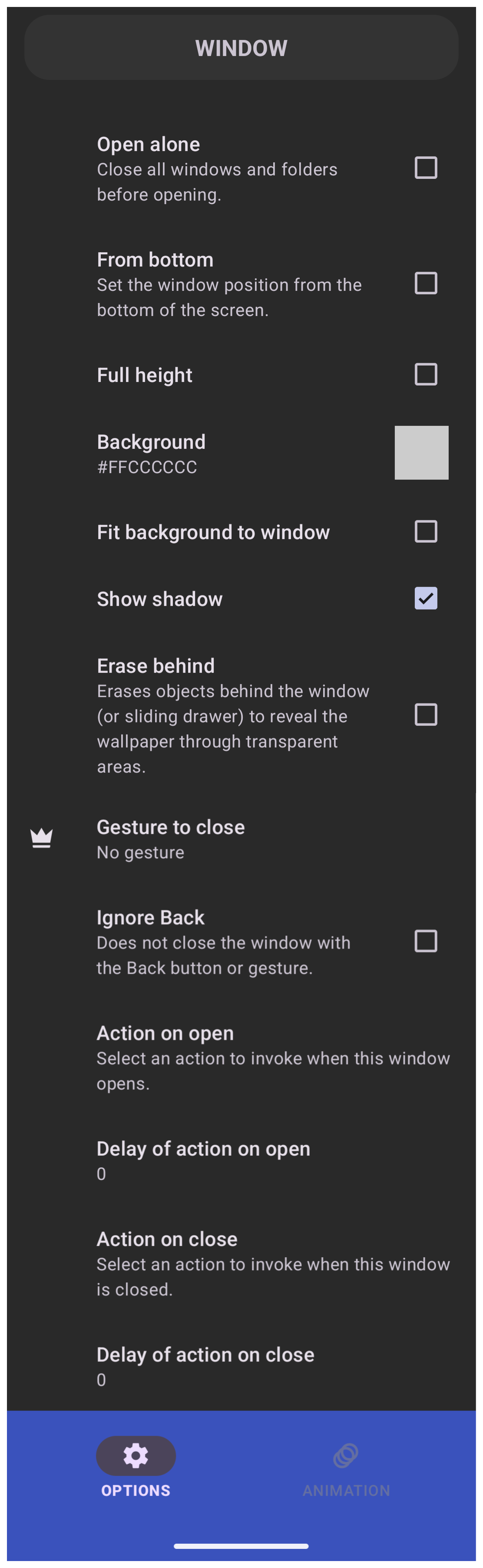
 in the lower right corner. Tap it to open the Option dialog shown here.
- Full review of the dialog can be found at the Windows Dialog Secion of this wiki. This procedure will only deal with a limited number of options.
- The background of the window may be visible due to the final sizing of the Google Calendar widget. Decide the styling desired, be it solid color, imagery, blurring of the wallpaper, etc. Here, a solid color is selected:
- The Background option defaults to an off white cloud. Here a hue of yellow, non-transparent, will be used.
- Tap the “square” to the right of the Background text to open the launcher's “Color Picker utilikty”.
- In the “ARGB” dialog enter
FFFFD700recognized as “Gold” - Back out (swipe right-to-left) to view the window now with it's gold background.
- Notice the window is selected (note the each boundary has “handle” on the center edge).
- If missing, tap the center of the window to select it).
- Alternately, select the Edit icon in the top menu bar.
- Holding the center move the window slightly. Now drag a selected “handle” to see how visual re-sizing is performed.
- This can at times be tricky and require re-activating the window by tapping the default window icon and repeating the above.
- The window is now positioned and open.


B. Now to add the Google Calendar widget inside the window.
- In the Page Design menu (top), tap
+and selectGraphic>Image>Applicationto open the Application dialog listing. SelectCalendar(technically Google Calendar) to open a second dialog listing activities:- Launch app (select this) ☚
- New event
- New task
- Preference is to show the calendar event listing which will scroll by day in the widget within the window
- Resize the calendar widget and the window to meet design needs.
- The window background (now 'gold') can be changed in the window option dialog.
- The Calendar widget does have an Option dialog /style to match your Material theme.
C. Assign a Gesture to open the Calendar
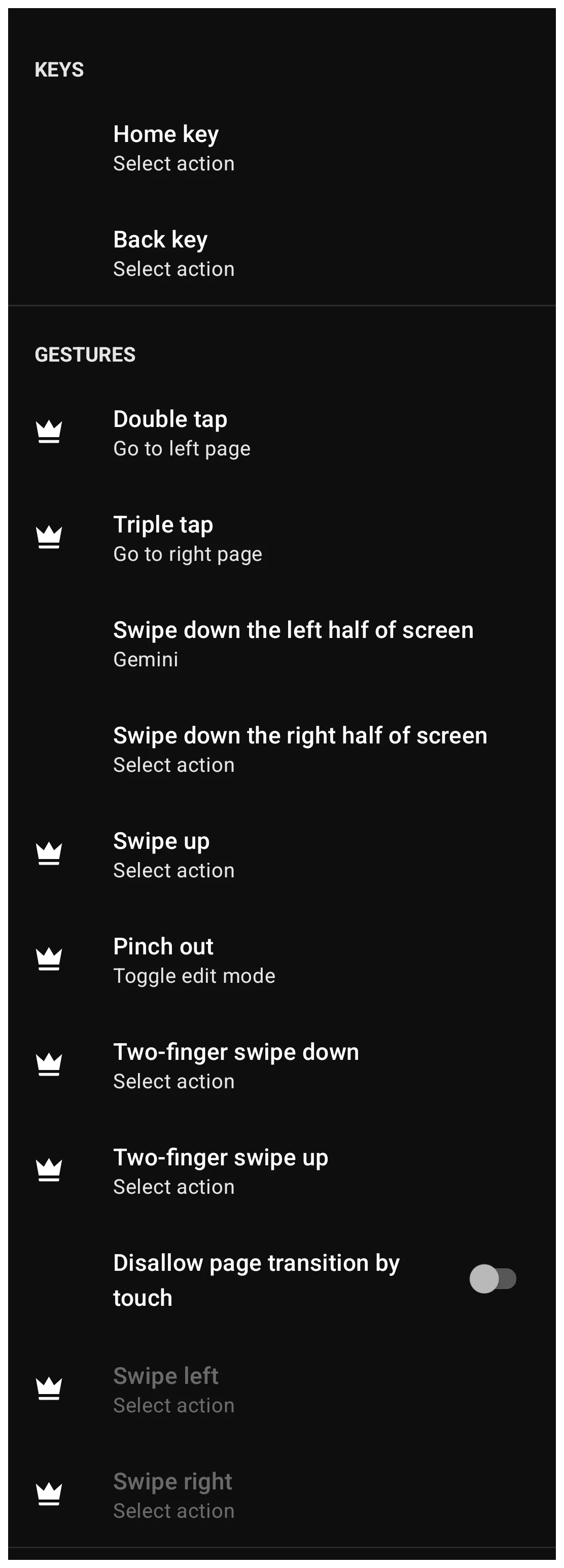
- In Edit On mode select Main Menu → Launcher Options → Keys & Gestures.
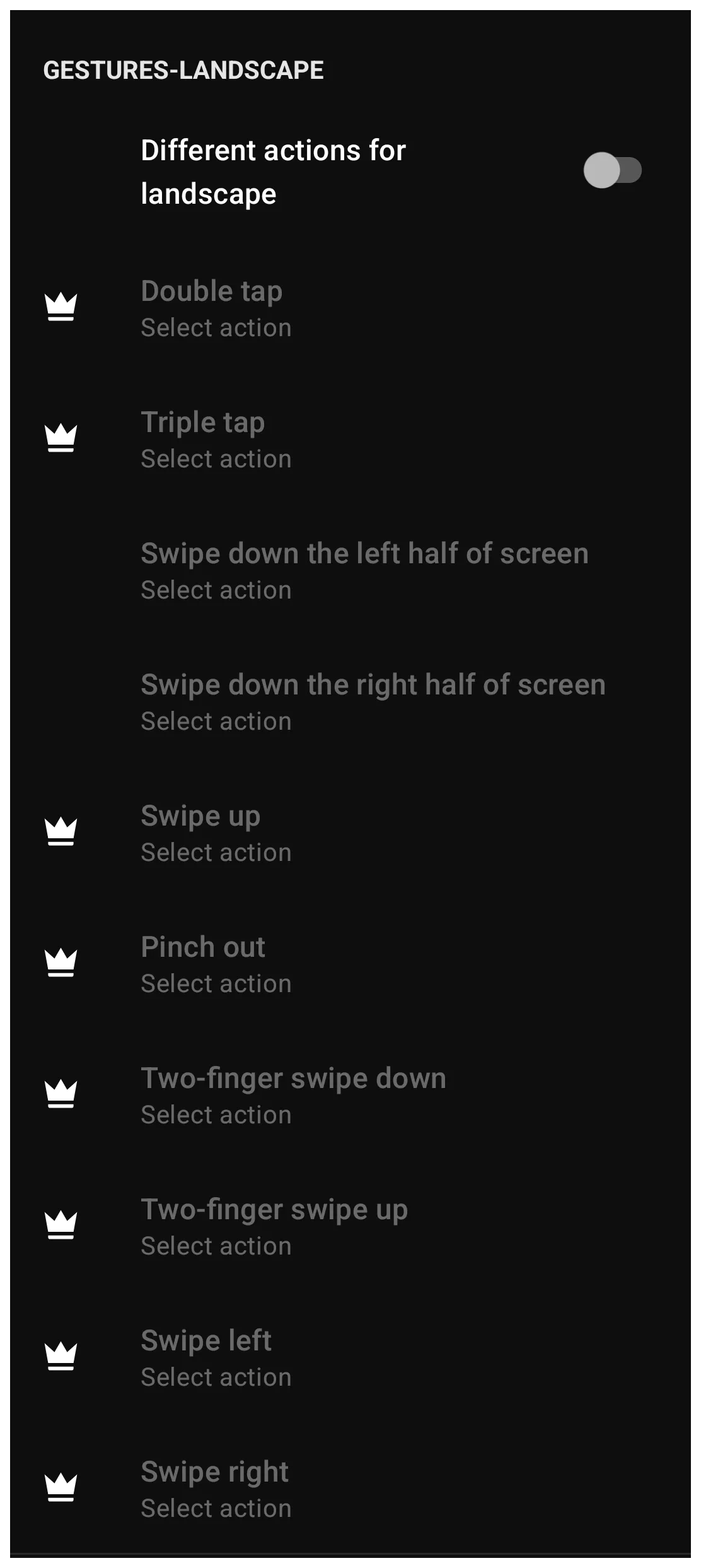
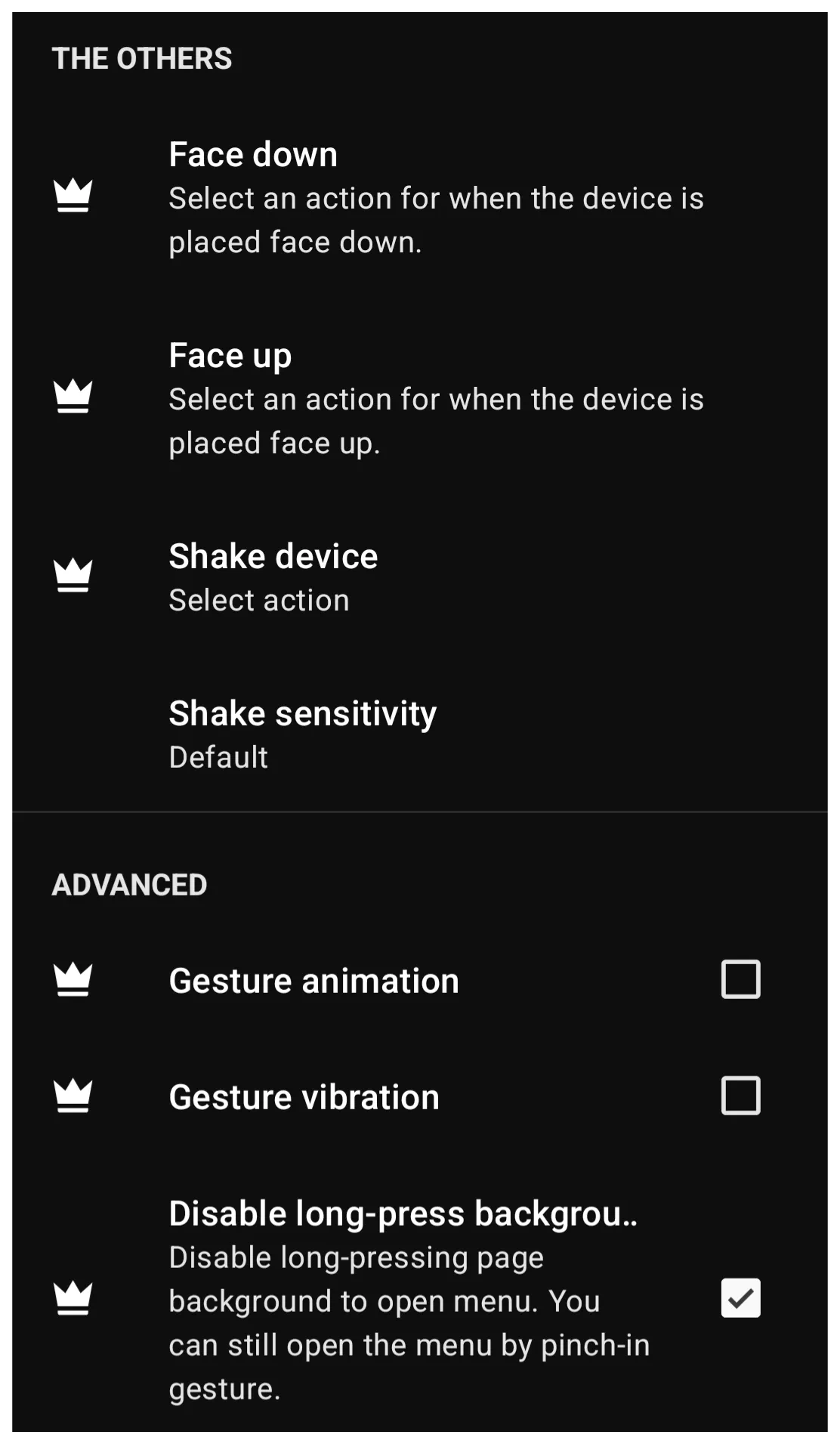
- The long dialog is shown here in 3 images. Scroll down to the
Gesturestab to select the desired gesture. In this exercise,Two-finger swip upwas selected.
- As of now, this is how the Calendar window currently appears. Click here.
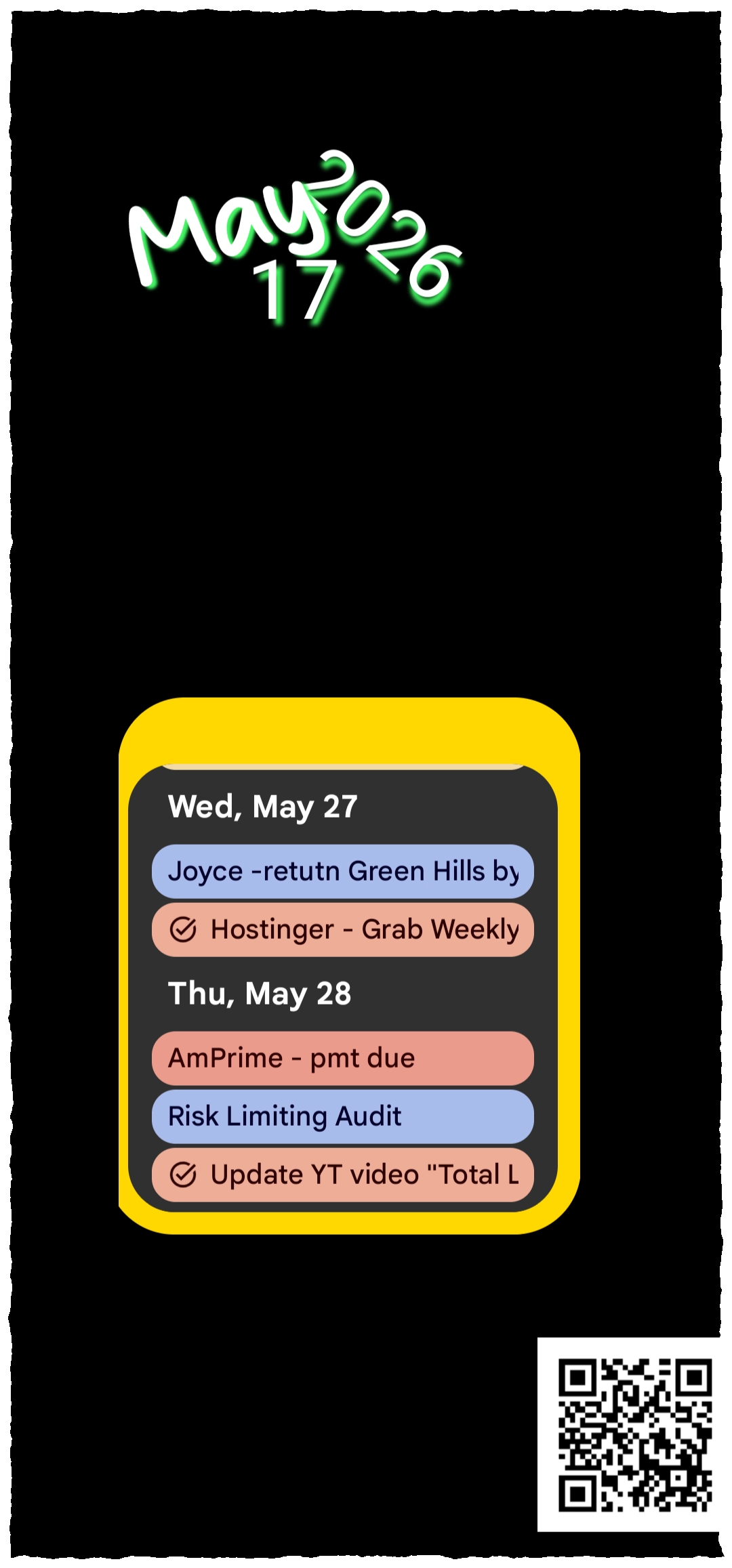
C.1 Hide the Window Icon
- Since a gesture now opens the Calendar widget in the window, there is no need for the window icon (default) to remain on the screen. The easiest method is to
D. Confirm Google Calendar sync on Android.1)
- It is recommended to create a test event for later testing.
- Create a calendar event with the title
Doctor test- Assign it a date/time for tomorrow.
- If Maps navigation is to be used (see Step E.1) then
- Scroll to “Add Location” and enter the geo-physical address and select it.
- Save the calendar event.
E. Install and Setup MacroDroid
- Macrodroid is to be installed, if not currently on the device.
- After installation, open MacroDroid and grant it requested permission, ensuring notification and calendar are granted plus other to receive the automation app's full benefit.
- In the device's Android settings select
Apps>MacroDroid>App battery usage>Allow background usage(unrestricted) - If prompted, enable any required Accessibility service fr MacroDroid.
F. Create MacroDroid macro for 'Doctor events'
- Select the
Add Macrotile to open the “Triggers, Actions, Constraints” dialog- Tap the Triggers
+- Tap the 3-dot menu in the upper right corner and uncheck
Show Categoriesto reveal the full trigger list - Select
Calendar Eventto open the Calendar Options dialog- Select the radio-button
Event starts - If the Calendar has multiple calendars, select the calendar to be used in this process.
- Select Availability: leave it at default
Any - Event color: If the selected calendar is to use event color shading for identification, do so here.
- Title:
Doctor - This completes the trigger (a calendar event starts and contains 'Doctor' in the title)
- Tap
OKto return to the “Triggers, Actions, Constraints” dialog
- In the 3-dot menu check the “Show categories” box
- Scroll down to Notifications and tap and select
Display Notificationsto open it's dialog- Title:
Doctor Appointment - Notification Text: This varies by situation, but here will be used
Make list for discussion - Tap
OKand save
E.1 (Optional) Add the location to open Google Maps prior to the appointment time
- Still in the Doctor Event and it's “Add Action” dialog, tape
Application- Tap
Open Website- In the url field enter https://www.google.com/maps/dir/?api=1&destination=[calendar_location] which will provide turn-by-turn navigation to the location which will be set as a variable. (The location entered in the Calendar Event's “Add location” will be used with this variable in MacroDroid).
- Tap “Add Action” >
Variables>Set Variable>New Variable>OK- Local: select this since it is only used in this macro
- Name:
event_location - Variable Type:
String - Tap
OK - Tap the 3-dot box to enter the “Magic Text”
- Scroll to
Calendar locationand select it. TapOK. - MacroDroid will insert the text {calendar_location}
- Tap
OKto save and return to the “Triggers, Actions, Constraints” dialog.
- The first taxonomy has been created and associated with “Doctor”
To get an immediate test of this notification, return to the Calendar Event and re-set the date/time to a few minutes from now. The notification should arrive shortly.
☛ Open the Google Calendar app.
• Tap the Menu icon (three horizontal lines) in the top left corner.
• Make sure the checkbox next to the calendar to be used is actually checked.
• Look for Sync at the very top and make sure the toggle is turned ON.
- If a sync toggle is not visible it means it is already enabled. Move to the next step.
☛ Enable Android System Sync
• If the phone's master sync is turned off, Google Calendar won't update in the background.
• Open the phone's main Settings app.
• Scroll down and tap Passwords & accounts
• Ensure the master toggle called “Automatically sync data” is turned ON.
☛ Tap the user Google Account.
• Tap Account sync.
- Find Calendar in the list and ensure the toggle next to it is turned ON.
☛ Turn Off Battery Optimization (which may prevent syncing in the background)
• From the App Drawer, locate Calendar and long-press icon. Tap the Info icon (a small “i” in a circle) and scroll to Battery or App battery usage. Ensure the setting is not optimized or restricted, but is unrestricted and will allow background usage.
Discussion