meta data for this page
- en
Create a Shape Using a See-Through Background
This process is useful for creation or manipulation of shapes that are used anywhere in the launcher or for icons. Icons typically are for just one app or widget. But with this described technique, it is possible to have a see through shape which holds an icon or other objects.
Create or Obtain the "Invisible" Shape
The procedure to apply the “invisible” image to the shape is shown below. There are 2 sources for that image:
- Create it with an image design application
- a Window application, GIMP, is available for download from Google Play Store
- -or- use the PNG/WEBP image(s) offered below for download at the bottom of this page.
Whichever route is selected results in a reusable glass container for any icon, shape or widget!
Import the PNG/WEBP to Resources
Any external image to be used by Total Launcher needs to be added to the Image Resource area. If unfamiliar with this, the procedure is here.
Create the Resource Shape for the Transparent PNG/WEBP
- Place the desired shape on the page:
- In
Edit Onmode, in the top Page Design, menu, tap+icon- Select
Graphic>Image>Default>Shape>Add (+) - In the Add Shape dialog select
Shape>Round rectangleand then re-name theLabelas “frost” - Tap the Option
 icon to open the radius dialog
 - The default setting of 28 which represents Google's current material rounded corner for icons. Modifications can be made by direct input or using the slider. Leave it at the default setting. Select OK.
- The Shade Add dialog where the “frost” shape is now shown, tap “frost” to place it on the page.
- The created shape (white rounded rectangle) is now on the page and selected and can be moved by dragging. Move it to any location.
- In the Object Design men (top) tap Option icon to open the shape's Edit dialog.
- Tap
Image>Icon packand select any desired icon
- The shape with icon is now on the page.
- The video's icon had no background. Other icons may have a colored, or shaded backgrounds or insets. If so, see the next step to “minimize” that.
- In the Object Design menu tap Options to open the Option Edit dialog.
- Select
Backgroundwhich opens Image Resources. Scroll and selectfrostimage (created in Gimp or Photoshop or downloaded from this page and previously in Image Resources).
- The “frost” is added to the shape's background.
- If the icon is larger than desired, scale it down (or vice versa). It will not affect the size or the shape of the object (frost).
- Tap Options in the Object Design menu and scroll to
Marginsat the bottom. Tap to open it's dialog. Here, the margins are increased (interior borders are moved towards the center) which shrinks the icon.- Tap OK and back out of the editing dialog to the page.
- Project completed.

Margin manipulation for an object, called scaling, is helpful. Explore it more fully here.
Image Download
The above procedure to creates a shape which places an “clear” image as it's background. Either of the images below (Frost or Shadow) could be used on dark-mode or light-mode wallpaper or used as image headers for folders.
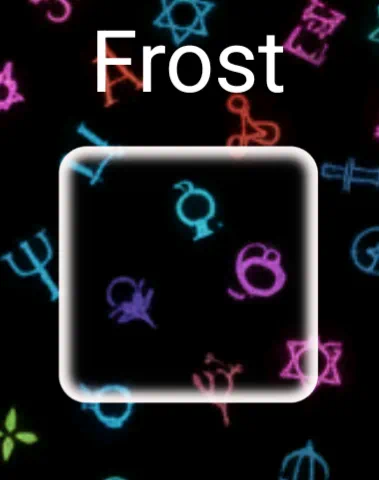
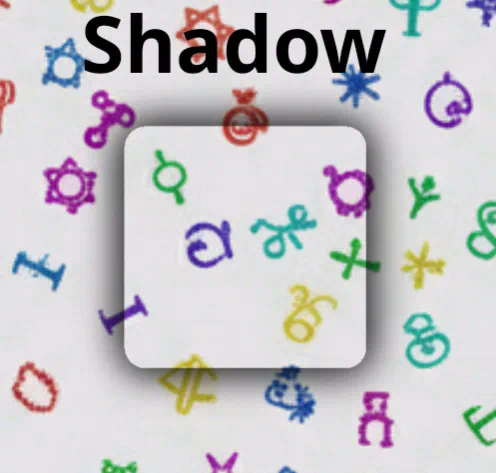

| Summary of Marial Design (Material You v3) Standards for Radii Corners | ||
|---|---|---|
| 12 | Medium | cards or grouped lists inside a widget |
| 16 | Large | floating action buttons (FABs): square-ish or smaller widgets |
| 28 or Fully Rounded | Stadium | standard buttons typically ½ the height (e.g., height = 50, radius is 25: pill shaped) |
Comments & Feedback
Toby Lancer is ready to help! Look for the Quick Help form:
► Desktop: left sidebar located near the bottom for Private to Admin
► Mobile: 3-bar menu at page top.
► Use the Discussion section below to share any experiences and communications with other Total Launcher users.
► Any Registered User can directly update this and any wiki page if desired.
Moderation: To keep the manual clean, all comments are held for appropriateness review. Preview any comment before submitting it. It will not display after submission until reviewed. So, please, do not resubmit.
Formatting: If using any code snippets place them inside code tags (e.g., 'code') using double single quotes (') before and after to keep them readable.
Be Kind: This is a community effort. Please keep feedback constructive and on topic.
~~DISCUSSION~~