meta data for this page
- en
How To: Create a "Card" or "Icon" with Shadow Effect
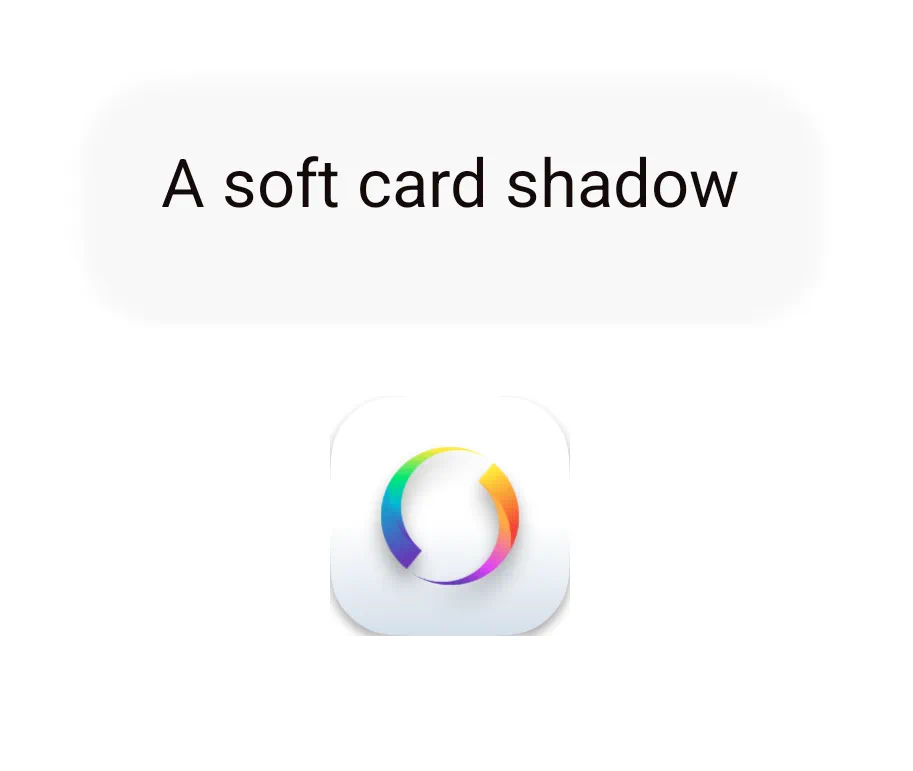
Prerequisite: Background Layer Setup
- A shadow effect requires a complex, colorful or polar background layer to be visible. Ensure the layer behind the shadowed objects— whether system wallpaper, page background image, or background graphic object — is a colorful photograph or gradient, not a solid white or black color.
Phase 1: Create the Shadows
➡️ Two shadows will be created. One for a “card” or pallet used in current Android design and one for a “button lift” to give a small object or icon a floating effect from the page.
- Create the 1st Shadow (Card Shadow)
- In Edit mode (pinch in) select
Main menu>Launcher Options>Resources>Shadow - Tap the “Add” icon
- For “Label” enter
Soft_Card_Shadow - “Shadow color”: Tap the box area and select “Color”. For ARGB enter
46000000(Black with ~25% opacity) - The “color box” for “OK” will change. Tap it to return to the “Shadow Add” dialog.
- For “Shadow radius” enter
32 - For “Offset X” enter
0 - For “Offset Y” enter
10 - Tap OK to return to the Shadow dialog
- Create the 2nd Shadow (Button Lift)
- Tap the “Add” icon
- For “Label” enter
Button_Lift_Shadow - “Shadow color”: Tap the box area and select “Color”. For ARGB enter
5A000000(Black with ~35% opacity) - The “color box” for “OK” will change. Tap it to return to the “Shadow Add” dialog.
- For “Shadow radius” enter
18 - For “Offset X” enter
0 - For “Offset Y” enter
6 - Tap OK to return to the Resource dialog
How to Pick an Appropriate Shadow Color
There is no correct answer. But there IS a correct target area 👉🏽 Contrast … to the object and the background. Think dark and light, deep or bright
Phase 2: Create the Shapes
- Create the Card Shape (used for main panels and widgets)
- Back out to the Resources dialog and select
Shape - Tap the
Addicon - For “Shape” select
Round rectangle - Tap its Option icon and for its radius set
28 - “Color1”: Tap the icon, select “Color”
- For ARGB enter
3CFFFFFF(Note: The 1st 2 digits represent Alpha. 3C is ~60% opacity for a frosted look) - Tap OK
- “Border width” set at
1, do not tap OK yet - “Border color”: tap and select “Color” and for ARGB enter
26FFFFFF - Label: enter
Shadow_Cardand tap OK to return to the Shape dialog
- Create the Button Shape (used for icons and taps)
- Still in the Shape dialog, tap the
Addicon - For “Shape” select
Round rectangle - Tap its Option icon and for its radius set
20 - “Color 1”: Tap the icon, select “Color”
- For ARGB enter
50FFFFFF(represents Alpha of ~80% for a slightly more solid button) - The “color box” for “OK” will change. Tap it to return to the “Shadow Add” dialog.
- “Border width” will remain at
0(not used) - Label: enter
Shadow_Buttonand tap OK to return to the main menu
Phase 3: Apply the Resources to Objects
- Apply to a “floating” app icon
- In Edit On mode tap the
Addicon in the Page Design Menu - Select
Graphic>Image>Default>Icon packs - Scroll or use the search dialog to select the desired icon. Tap to select it.
- The App icon is on the page and selected. In the Object Design menu tap the “Option” icon
- In the main Option Edit dialog, tap “Background” > select «“Shape”» >
Shadow_Button - In the main Option Edit dialog (do NOT tap Background again), scroll to find “Shadow” > select
Button_Lift_Shadow - Tap “Margins” and set to
14for all 4 sides. Tap OK.
- Create a visual “Shadow Card” panel on the page
- In Edit On mode tap the
Addicon in the Page Design Menu - Select
Graphic>Shape - The default shape is placed on the page. In the Object Design menu tap the “Option” icon
- In the main Option Edit dialog, tap “Shape” > select
Glass_Card - In the main Option Edit dialog, scroll to find “Shadow” > select
Soft_Card_Shadow - Tap OK.
- Resize this panel to your desired dimensions.
- Note: Ensure this panel is layered behind your icons by tapping its option menu and selecting “Send to back”.
current Here is a corrected, procedure-driven implementation of that recipe to achieve the target visual effect :
Create modern UI with 1 Card Shape, 1 Button Shape, and 2 Shadows
Create the Shape Resources
This procedure creates the “glass” panels themselves by defining the shape, radius, and appropriate level of partial transparency. Total Launcher does not present transparency as a percentage; it uses the Alpha component of a color channel (A = 0–255), with A=0 being fully transparent and A=255 being fully opaque. When manually typing colors, the format is #AARRGGBB (Alpha comes first).
Glass Card Shape (for main panels and widgets)
- Shape: Rectangle.
- Radius: 👉 28.
- Fill: Solid white color (R=255, G=255, B=255).
- Alpha (A): For this “light glass” effect , target partial transparency with an Alpha value of 45–60 (approximately 18–25% visual opacity).
- Example ARGB: #3CFFFFFF (A=60) or lighter #2DFFFFFF (A=45).
- Border (Optional): Add a subtle white border with a width of 1 and a very subtle Alpha value of 30–40 (around 20% visual opacity). Example subtle border ARGB: #26FFFFFF.
Glass Button Shape (for icons and taps)
- Duplicate Glass Card, then make changes.
- Radius: Set to 20.
- Fill Alpha: Target a slightly stronger fill with an Alpha value of 65–85 (approximately 25–32% visual opacity). A “simple memory trick” suggests targeting A ≈ 80.
- Example Button ARGB: #50FFFFFF (A=80).
Create the Shadow Resources
The core targeting effect is making objects appear to float, which is achieved through specific shadow parameters. Total Launcher requires specific ARGB values for shadow color and uses standard terminology like shadow radius and offset.
- Crucial Beginner Mistake to Avoid: Avoid huge blur values, as they kill performance; you should stay under 40.
- Color Setting Note: Total Launcher's standard user interface handles shadow color through the standard shadow dialog, where parameters include label, shadow color, shadow radius, and shadow offset X/Y.
- Soft Card Shadow (Shadow #1)
- Blur/Shadow Radius: Set to 32.
- Offset Y: Set to 10.
- Offset X: Set to 0.
- Color Opacity Target: The recipe targets 25% visual opacity with an Alpha value of 60–70.
- Target Shadow Color: Black (R=0, G=0, B=0) with the example ARGB #46000000. (Which uses an Alpha of 70) .
- Button Lift Shadow (Shadow #2 for Icons)
- Blur/Shadow Radius: Set to 18.
- Offset Y: Set to 6.
- Offset X: Set to 0.
- Color Opacity Target: For this stronger effect, target 35% opacity with an Alpha value of 80–100.
- Target Shadow Color: Stronger black with example ARGB #5A000000. (Which uses an Alpha of 90) .
Combine and Assign for the Targeting Effect
- Final Implementation: Once shapes and shadows are created and assigned within the Total Launcher user interface, the target combinations should be applied to objects:
- Cards use: Glass Card shape combined with the Soft Card Shadow.
- Buttons and Icons use: Glass Button shape combined with the Button Lift Shadow.
For Modern UI Layout: Beginner mistakes include building everything directly on the static home page. Modern UI designs prioritize windows, which feel like overlays.
TIP: Targeting the “Proper” ShadowThere is no single “correct” shadow setting, but there IS a correct target: Contrast. To make an object feel like it belongs in its environment, look for contrast in Value (light vs. dark), Temperature (warm vs. cool), and Saturation (vivid vs. muted).
Recommended Design PalettesUse these ARGB values and technical offsets to build your Shape Resource before assigning it to the Image slot.
| Style | Shape Fill | Shadow (ARGB) | Radius | X/Y Offset | Visual Effect |
|---|---|---|---|---|---|
| Deep Depth | #FFFFFFFF | #80000000 | 20 | 8 / 12 | High-elevation “floating” card; max value contrast. |
| Natural/Soft | #FFFFFFFF | #405C5C5C | 12 | 4 / 6 | Realistic lift using “cool” temperature contrast. |
| Modern Glass | #CCFFFFFF | #50001A33 | 8 | 0 / 3 | Defined edges using hue-shifting against dark backgrounds. |
| The 1% Hack | #01FFFFFF | #35000000 | 5 | 2 / 2 | Rule 3: Creates a 3D hollow ring on light backgrounds. |
⚠️ Technical Requirement: The Margin Formula
Every shadow exists within a strict rectangular bounding box. If a shadow casts outside this box, it is immediately clipped (cut off flat). To prevent this, you must use the Margins input in the Object Edit menu.
The Formula: (Apply only to the quadrants where the offset is directed). Required Margin ≥ (Shadow Radius ➕ Shadow Offset)
Margin Requirements for Scenarios
| Style | Required Margin in the cast direction (“+X” = Right / “+Y” = Bottom) (“=X” = Left / “-Y” = Top) | Technical Logic |
|---|---|---|
| Deep Depth | 32 px | Radius (20) + Offset (12). |
| Natural/Soft | 18 px | Radius (12) + Offset (6). |
| Modern Glass | 11 px | Radius (8) + Offset (3). |
| The 1% Hack | 7 px | Radius (5) + Offset (2). |
Implementation Workflow - Build the Resource: Create a new Shape Resource. Input the Fill, Shadow ARGB, Radius, and Offsets from the table above. - Assign the Image: Open the Object Edit menu and assign your custom shape to the Image slot. - Set the Background: Assign your desired surface color or image to the Background slot. - Apply Margins: Immediately navigate to the Margins section at the bottom of the Edit menu. Enter the calculated Min. Margin for the Right and Bottom fields to ensure the shadow renders fully without clipping.
💡 TIP: The Shadow TargetThere is no “correct” shadow setting, but there IS a correct target: Contrast. Use Value for height, Temperature for realism (cool shadows for warm objects), and Saturation for clean, modern edges. Always ensure your Object Margins $\ge$ Radius + Offset to prevent the “flat-edge” clipping bug
The Single-Object Procedure To achieve the exact result in your image (a white card with a border and shadow) using only one Graphic Object, configure it like this: ^ Menu Level ^ Property ^ Value / Setting ^ Technical Reason ^
| Image (Slot 1) | Resource Type | Shape | The shape must be in the foreground to allow a shadow behind it. |
| Color 1 | #FFFFFFFF | The solid fill of the card. | |
| Border Width | 1 or 3 | Defines the outer boundary of the object. | |
| Background (Slot 2) | Resource Type | Shadow | You must assign “Shadow” directly to this single-occupancy slot. |
| Shadow Color | #80000000 | The semi-transparent black shadow color. | |
| Radius / Offset | 20 / 5 / 5 | Your preferred elevation settings. | |
| Options (Gear) | Margin | 25+ | Rule 1: Must be \ge (Radius + Offset) to prevent clipping. |
Discussion