<insert previous page>
Widget - Application Widget
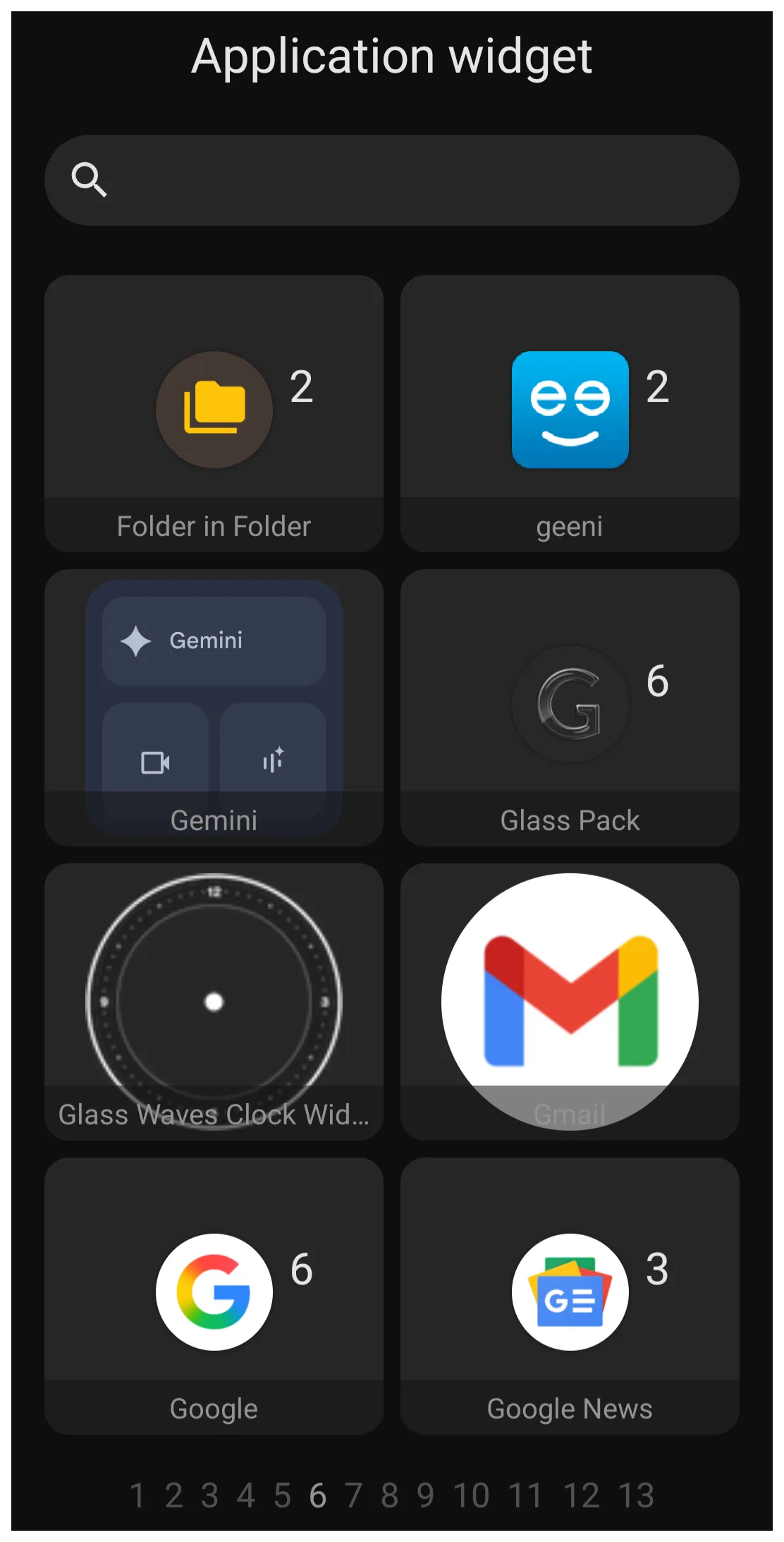 | ☚ Tap the image on the left and all other images on this page for an enlarged view. There are no individually selectable elements. The image represents a a view of Page 6 of 13 of the application widgets on the device used to capture this image. The image is shown to provide the reader with a view of a sample the application widget dialog. These application widgets will not be on any user's devices. User's devices will only show a dialog list such as this of the application widgets of installed applications on their device. |
Android application developers will encode widget containers for specialized data display setups for their applications. When these are available with the application Total Launcher extracts those widgets to display in the application widget dialog for the user to select and install on a page, drawer, or window.
Each application widget developer provides for the customization opportunities of their respective widgets. However Total Launcher, in managing an application widget, focuses on the visual presentation of the wrapper container. The dialog for the application widget Option Edit is shown below
 |
- Rounded corner radius - The widget's container defaults to a square but can be resized by tap-hold and grab of a container corner. The user can choose to have corners rounded by selecting the desired radius with a range of 0 (square), 300 (circle) to 575 (a rhombus-type, 4 vertices object with curvilinear sides as shown in this image.
- Opacity - This allows the user to affect how much transparency is permitted when viewing the underlying contents, in this case the application widget. The launcher option provides a sliding scale from 0 (opaque or container content is totally blocked) to 100 (fully transparent). This option will create the effect on the entire widget container, meaning overall colors will be fully viewed (100) or muted (50) or the content blocked (0). Most likely, meaningful use of this option would be in combination with either the background option of color or dynamic color to provide a tonal quality to the widget container

 |
- Configure widget - This dialog appears for any Application Widget. However, it can only be activated by a user if the application developer has enable the configuration feature. It will not work on every application widget.
 |
- Background - Defines the background of the widget container. For complete discussion on background see Background.
- Margins: Allows adjustment of the margins surrounding the widget in its container. **For complete discussion on setting margins see Margins.
It is critical to remember that Total Launcher only saves the “Application Widget” placeholder on the page or window, not the internal settings of the 3rd party RSS reader widget itself. When a backup is restore, the user will be responsible to return to the application widget location, tap it's placeholder to initiate it's re-installation, and then proceed to reapply the application widget's settings.
Comments & Feedback
Toby Lancer is ready to help! Look for the Quick Help form:
► Desktop: left sidebar located near the bottom for Private to Admin
► Mobile: 3-bar menu at page top.
► Use the Discussion section below to share any experiences and communications with other Total Launcher users.
► Any Registered User can directly update this and any wiki page if desired.
Moderation: To keep the manual clean, all comments are held for appropriateness review. Preview any comment before submitting it. It will not display after submission until reviewed. So, please, do not resubmit.
Formatting: If using any code snippets place them inside code tags (e.g., 'code') using double single quotes (') before and after to keep them readable.
Be Kind: This is a community effort. Please keep feedback constructive and on topic.
~~DISCUSSION~~