<insert previous page>
Mixed Graphic: Phone
Dialog selections are discussed below the image. For navigation to an item make a selection in the Mixed Graphic: Phone image.
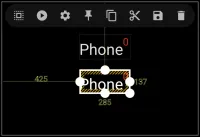
Mixed Graphic: Phone dialog. Make selection above.
 - Action - Select this to see the dialog which links the device phone to this mixed graphic. The link is created by either selecting the
- Application as a category, then location the device's phone application or
- Launcher options, then selection “Launch phone”
 - Options - Select this to see the dialogs for modifying many components of this mixed graphic such as text content, color, font & size, background, format and more.


Comments & Feedback
Toby Lancer is ready to help! Look for the Quick Help form:
► Desktop: left sidebar located near the bottom for Private to Admin
► Mobile: 3-bar menu at page top.
► Use the Discussion section below to share any experiences and communications with other Total Launcher users.
► Any Registered User can directly update this and any wiki page if desired.
Moderation: To keep the manual clean, all comments are held for appropriateness review. Preview any comment before submitting it. It will not display after submission until reviewed. So, please, do not resubmit.
Formatting: If using any code snippets place them inside code tags (e.g., 'code') using double single quotes (') before and after to keep them readable.
Be Kind: This is a community effort. Please keep feedback constructive and on topic.
~~DISCUSSION~~