<insert back button>
Design Menu Page Margins
The Page Margins dialog controls the usable area of a page. Think of margins as an invisible frame inside the physical edges of the device's screen. All content (icons, widgets, etc.) will be contained within this frame.
The primary purpose of page margins is to create a safe area for a layout, preventing content from being hidden by system elements like screen notches, status bars, or navigation gesture areas.
Dialog selections are discussed below the image. Only the OK button is available to make a selection in the Design Menu Page Margins image.
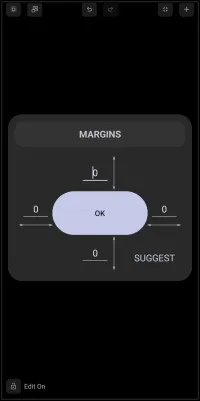
Design Menu Page Margins dialog.
Margins could simply be said to be a way of managing space surrounding the page which separates content (icons, widgets, folders) from the device’s screen physical edge, sort of like a frame around a canvas. Smaller margins make more space available for the screen. Page margins in TL affect that frame:
- Positive margins will reduce the size and position of that frame. Objects in TL will have less space in which to be positioned on the page and screen. This may be required to avoid issues with gesture, controls, notches, cutouts, navigation or status bars.
- Negative margins will create an area on that side of the page (top, bottom, left, or right) which will not be seen on the screen.
- Normally, the page will not scroll, even with negative margins. However, there are some techniques to create vertical page scrolling. See Page Scrolling.
Page margins are a design tool which can provide a more consistent result across pages or devices (especially Multi-Screen Devices).
The above Design Menu Page Margin dialog shows controls for:
- Margin Value Fields (top, bottom, left, and right):
- These four fields allow a number input to define the size of the margin on each respective side of the page. Each side is controlled individually.
- Measurement Unit: While not labeled, the unit is best understood as dip (density-independent pixel). This ensures the layout remains consistent on Android devices with different screen sizes and resolutions.
- Positive Numbers: A positive value increases the size of the invisible frame on that side, reducing the usable screen space. This is the standard way to avoid system UI elements.
- A very large value can have a dramatic effect. For example, on a 1080×2400 screen, a 'left' margin of
1080would result in no viewable page area.
- Negative Numbers: A negative value decreases the border, effectively pushing the page's canvas off the screen on that side. Any content placed in this negative margin area will be partially or totally unviewable. This is an advanced technique for specific design objectives.
- SUGGEST: - Tap this button to have Total Launcher propose margin values. It may suggest numbers to account for system navigation bars or other dynamics it can detect.
- OK: - Tap to accept the margin numbers shown and return to the previous screen.
Visual demos of the effects of page margins are seen for positive page margins and for negative page margins.
For scrolling a page, the Page Options dialog's
* Fit the content to the screen height (make it not scrollable)
must be unchecked.
See Page Scrolling - Vertical on how a vertically scrolling page can be created.
Related Concept: Alignment Tool
See the Object Alignment “How To” secton to learn its use. It is a quasi-grid tool, in that it assists in the centering, edge matching, vertical and horizontal positioning.
</WRAP>
Comments & Feedback
Toby Lancer is ready to help! Look for the Quick Help form:
► Desktop: left sidebar located near the bottom for Private to Admin
► Mobile: 3-bar menu at page top.
► Use the Discussion section below to share any experiences and communications with other Total Launcher users.
► Any Registered User can directly update this and any wiki page if desired.
Moderation: To keep the manual clean, all comments are held for appropriateness review. Preview any comment before submitting it. It will not display after submission until reviewed. So, please, do not resubmit.
Formatting: If using any code snippets place them inside code tags (e.g., 'code') using double single quotes (') before and after to keep them readable.
Be Kind: This is a community effort. Please keep feedback constructive and on topic.
~~DISCUSSION~~