Table of Contents
Section 1.2.C - Backup: Access, Create, Export, Import
To access the Backup Center of Total Launcher:
- Enter Launcher Menu mode with a “Tap and Hold” the lower left or right screen area or any blank area of the screen
- Enter a password if required
- From the lower left corner of the screen, tap Menu, then select Backup Center to reveal any previous backup titles.
 |  |
To create a new backup:
- Enter Edit Mode (see [link]) and tap “Menu” in the lower left screen area
- From the dialog list, select “Backup Center”
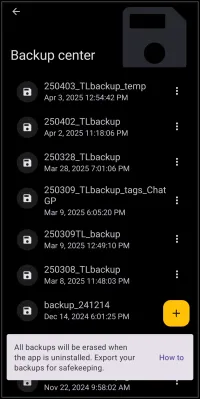
- Press the “+” in the lower right screen area
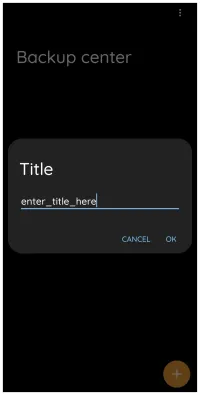
- In the opening dialog, the default title shows as “backup_YYMMDD”. Enter the title of your backup, using an underscore (“_”) for any blank space in the title. Press OK. The backup file is saved to Total Launcher's default location on the device at Android >; Data >; com.ss.launcher2. This file location is accessible only on devices which have root access. However, the backup listing, viewable in the dialog, makes it possible to access the backup.
- The just saved backup with the title entered is now shown in the list of available backups.


To export an existing backup to a specific folder or cloud:
- Navigate to the backup module. See here.
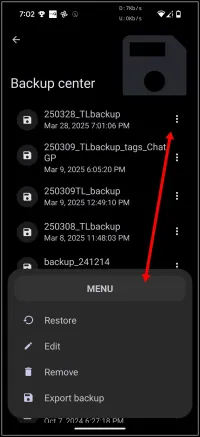
- Press and hold the specific backup list item until it's icon changes to a “✓”In the upper right screen area, press the hamburger menu
 and select Export.
 - The device's file manager will open. Navigate to the file location of choice and press OK. (Note: For exporting to a cloud, the device file manager must support access to the cloud and have been previously setup.)
- Exported backups are the actual backup files in a compressed format (zip) and can be shared with others for import. See below how import backups.

To import a previous exported or shared backup:
- For backups stored in Total Launcher's default location on the device:
- Navigate to the backup module. See here.
- Select the specific backup list item to open a Restore dialog:

- The dialog indicates the default of NOT keeping folders and tags. Check the box to maintain them.
- Press OK to proceed.
- At completion of restore, a notification will flash at the bottom of the screen “Success”
- For backups stored in other local folders or cloud:
- Navigate to the backup module. See here.
- In the upper right screen area, press the hamburger menu and select “Import backup”.
- The device's file manager will open. Navigate to the desired file (local folder or cloud) and tap the backup file (in zip format) to be imported. (Note: For importing from the cloud, the device file manager must support access to the cloud and have been previously setup.)
- The selected backup is restored with the selected zip file now included in the Backup Center's file listing. Back out of Backup Center to the restored Total Launcher theme.
- At completion of restore, a notification will flash at the bottom of the screen “Success”

TIP: Total Launcher does not backup any 3rd party widgets. Only the “Application Widget” place holder on the page or window will be shown after restore.
Comments & Feedback
Toby Lancer is ready to help! Look for the Quick Help form:
► Desktop: left sidebar located near the bottom for Private to Admin
► Mobile: 3-bar menu at page top.
► Use the Discussion section below to share any experiences and communications with other Total Launcher users.
► Any Registered User can directly update this and any wiki page if desired.
Moderation: To keep the manual clean, all comments are held for appropriateness review. Preview any comment before submitting it. It will not display after submission until reviewed. So, please, do not resubmit.
Formatting: If using any code snippets place them inside code tags (e.g., 'code') using double single quotes (') before and after to keep them readable.
Be Kind: This is a community effort. Please keep feedback constructive and on topic.
~~DISCUSSION~~