Table of Contents
Resource - Shape
In Total Launcher, a “Shape” is a simple vector graphic, stored as a “binary” machine-readable only file, not as an “.svg” or “.ai” file. Unlike photos or images (which are made of pixels and get blurry when stretched), vector shapes use math to draw lines. This characteristic means shapes are completely scalable, always crisp, and take up virtually no memory.
What is a Shape Resource?
Total Launcher's offers a “library” for it's user-created shapes which is viewed by navigating to the Main Menu > Launcher options > Resources > Shape as shown in this dialog.
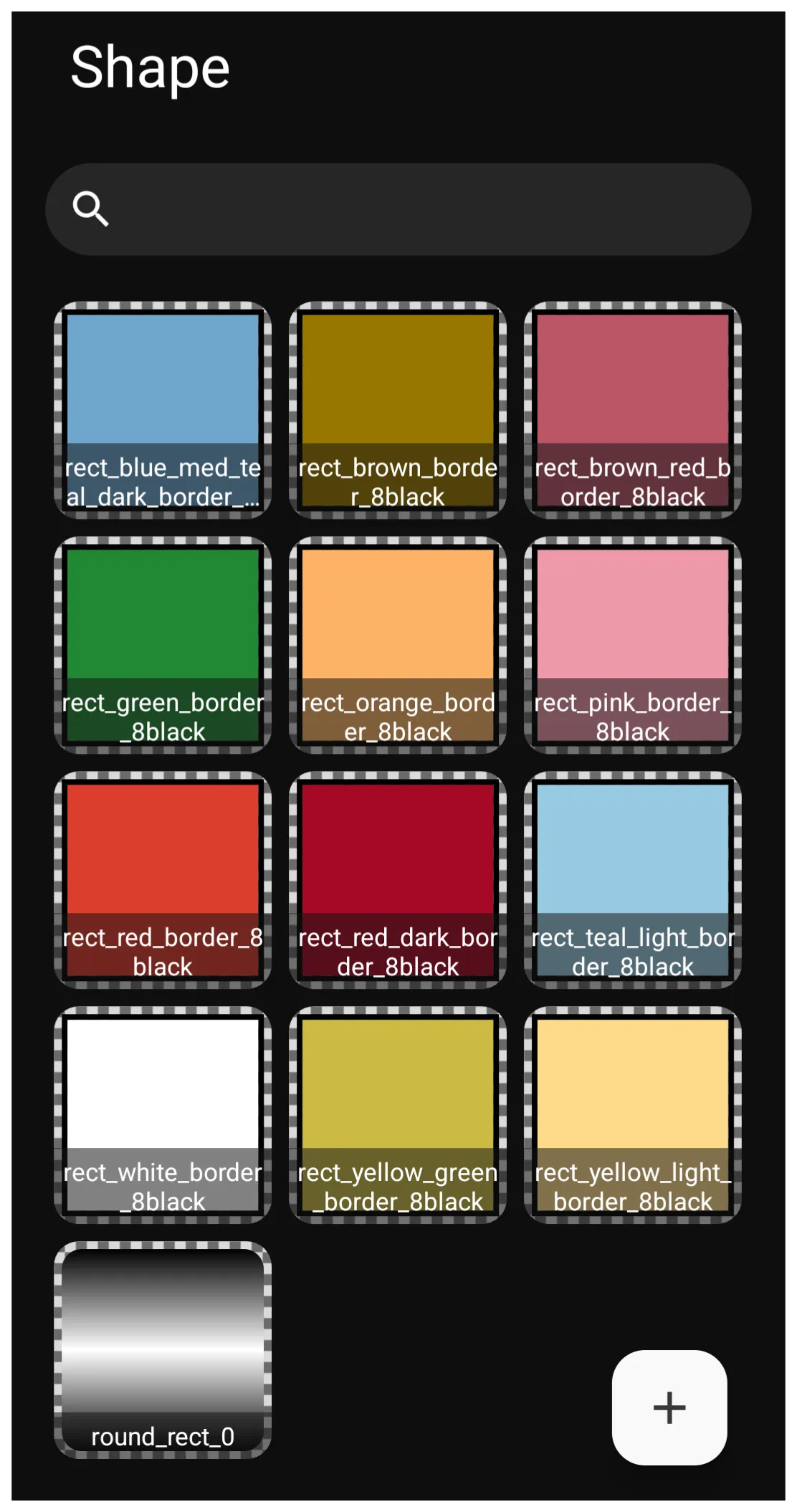
Common uses for shape resources include:
- Creating clean, modern backgrounds (like “Card” styles).
- Serving as bases for custom buttons.
- Masking (cropping) other objects.
- Acting as dividers, borders, or aesthetic accents.
The Built-in Shape Library
Total Launcher includes a core library of geometric shapes that serve as building blocks.
| Type | Image | Description |
|---|---|---|
| Rectangle | 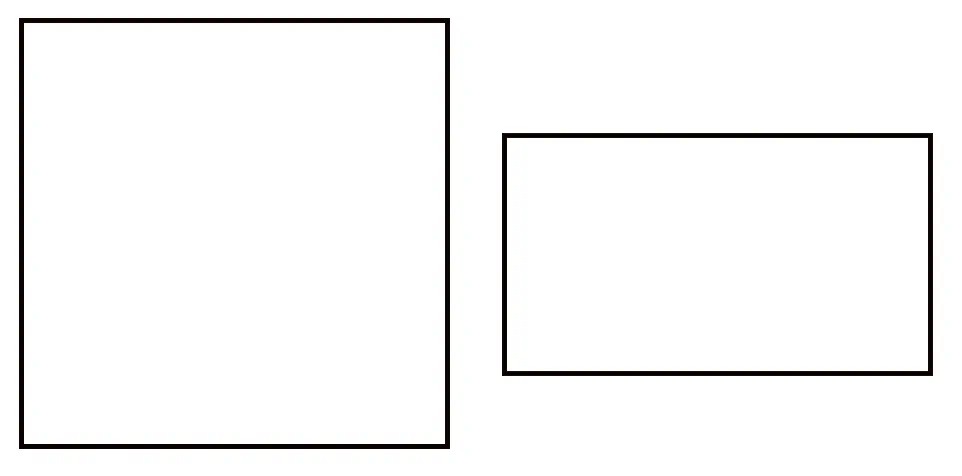 | Sharp 90 degree corners. Great for full-screen backgrounds, rigid grid layouts, borders or re-configured to become a line/bar. Note the rectangles default to equilateral rectangles (square) but on the page can be resized as shown. |
| Rounded Rectangle | 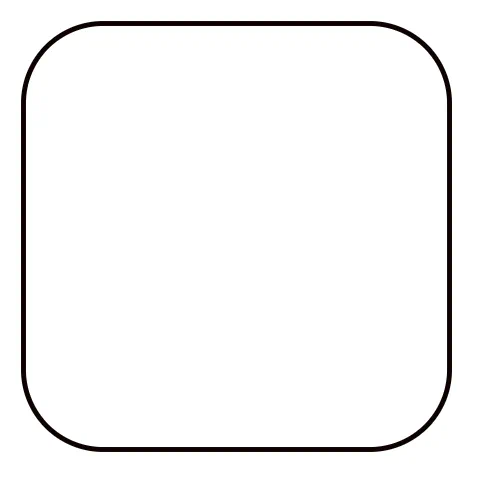 | This is the workhorse of modern Android design used for widgets, app icon backgrounds, and buttons at it's default 28 radius. This shape can also represent a “rounded” line/bar on the page by stretching or shrinking it. The radius value represents an absolute measurement rather than a degree. At radius 50+ the rounded rectangle will become an oval (circle). |
| Oval | 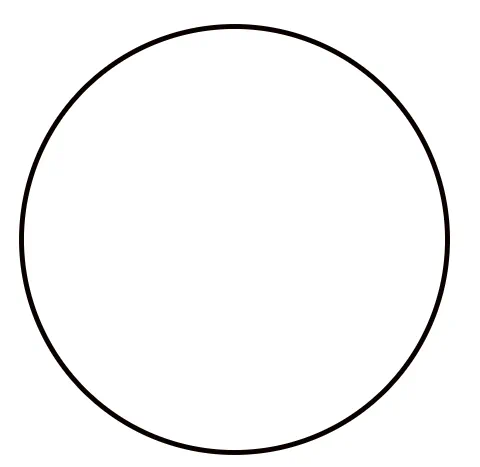 | Automatically forms a perfect circle if the width and height are equal, or a stretched ellipse if they are not. |
| Arc | 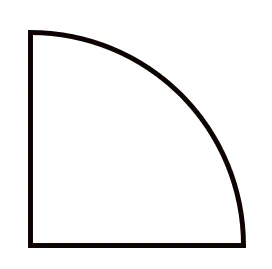 | Used for creating curved lines, pie-chart-like wedges, or crescent accents. Creates a circle segment with the start angle of 0 being at the 90 degree point (clock number 3). A sweep angle of 90 produces a quarter arc (clock numbers 3 to 6), a value of 180 produces a semi-circle (clock numbers 3 to 9), continuing to a value of 360 being a complete circle. The example here with a start angle of 270 and sweep angle of 90. |
Customizing and Editing Shapes
Once a shape is selected, its properties can be manipulated to fit the desired theme. Creation and modification happen via the
Main Menu → Launcher options → Resources → Shape → Add icon
| Shape Add Dialog Showing Shape Selector | Element Descriptions |
|---|---|
The Shape Add dialog offers a shape selector: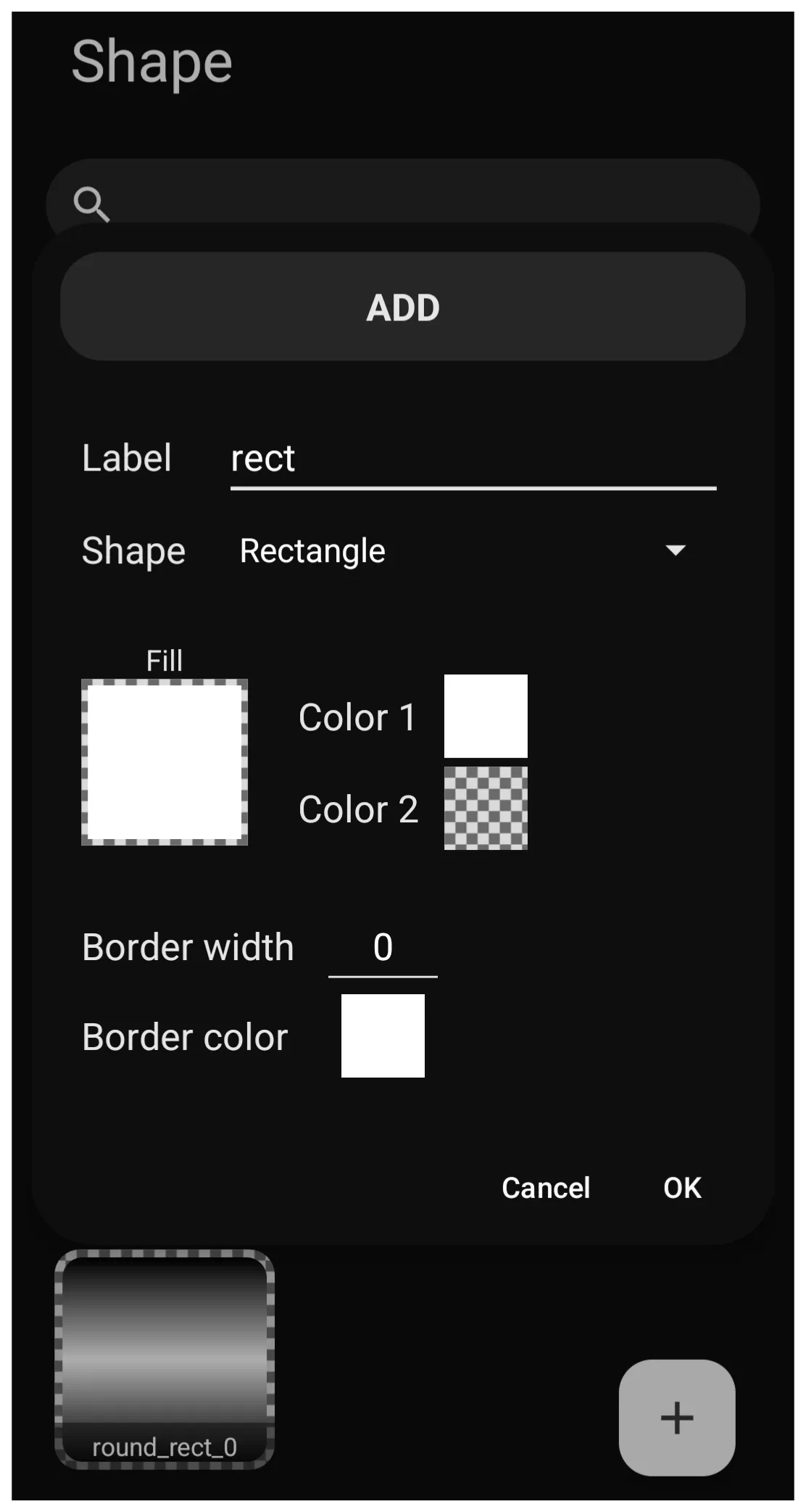 arrows-h arrows-h 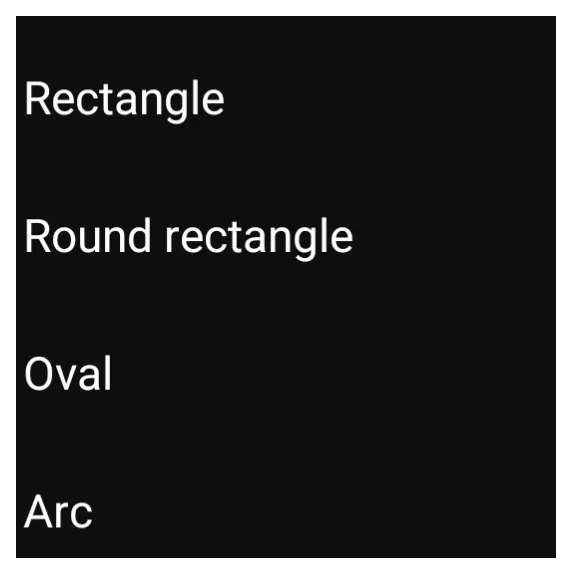 | • Label: - Enter a filename (no spaces / only underscore _ for separators) for later identification when saved.• The default is solid. Gradients can be applied using Color1 and Color2. The “Color Picker” accessed through these selections is more fully discussed here. • Color 1 defaults to white (ARGB FFFFFFFF).• Color 2 defaults to transparent (ARGB 00FFFFFF). If Color 2 is changed, gradient shading is possible, revealing 14 gradient effects plus the blurred and glassy wallpaper and centered image effect.• Adjusting the Alpha channel (the A of ARGB which consists of the first 2-digits of the hex number) allows shapes to be semi-transparent, letting wallpapers or other elements peek through.• Corner Radius: - In the Round Rectangle and Arc the Option (gear) determines how sharp or soft corners become. Radius ranges from 0 to 287. To create a perfect circle or a pill shape, the radius must be set to exactly half of the object's width or height. When a shape is initially added to the page at its default predetermined size, a radius value of 75 forms a perfect circle. The object can be sized or scaled once on the page. • Size & Aspect Ratio: - Shapes can be stretched freely. Maintaining the proper aspect ratio ensures perfect circles do not accidentally become warped ovals when the applied object is resized. • Border Width: - Creates an outline on the exterior edge of the object. Thickness increases as the value increases, with usable values depending on object size. • Border Color: - Color of the border, defaulting to white. There is no Color2 available, therefore gradients are not possible for borders. |
| Shape Fill Options Dialog | Element Descriptions |
|---|---|
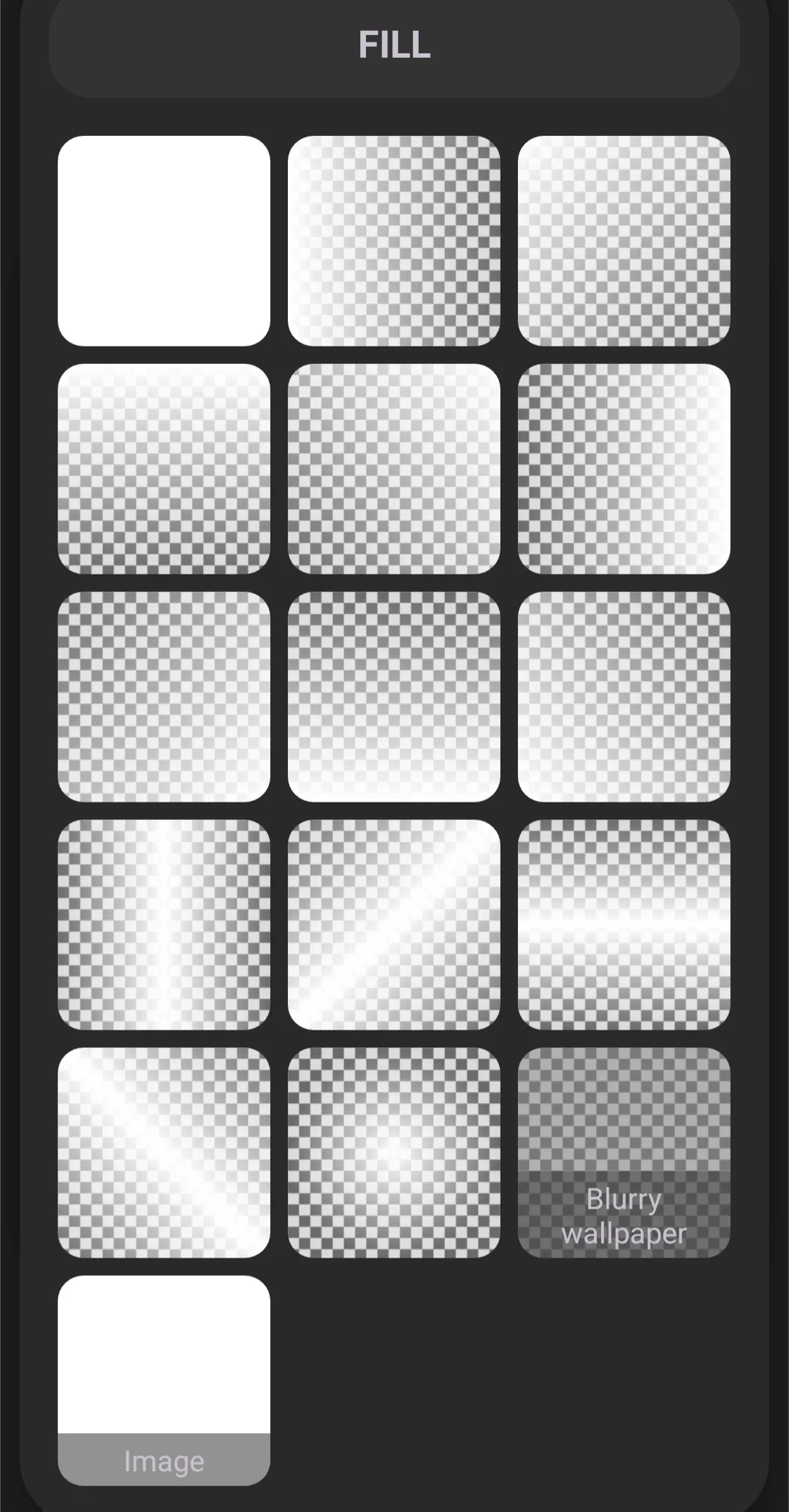 | Fill Options & Transparency (Alpha): - Shapes can be filled with solid colors or gradients. There are 17 variations: • solid • edge gradient • center horizontal or vertical, corner diagonal, or center spot gradient • image centered • blurry wallpaper • glassy wallpaper |
Practical Applications
The following are methods to apply shapes to a home screen design:
- The “Card UI” Look (Backgrounds): - Instead of placing text or widgets directly on a busy wallpaper, apply a rounded rectangle shape as the background of a layout group. Assign a solid color (like white or dark grey) with a slight shadow to make the text highly readable as in this example.
- Masking and Cropping: - Shapes act as a “cookie cutter” for an image. For example, to convert a square photo into a circular profile picture, apply an Oval shape as a mask over the image object.
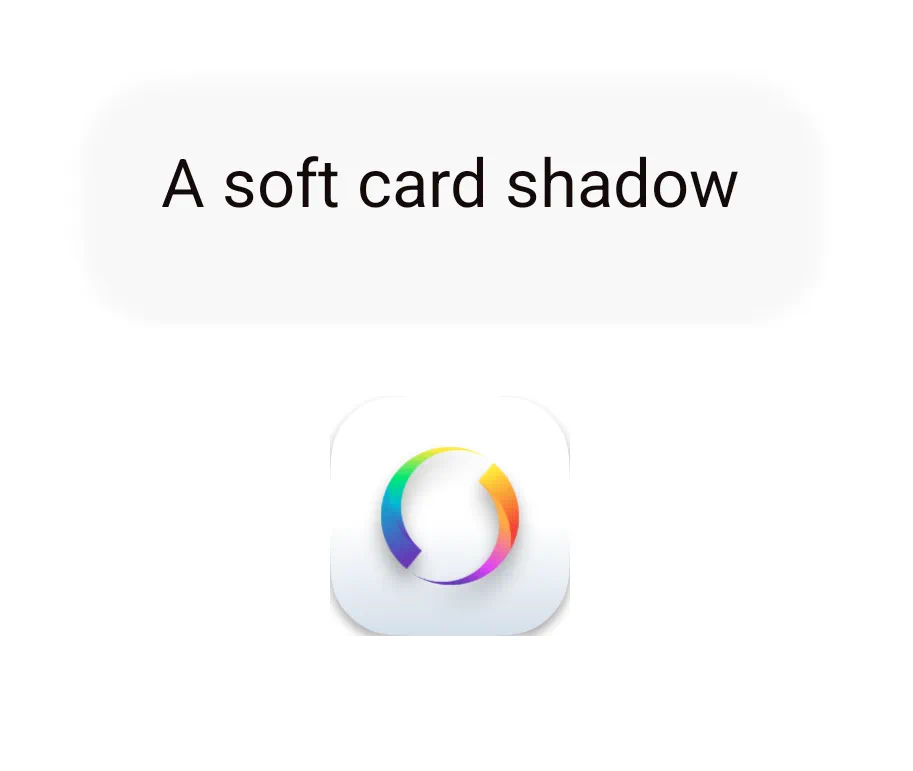
Technical Note: Animated Image Limitation
- Details the static frame constraint when utilizing shape fills
When utilizing a Shape resource's Fill property to mask an image, the Total Launcher rendering engine does not support animation.
- GIFs: - If an animated GIF file is selected as the image fill, the animation will freeze, and the shape will only display the first static frame of the file.
- Alternative: - To display an active animated GIF, the file must be placed on the page using the standard Add (+) > Graphic > Image method. However, this standard placement method cannot be cropped by a shape resource mask.
- Custom Buttons: - Combine a shape (as the background) with a text or icon object (in the foreground) and assign a tap action to create a customized, tactile button. This video demo will provide some guidance.
Advanced Workflows & Pro Tips
- Shapes vs. Images: - Utilizing a shape instead of a PNG image provides multiple benefits. Shapes load faster, use less memory, scale perfectly without pixelation, and their colors can be changed instantly in the launcher without needing an external photo editor.
- Layering and Combining: - Design is not limited to a single shape. Stacking multiple shapes on top of each other (e.g., a smaller solid circle on top of a larger transparent circle) creates complex, custom icons and unique UI elements.
- Build Once, Use Everywhere: - Because Shapes are saved as “Resources” in Total Launcher, a complex button base can be designed once and applied to multiple different buttons. If a color change is needed, editing the Resource once updates all applied instances automatically.
Comments & Feedback
Toby Lancer is ready to help! Look for the Quick Help form:
► Desktop: left sidebar located near the bottom for Private to Admin
► Mobile: 3-bar menu at page top.
► Use the Discussion section below to share any experiences and communications with other Total Launcher users.
► Any Registered User can directly update this and any wiki page if desired.
Moderation: To keep the manual clean, all comments are held for appropriateness review. Preview any comment before submitting it. It will not display after submission until reviewed. So, please, do not resubmit.
Formatting: If using any code snippets place them inside code tags (e.g., 'code') using double single quotes (') before and after to keep them readable.
Be Kind: This is a community effort. Please keep feedback constructive and on topic.
~~DISCUSSION~~