Table of Contents
App Reminders from the Developer ChYK
After initially installing Total Launcher, the developer, ChYK, has programmed pop-up reminders which offer mindful tips on how to best work within the Total Launcher system. Every user should have seen these but uiTLM and this wiki will use this page as a reminder of the reminders.
↓ Tap the image to view it full size ↓
Welcome
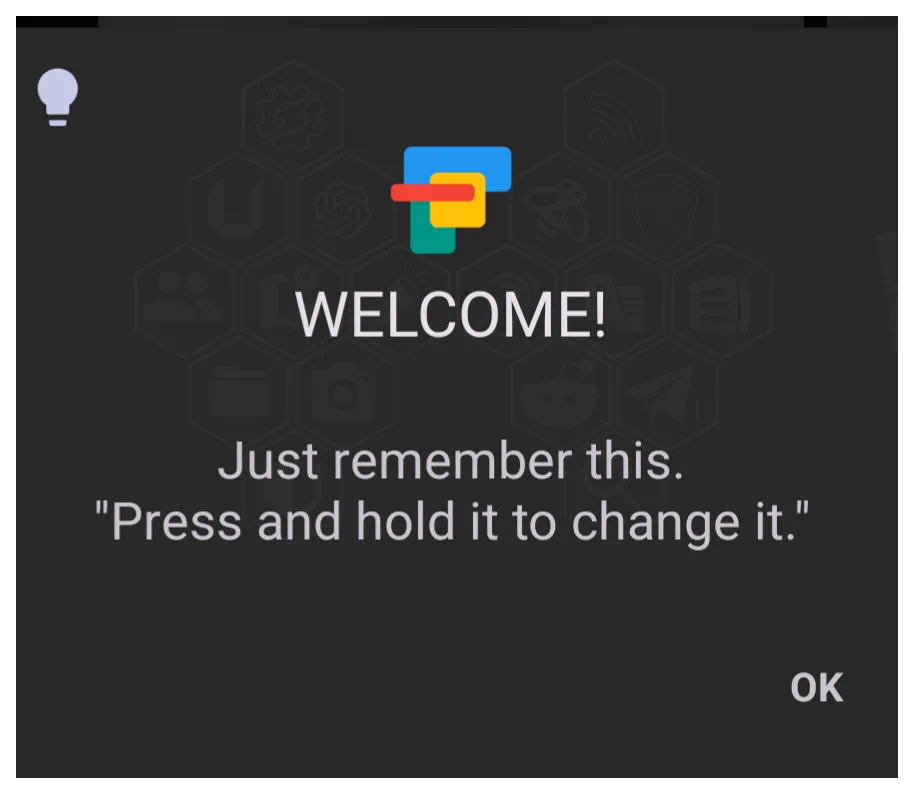
Call this a “Pressing Welcome!
As the first tip after the Total Launcher installation, the master tip is introduced. Press to edit unless it is user-changed in Launcher Options.
Backup
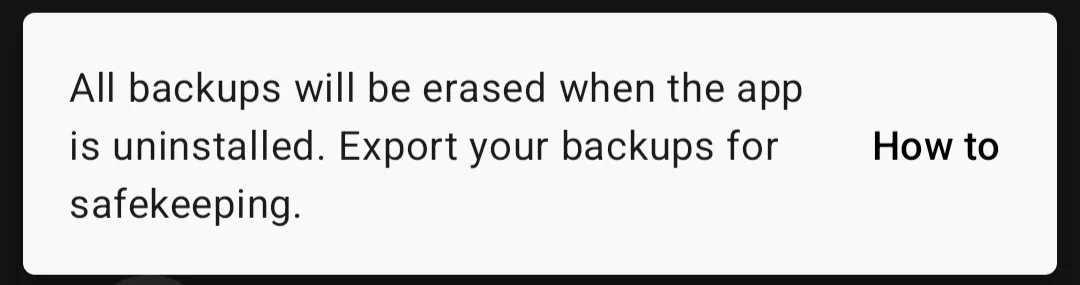
This is a CAUTION … anytime Total Launcher is deleted or re-installed the existing Resource backups will not survive. Solution - Export a backup to another device folder outside of Total Launcher, or better, Export to a cloud location (such as Google Drive or OneDrive). See Export a Backup for more information.
Dynamic Image: Editing
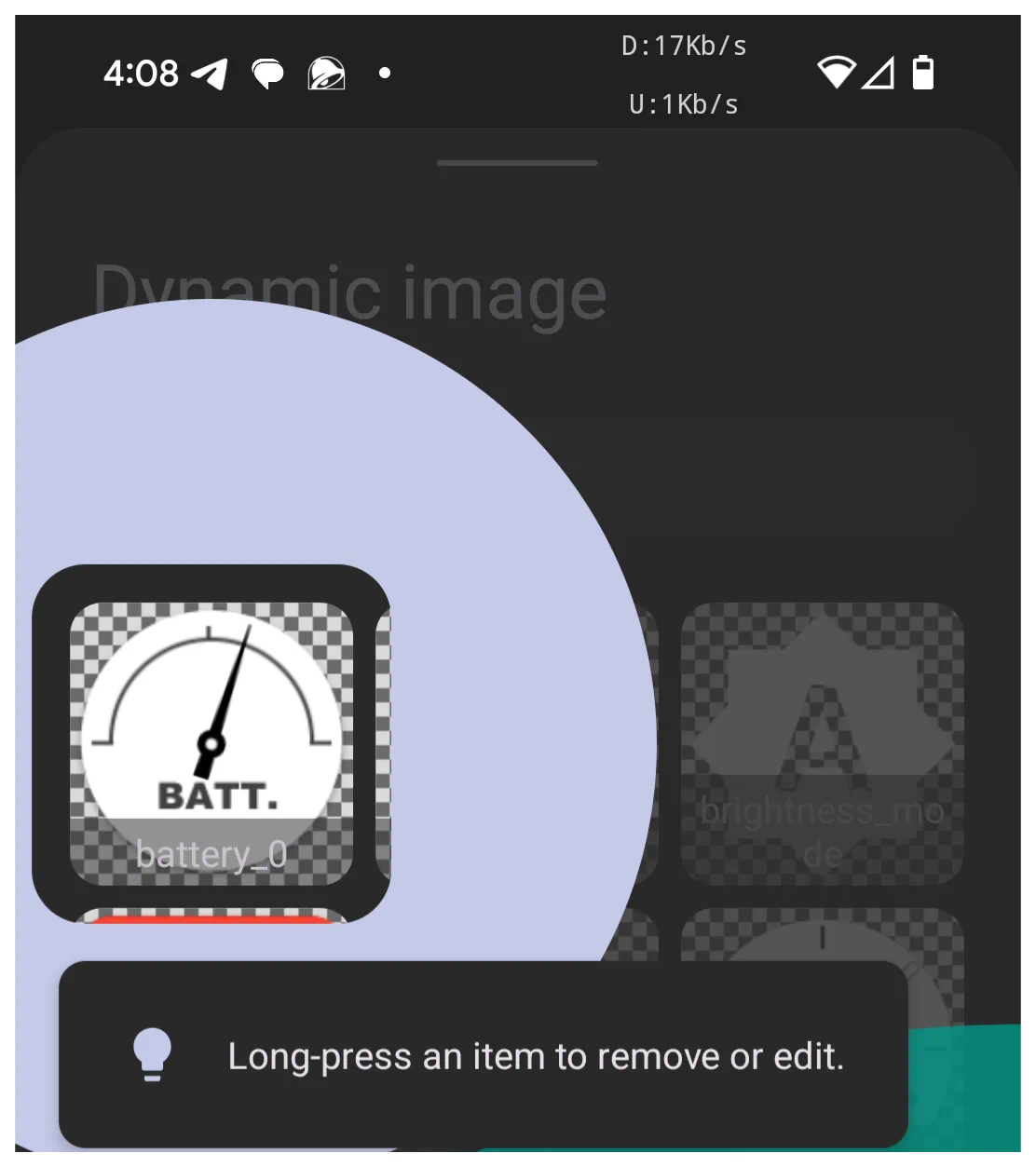
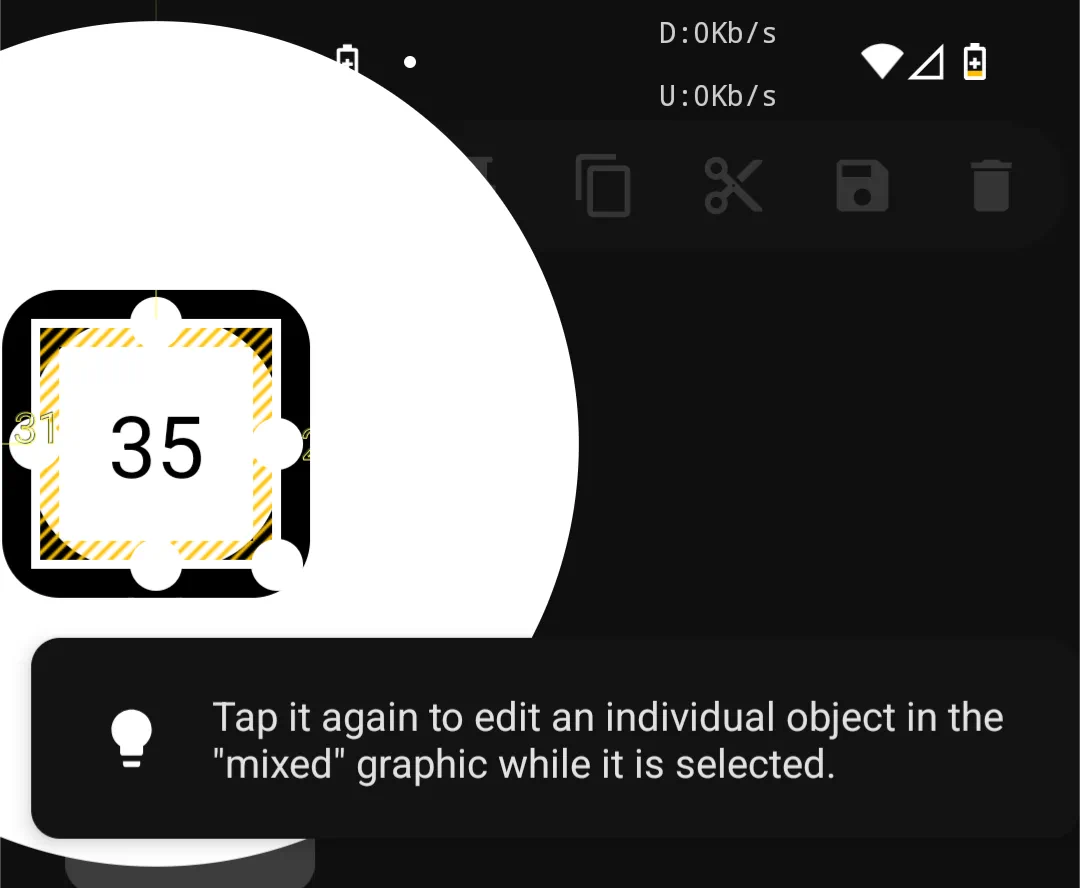
Two reminders are presented on this topic.
A dynamic object can be multiple objects grouped together. This is also termed a mixed mixed graphic if no dynamic elements are included. A long-press will enable editing and the modification of it's objects by the Options icon. Or another tap will reveal the Edit icons 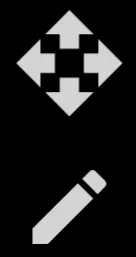 to move or or set size/finite position.
Dynamic Text - Permission
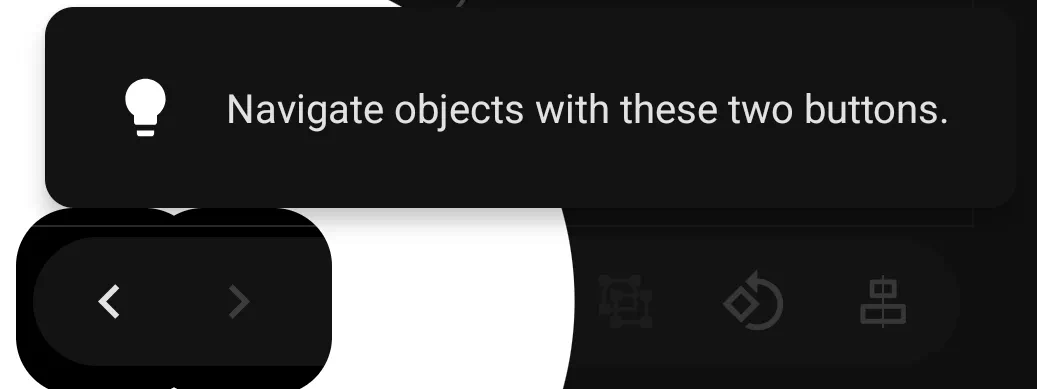
Text which changes based on a system resource (ram, storage, weather, etc.) or external data (using Tasker or MacroDroid to receive geo-location, weather data) requires an Android device permission. Total Launcher will show a notification if that permission has not been granted.
Edit Off
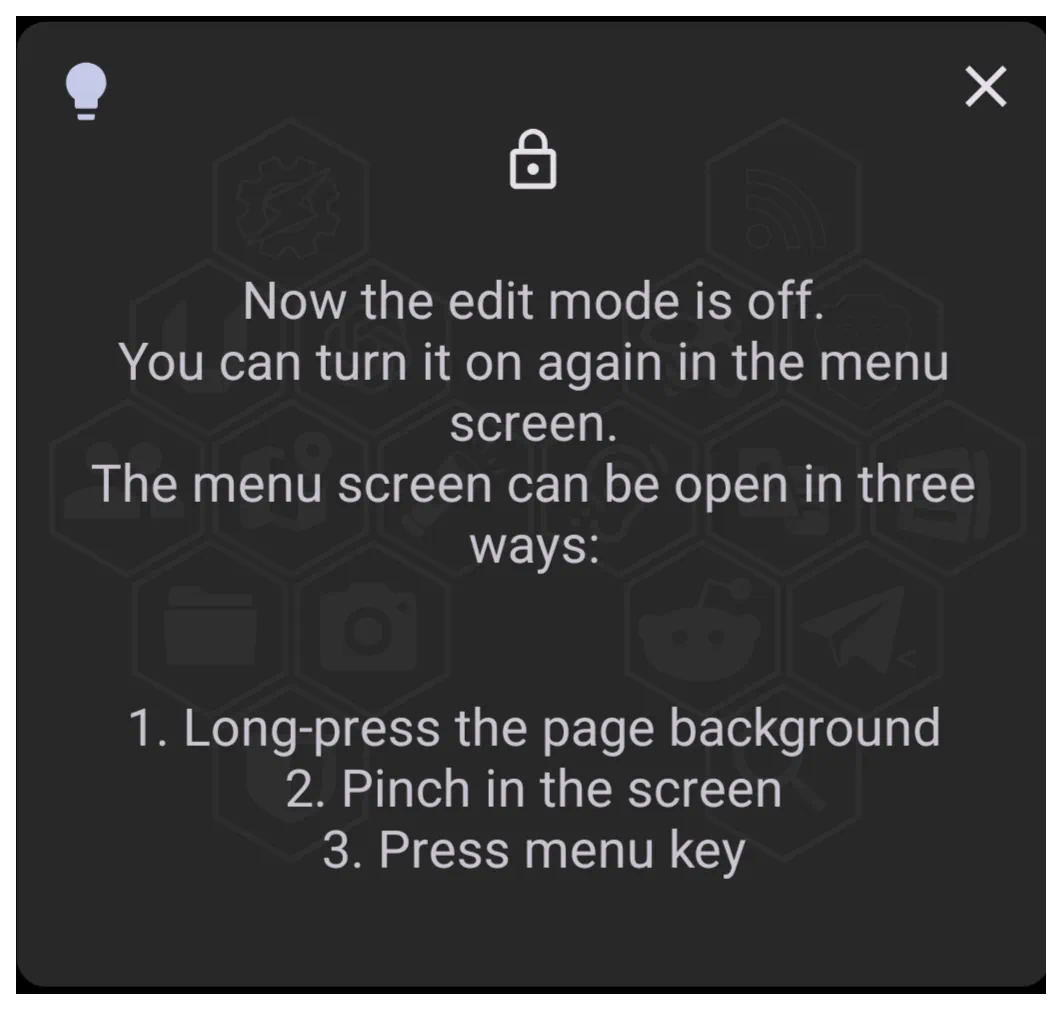
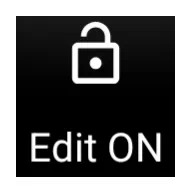
For early users, this is the initial reminder that Edit Mode must be in Edit On to work with objects. This is activated by:
- long press on any blank area of the screen
- pinch (in) anywhere
- Use the Menu key in the lower right which initially shows
 , when pressed changes to
Folder or Window Editing
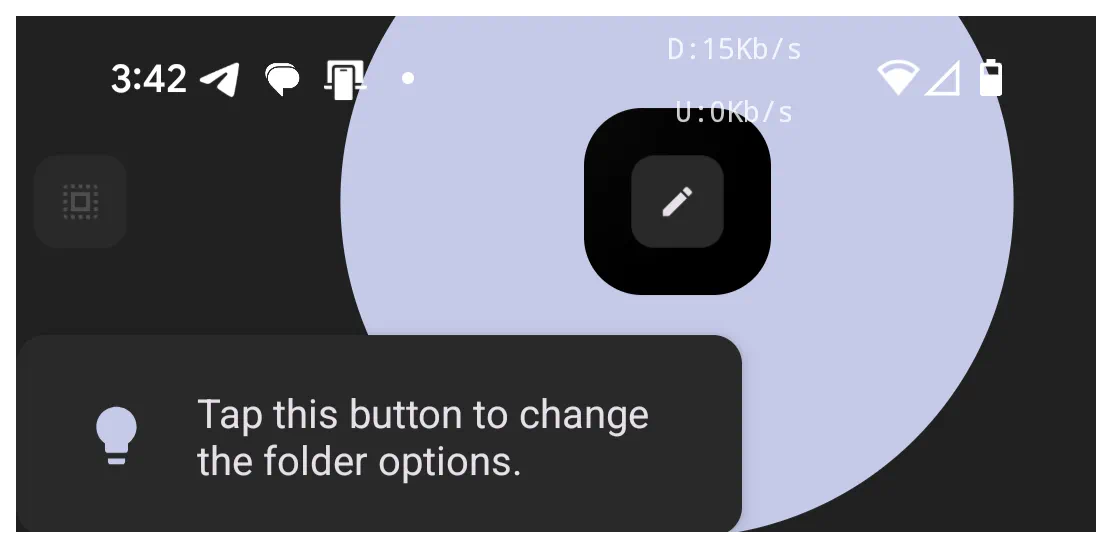
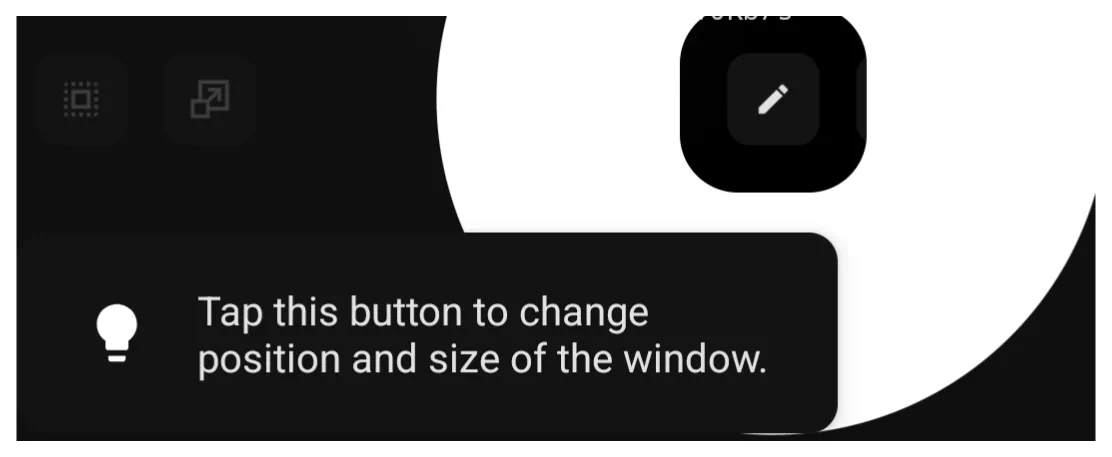
When in Edit On mode, and wishing to edit a folder or a window, look for the edit icon  in the Object Design menu at the top of the screen. This will open the necessary Edit dialog for making modifications.
Object Design Menu: Action
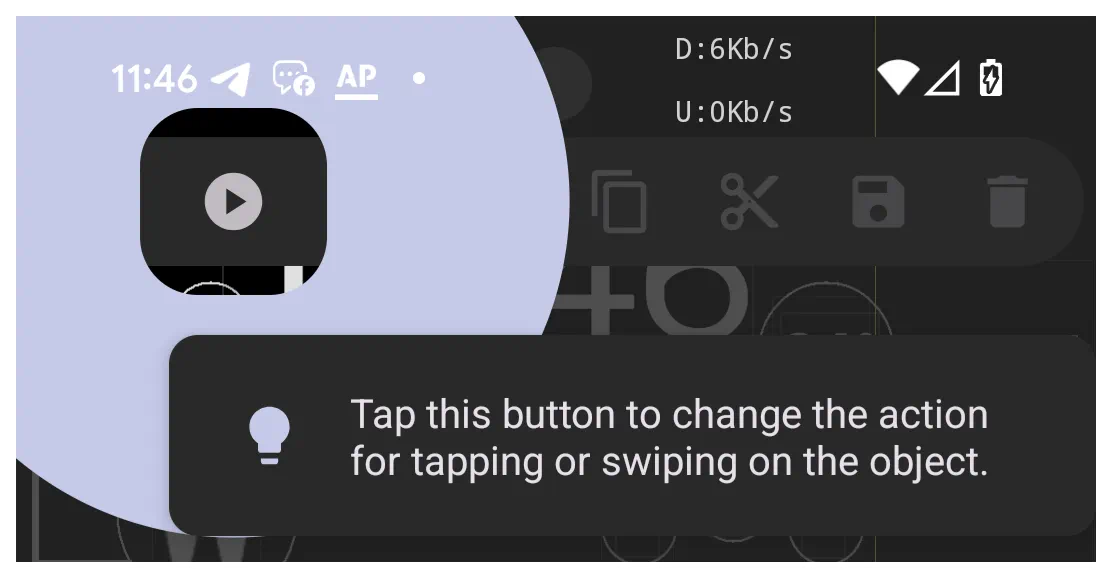
When in Edit On mode, the menu bar at the top of the screen has an Action icon  . This opens the dialog to select what the object (icon, folder, window, etc.) will do when tapped, swiped left (right, up, or down). This is the first action which will lead to a second one (such as open a specific app or folder or internet site url).
Object Design Menu: Add
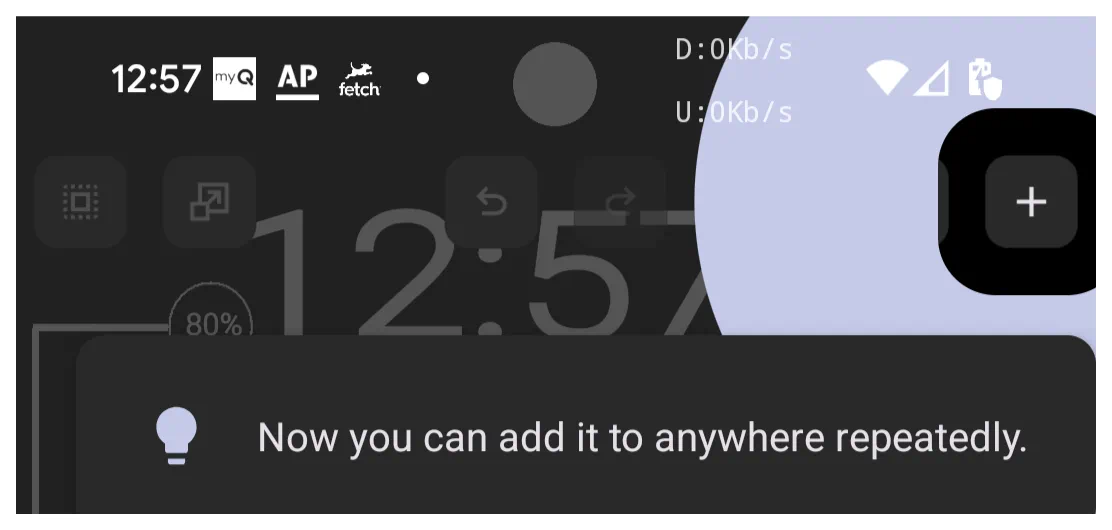
When in Edit On mode, the menu bar at the top of the screen has an Add icon  . Tap this icon to select the layout, widget, or graphic to add to the page and begin the design journey. This icon must be tapped each time an object is to be added, contrary to the “repeatedly” wording.
Object Design Menu: Group
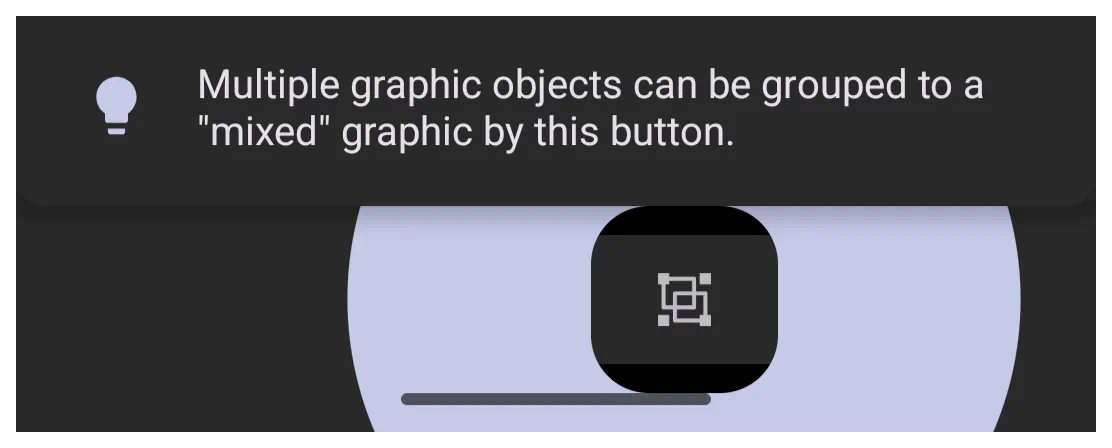
When in Edit On mode, the menu bar at the bottom of the screen has an Group icon  . which will cause selected individual objects (highlight by a selection border) to be treated as a single object when this icon is tapped. The multiple items must be previously and actively selected to be grouped as one. This is beneficial when relocating or saving a design multi-part object. However, editing any object within the group will required the “group” to be “ungrouped”.
Object Design Menu: Option
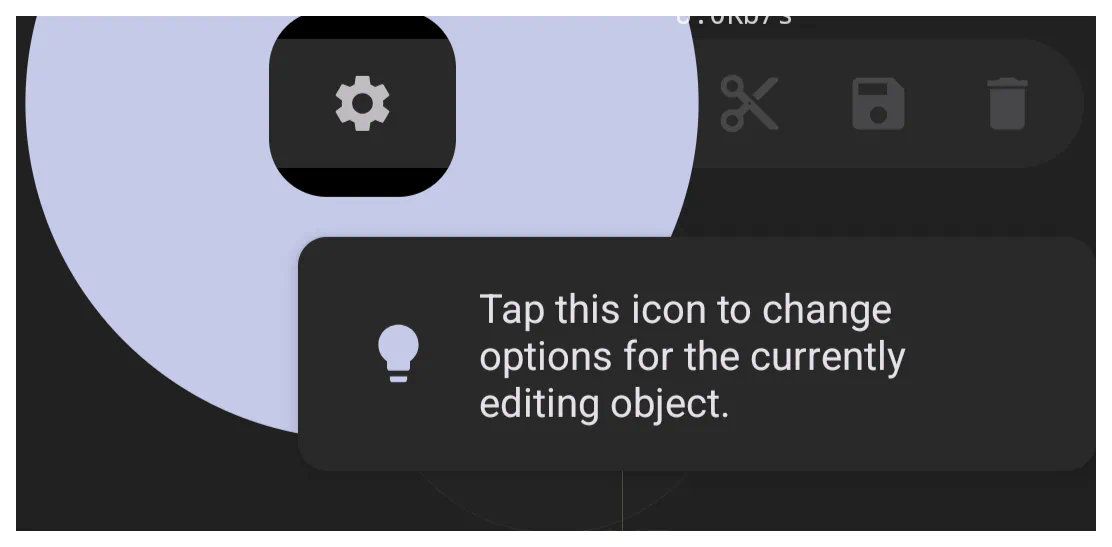
When in Edit On mode, the menu bar at the top of the screen has an Option icon  . which opens a dialog to modify the content and visual display characteristics of the selected object.
Object Design Menu: Paste
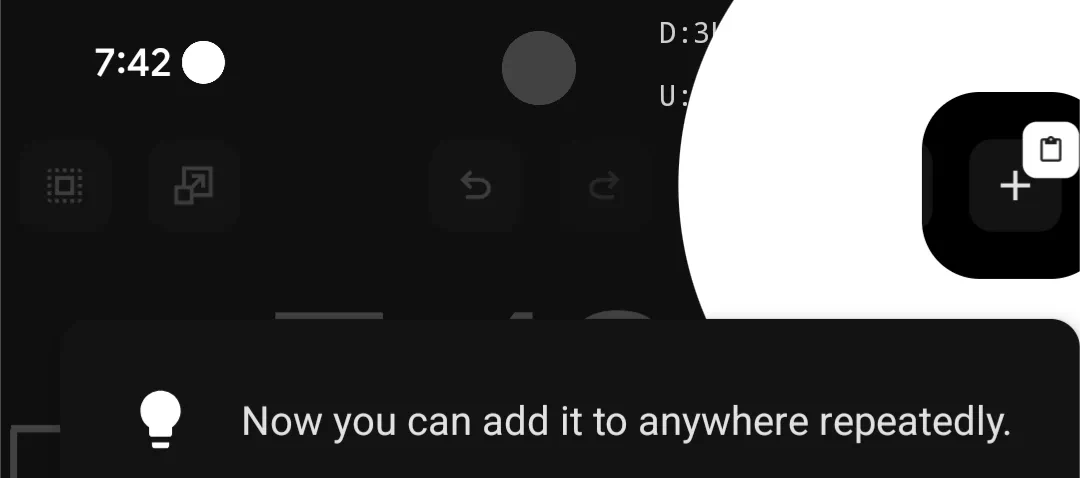
When in Edit On mode, the menu bar at the top of the screen has an Copy icon  which copies the selected object. After copying, the menu bar shows the “Paste” icon
  which will insert the copied object onto the page.
Object Design Menu: Pin
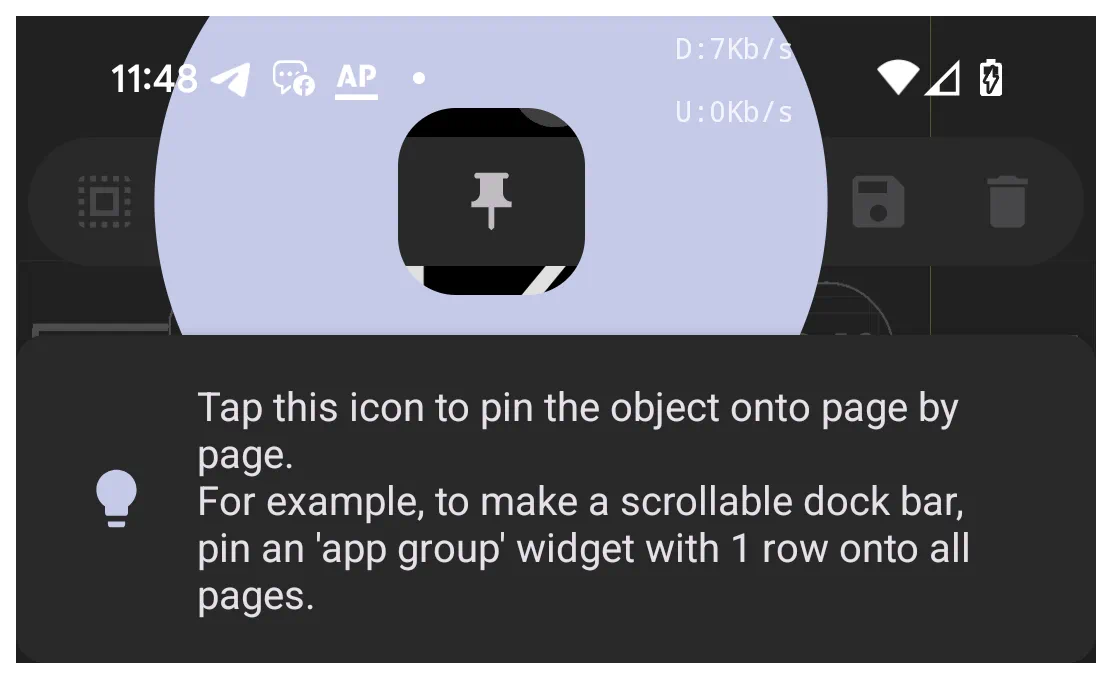
When in Edit On mode, the menu bar at the top of the screen has an Pin icon  which will cause the currently selected object and it's position to appear on all pages of the setup. As the tip suggests, it is an excellent way to place an app dock (1 or 2 rows) at the bottom of each page for easy app access. There are many other uses for this feature which is a way to provide consistency between pages when designing a multi-page setup.
Object Design Menu: Save
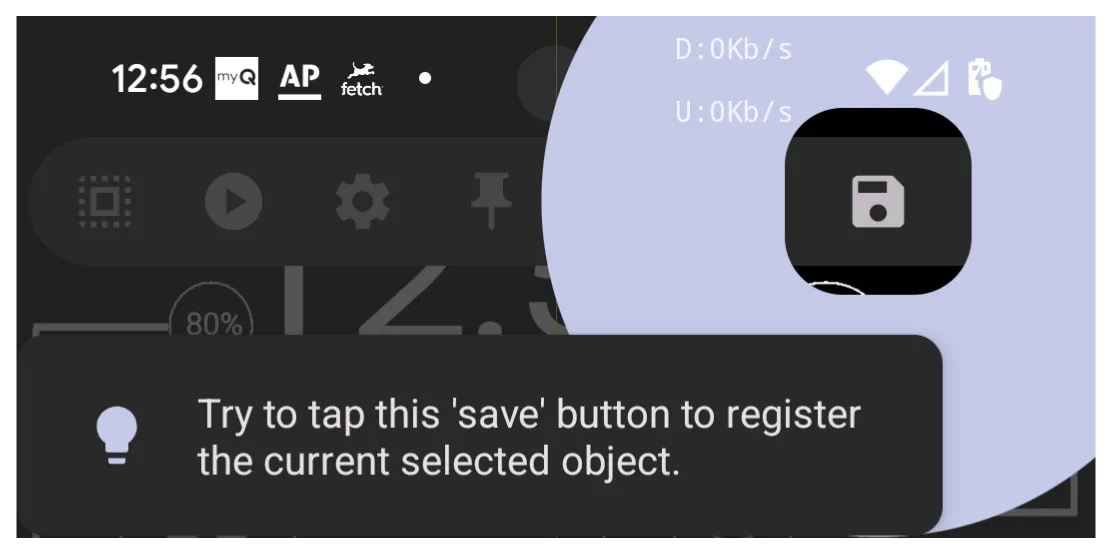
When in Edit On mode, the menu bar at the top of the screen has an Save icon  which, when tapped, will place the selected object in Total Launcher Resources as an object which can later be re-used. The “saved” objects can be accessed by the Object Design Menu (top) >
 Add > (select either layout, widget, or graphic) > Saved.
Object & Page Design Menus: Select
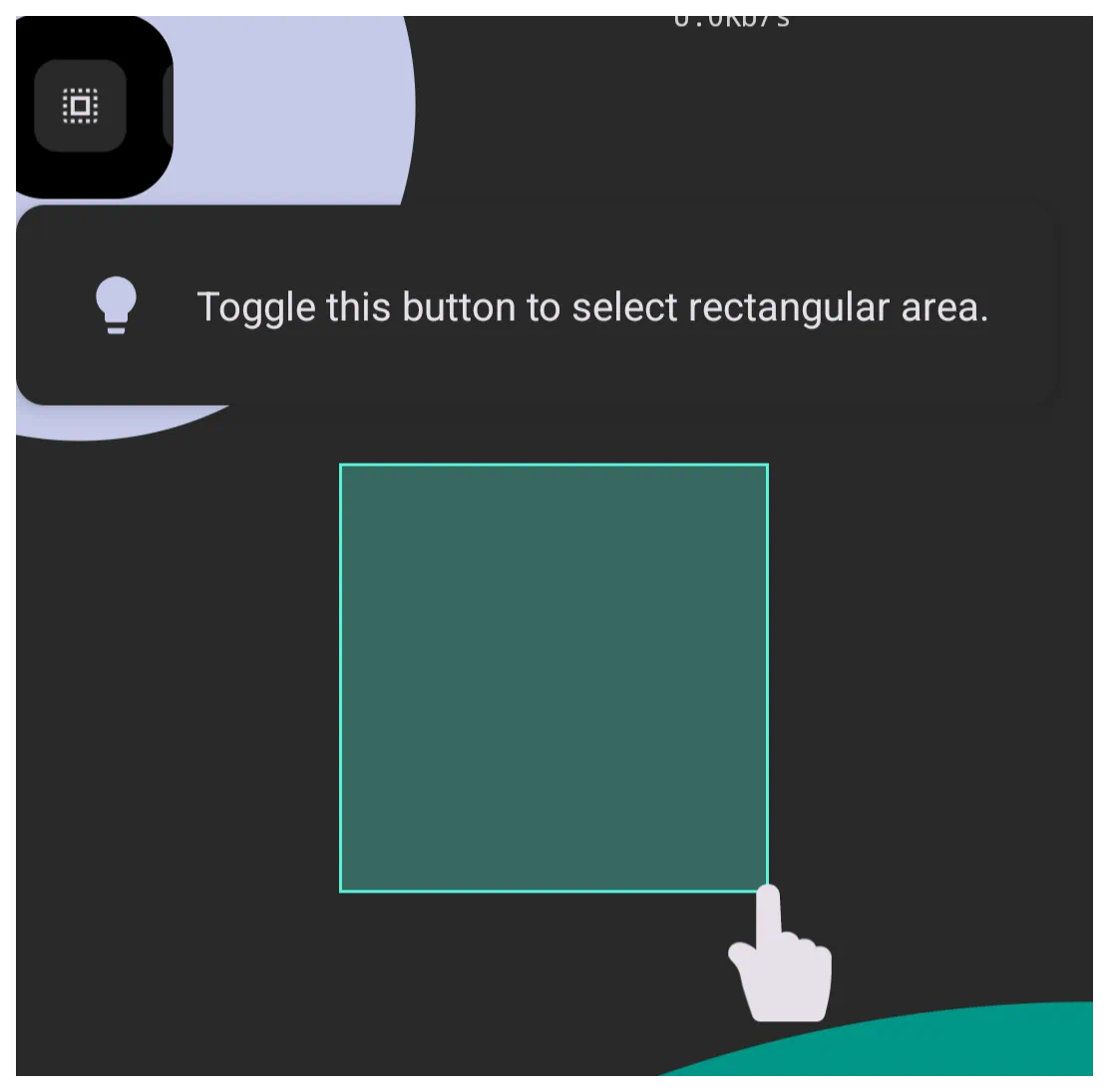
When in Edit On mode, the menu bar at the top of the screen has an Select icon  which makes selecting (highlighting) an object or multiple object very easy. There are two modes available after tapping the icon:
- Drag right-to-left: This will select only those object which are completely within the created drag boundary.
- Drag left-to-right: This selects any object(s) which are partially within the created drag boundary.
Page Design Menu: Paste
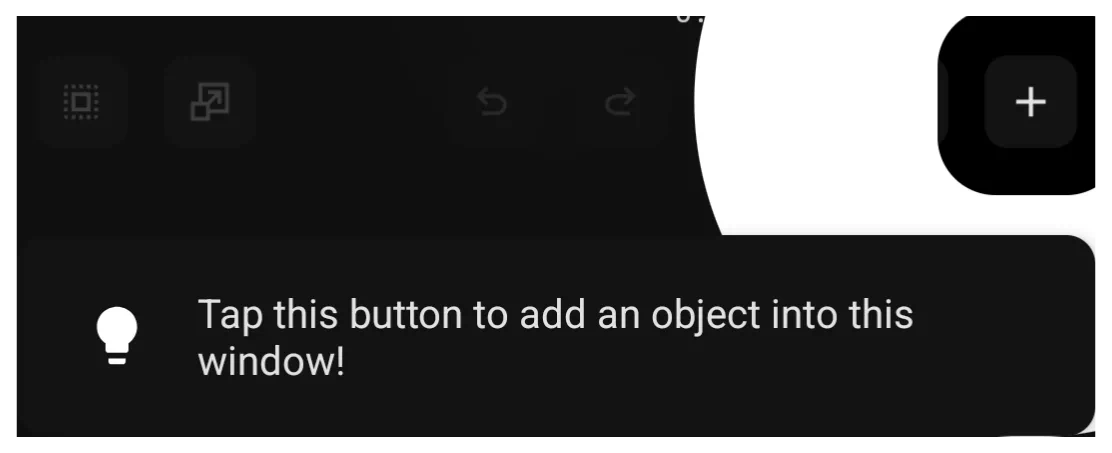
When in Edit On mode with a window open, the menu bar at the top of the screen (Page Design Menu) has an “Add” icon . Tapping this icon will open the “Add” dialog for selecting layout, widget or graphic objects. There is a procedure on "How to Create a Simple Window and Add an Object".
Object Edit - Move
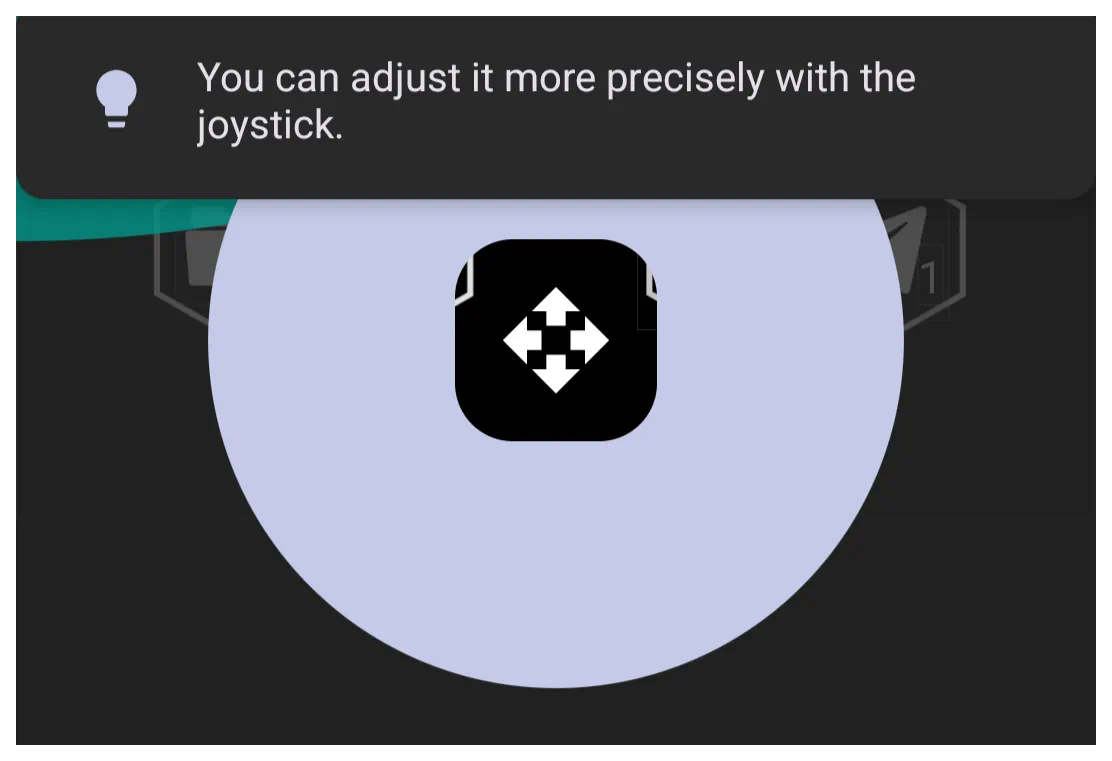
When in Edit On mode and an object is selected, for a brief time the Move icon  is displayed.
This tip refers to the icon as joystick but the uiTLM wiki uses the terminology move.
While the icon appears, dragging it will provide more definitive positioning of the selected object. But, be fast, it disappears quickly. Just select the object again and grab it fast.
Another similar icon  appears if the object boundary (right side) is tapped. The direction of the arrows indicate the movement is horizontal (left/right) only, but that applies to the size of the object boundary. Best used if the object is “text”. If “graphic” it will distort.
Finally, an edit option icon 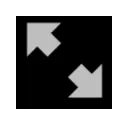 can appear if the object boundary (bottom right corner) is tapped. The diagonal direction will alter the size of the object's boundary, but it is proportional. Good for images and text based objects.
Resources - Delete

The Launcher's Resource areas is where it stores images, shapes, windows, dynamic images, shadows, typefaces, sounds, and sequences. In order to use these types of objects they must be “imported” into the appropriate resource. See Understanding Resources.
Over time the user may wish to remove unused items. The “tap & hold” will open a delete icon  in the dialog.
Comments & Feedback
Toby Lancer is ready to help! Look for the Quick Help form:
► Desktop: left sidebar located near the bottom for Private to Admin
► Mobile: 3-bar menu at page top.
► Use the Discussion section below to share any experiences and communications with other Total Launcher users.
► Any Registered User can directly update this and any wiki page if desired.
Moderation: To keep the manual clean, all comments are held for appropriateness review. Preview any comment before submitting it. It will not display after submission until reviewed. So, please, do not resubmit.
Formatting: If using any code snippets place them inside code tags (e.g., 'code') using double single quotes (') before and after to keep them readable.
Be Kind: This is a community effort. Please keep feedback constructive and on topic.
~~DISCUSSION~~