Launcher Menu - Edit On
Dialog selections are discussed below the image. To navigate to an item, select it in the [insert] image. If NOT selecting any item and wanting to return to the prior page: swipe right-to-left; use the browser’s ‘back’ arrow, or use the Wiki’s Backlink icon on the right sidebar (mobile: drop-down dialog at the top of the page).
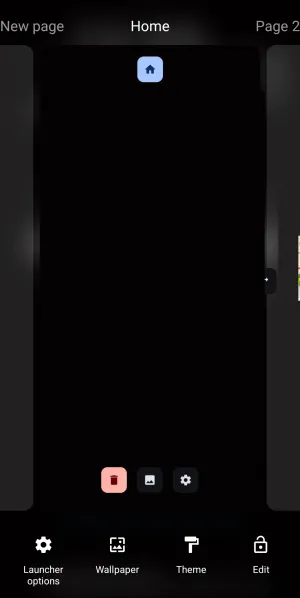
Launcher Menu - Edit On dialog. Make selection above.
- Edit
 : Edit mode is on. Note the 'lock' is unlocked! A tap here turns Edit mode off.
 - Home Page
 : A setup typically has a home page. This page loads when the setup opens or returns after an action completes. Tap this icon to set the focused page as the home page. The home page can easily be reset either by this dialog or by using a Launcher action Set Home Page To. On either side are additional pages. Scroll left or right to center the desired screen, then tap its home icon to set it as the home page.
 - New page
 : A
: A New pagelabel will appear as the last page of a multi-page setup. In the app, swipe right to reveal a new page; tap+to add one. In this demo, tapNew pageto begin the creation of a new page. - Delete
 : The displayed page is removed if tapped.
 - Background
 : To place an image or other object as a background, tap here.
 - Options
 : View the customization features for the page.
 - Launcher options
 : Tap to view launcher features.
 - Wallpaper
 : Set the wallpaper for the layout.
 - Themes
 : The developer has included selected theme collections available from Google Play.





===== Hidden Index Anchors ===== ui-edit_on-object ui-edit_on-page_option-label ui-edit_on-page-delete ui-edit_on-page_background ID6 ui-launcher_menu-theme ui-launcher_menu-edit_off
Comments & Feedback
Toby Lancer is ready to help! Look for the Quick Help form:
► Desktop: left sidebar located near the bottom for Private to Admin
► Mobile: 3-bar menu at page top.
► Use the Discussion section below to share any experiences and communications with other Total Launcher users.
► Any Registered User can directly update this and any wiki page if desired.
Moderation: To keep the manual clean, all comments are held for appropriateness review. Preview any comment before submitting it. It will not be displayed after submission until it is reviewed. So, please, do not resubmit.
Formatting: If using any code snippets, place them inside code tags (e.g., 'code') using double single quotes (') before and after to keep them readable.
Be Kind: This is a community effort. Please keep feedback constructive and on topic.
~~DISCUSSION~~