Table of Contents
Graphic Text Default
Dialog selections are discussed below the Graphic Text Default image.
In the TL app, the icons in the image below apply the feature's action to the selected object. On this wiki page, clicking the icon will navigate to the descriptions and demo below, unless noted in the next tip.
For the 3 text objects in the center of the Graphic Default Text image below, note that all are considered text. Even the “Text” bounded by the red is a “background” stretching out to the text's boundaries. It is not an image. Clicking any will navigate to the same related wiki page, which shows the options for modifying the ungrouped objects.
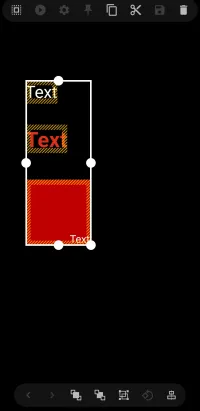
The image above shows how a page would appear after adding a graphic text object and selecting “default” as its action. The following text formats are shown:
- (1) Text
- (8) Text - Red
- (15) Mixed - Red rectangle with text in lower right corner
In Edit Mode and an Object is Selected
Object Design Menu (Top)
Notice the Object Design Menu at both the top and bottom of the screen. The icons in these menus indicate what will happen or which options are available for the selected object. Read below and view a demo of what happens when specific icons are selected. When completed, then go back to the Graphic Text Default image above and click the actionable icons:
- Action
- Option
TOP 
Selection
 - Once the selection icon is tapped, the user can drag left to partially intersect any object to select it, or right to fully select any object.

Action
 - enables the object's action when tapped or swiped, such as an application, folder, or calendar.

Option
 - the text elements, such as content, font size & color, built-in time and calendar events, etc.
 - Click this icon in the above image to navigate to the Edit dialog for the default text element.


Pin
 - With an object selected and then the pin icon tapped, the object will now be visible in its current location on all pages of the setup.


Copy
 - Creates a copy of the object, which can then be pasted using the Object Add (+) - Paste option. The new copy will be placed on top of the existing object but can be selected and moved to the desired location.


Cut
 - Removes the object from the screen location and allows the user to then paste the item to another location (such as another page) using the Object Add (+) - Paste option.


Save
 - places the object in the Resources folder for future access


Delete
 - Removes the object from the page with no saving


Object Design Menu (Bottom)
BOTTOM 
Selection: Back - Forward
 Back - Grayed out in this image (inactive) since all objects on the page were selected. If multiple unselected objects exist, the user can cycle through them by tapping the icon, then proceed with modifying the object.
- For both the back and forward icons, see a demo here .
 Forward - Grayed out in this image (inactive) since all objects on the page were selected. If multiple unselected objects exist, the user can cycle through all objects by tapping the icon, then proceed with the object modification.


Z-order: Front - Back
 Front - Grayed out in this image (inactive) since all objects were selected. If multiple overlapping unselected objects existed, this would bring the selected object to the front “layer” to appear before other objects.
 - For both the Z-order Front and Z-order Back icons, see a demo here .
 Back - Grayed out in this image (inactive) since all objects were selected. If multiple overlapping unselected objects existed, this would move the selected object to a “layer” behind other objects.


Group
 Group - While the three objects in this image are selected, they are currently separate objects. Tapping this icon groups the three objects into a single object. This is beneficial when moving the group items at the same time.


Rotate - Transform
 Rotate - Transform - Grayed out in this image (inactive) since more than 1 object is selected. If only a single object is selected, tapping the icon will open the rotate-transform dialog to rotate the object around its x or y axis and transform the object's rotation, scaling, and translation… It's complicated; just experiment to learn.


Align
 Align - Grayed out in this image (inactive) since all objects in the image were selected. If multiple objects exist, the user would tap the align icon, which would reveal a horizontal or vertical alignment bar when intersecting with another object. This is useful for centering or matching top/bottom areas of objects.


The action trigger for the example text objects in the image was set as default (actually “Do nothing” but can now be changed.
- If this were the actual launcher app, the user would just tap
Action in the upper left of the screen, while pressing it in this interactive demo will actually navigate to the “Action” description on this page, which includes a demo video of the action.

The other “Action” alternatives themselves are shown by tapping the “Option”  icon in the upper left of the screen. Pressing here in this interactive demo will actually navigate to the Option's “Actions” dialog for the selected object. These are discussed briefly below:
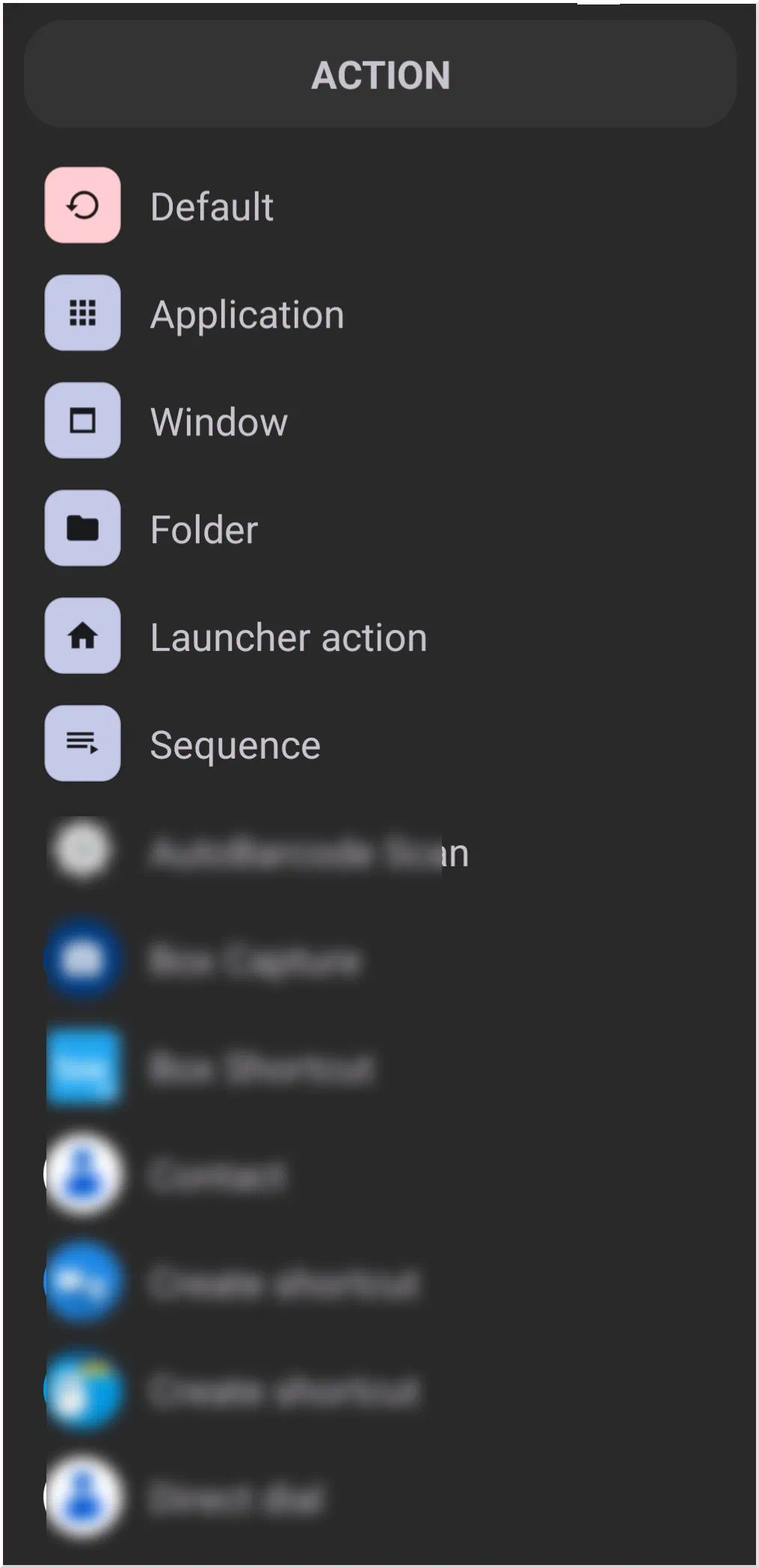
- Application - the text would default to the name of the application, and its tap action would be to activate the application
- Window - the Resource:Window dialog would open to allow selection or creation of a window object into which the text object would be placed. See the section on window or continue in this ui navigation to explore the window aspect of graphic text action.
- Folder - The folder dialog would open, listing any user-created folders or allowing the user to create a new folder as the landing spot for the text action. See the section folder or continue in this ui navigation to see how it could be used.
- Launcher Action - These are built-in actions of this launch, such as to the home page, open the right drawer, change wallpaper, launch calendar, and many more. See the section on Launcher action or continue in this ui navigation to explore these varied actions.
- Sequence - These are a series of user-created actions the Launcher will execute. A general term to describe this could be “macro,” which provides for linear execution of instructions (no branching or “if this, then”). See the section on sequences or continue in this ui navigation to explore the feature.
===== Hidden Index Anchors ===== ID16|1 Text@10,79,62,105 ID17|Text - Red@11,122,69,155 ID18|Red rectangle with text in lower right corner@12,178,94,250
Comments & Feedback
Toby Lancer is ready to help! Look for the Quick Help form:
► Desktop: left sidebar located near the bottom for Private to Admin
► Mobile: 3-bar menu at page top.
► Use the Discussion section below to share any experiences and communications with other Total Launcher users.
► Any Registered User can directly update this and any wiki page if desired.
Moderation: To keep the manual clean, all comments are held for appropriateness review. Preview any comment before submitting it. It will not be displayed after submission until it is reviewed. So, please, do not resubmit.
Formatting: If using any code snippets, place them inside code tags (e.g., 'code') using double single quotes (') before and after to keep them readable.
Be Kind: This is a community effort. Please keep feedback constructive and on topic.
~~DISCUSSION~~