How To: Make A Window Full Screen (Hide The System UI -or- Stretch The Contents)
For setup designs that use windows, the user may want the window to open in full screen so it is the focused object.
Toby says  the full screen result may require 3 adjustments:
- The System UI: Android usually reserves a slim portion at the top of the screen for the status bar. Some users may hide the status bar (
Launcher Options>UI & Animations>Hide status bar) and while the bar is hidden, its space remains. See below on how to Overlap system UI - Window Option Edit allows the setting of Full height
- ** Window Resizing** can be done manually by dragging the boundary or with the
 icon to enter exact height and width as well as x/y coordinates.
- Remember to check the contents of the window as well. If the window contains a shape or widget that does not extend to its boundaries or if the widget has margins which prevent it from resting on the window's edge, adjust these.

| Description | Image |
|---|---|
| I can't make the window any larger. |  |
| The reason is that the System UI is reserving space at the top of the page. In order to hide this: • navigate to Edit mode > Launcher options > UI & Animation > Overlap system UI• activate the button. |  |
| Window Options Edit Full Height ☛ • Must be turned on for this to work. | 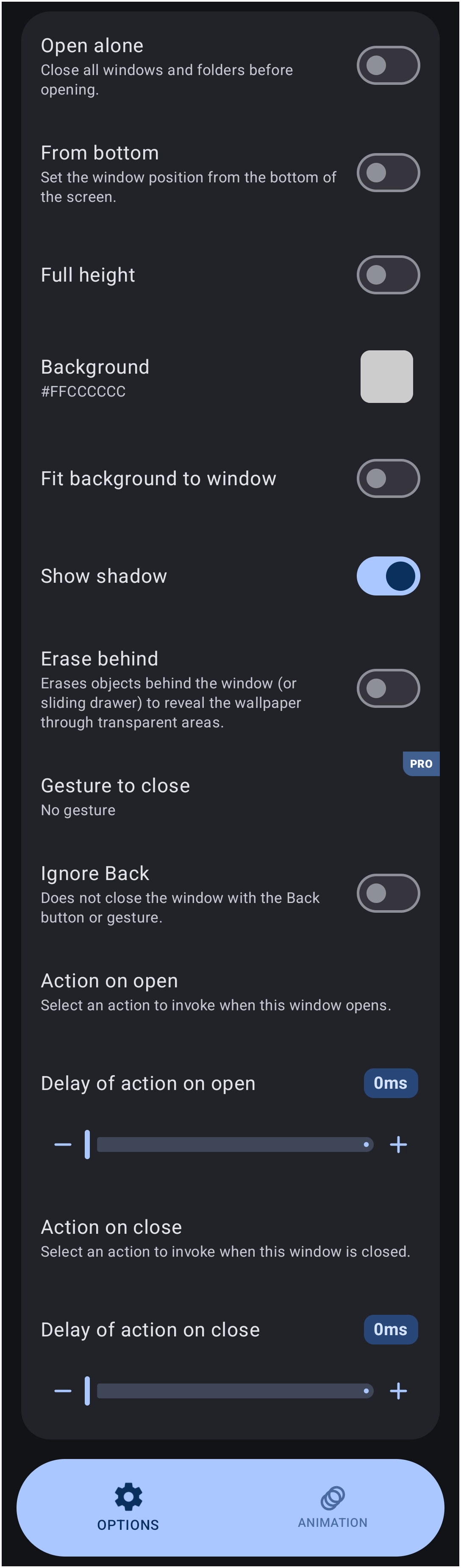 |
| Or try this: • Not only expanding the window container but also the window contents. |  |